

iOS 9 is the next major update for iPhone, iPad, and iPod touch, bringing a variety of helpful refinements to iOS, some new features, a new system font, a handful of new wallpapers, and a bit more. While many users want to just tap on the update button without doing much else as soon as they see the new version available, we’ll cover a more thorough approach here.
1: Check the iOS 9 Supported Hardware List
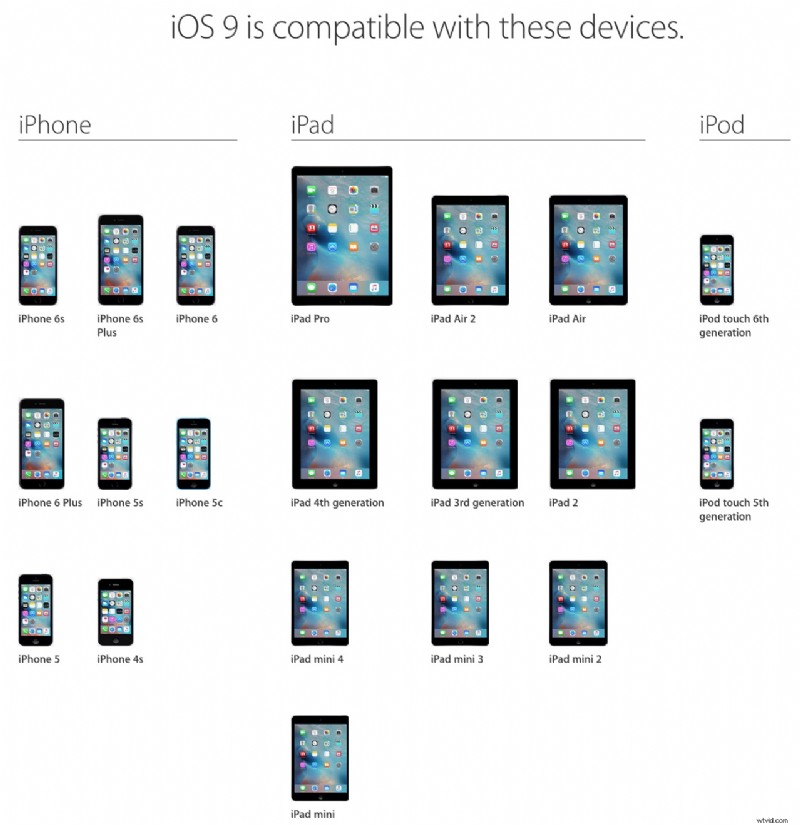
The supported devices list for iOS 9 is pretty forgiving, and basically if an iPhone, iPad, or iPod touch can run iOS 8, then it can also run iOS 9.
This includes the iPad Air, iPad Air 2, iPad Mini, iPad Mini 3, iPad Mini 4, iPad 4, iPad 3, iPad 2, iPhone 6, iPhone 6 Plus, iPhone 6S, iPhone 6S Plus, iPhone 5S, iPhone 5c, iPhone 5, iPhone 4S, and the iPod touch 5th and 6th generation models. Not bad, right?
2a: Consider Not Updating …Wait, What?
Ok so your device is in the compatible hardware list, but should you actually update it to iOS 9? For most users, the answer is yes, and if your iPhone, iPad, or iPod touch is new or fairly new, then by all means, update if you want the new features in iOS 9. But we tend to be more cautious recommending new system software for users with older hardware, and the reason is quite simple; performance of older devices often degrades after installing new iOS versions.
This is a typically fairly controversial recommendation and users have different reports, but it would be wise to be cautious before installing iOS 9 on any older hardware, particularly the Phone 4S, iPad 3, iPad Mini, and iPad 2. Some users have noticed even newer hardware is laggier with iOS 9 than it was with iOS 8.4, but that is purely anecdotal at this point, and it should be noted that temporary slowdowns can be experienced after updating system software as features like Spotlight index the device.
Ultimately it’s the users decision to update or not, but if you like the way your device performs now, consider keeping it that way and staying where you are. At the very least, do be aware that it’s possible it could run slower if you update iOS, and you’ll have a fairly short window of time where downgrading is possible before you’re stuck.
3: Clean House, Update Apps
It’s a good idea to clean up and delete apps you aren’t using any more, and to update your apps that need updating. This isn’t necessary, but it’s good maintenance practice. Updating apps is a good idea because many are updated to support or use features that are parts of new iOS releases, and if you don’t update them, you would lose those benefits.

It’s also worth pointing out that keep apps updated along with iOS updating can also prevent and resolve random app crashing in iOS too.
4: Back Up the iOS Device
You probably already backup your iPhone or iPad regularly, right? If not you should. It’s easy to backup to iCloud or iTunes, if not both, and it’s particularly important to do this before installing system software updates.
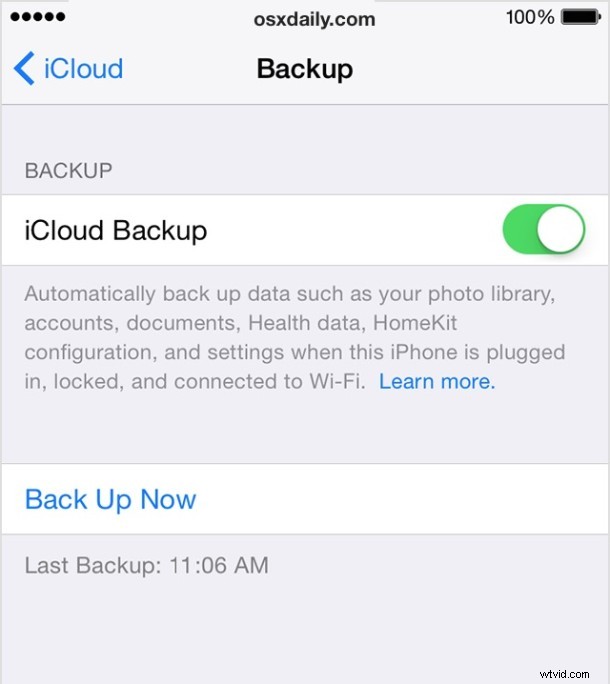
Whatever you do, don’t skip making a backup. If you fail to make a backup and something goes wrong in the iOS update process, you will lose your data. It’s that simple. Don’t skip the backup!
5: Install iOS 9!
Now that you’ve determined your device is eligible for iOS 9, you’ve determined you want to run iOS 9, you’ve cleaned up your apps and updates them, and backed up your device, you’re ready to install iOS 9 when it’s available to you.

And yes, technically if you’re impatient you can install iOS 9 right now, but you’ll need to use IPSW files and get them from a trusted source like a friend with an iOS developer account. Most users should just wait until it’s available to everyone though on September 16, though iOS Public Beta testers also have the opportunity to install iOS 9.1 beta right now too.