
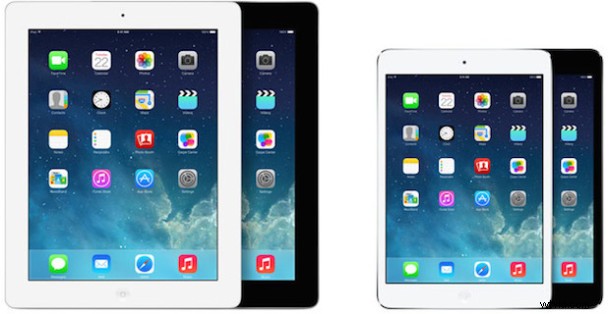
Knowing an iOS devices serial number is useful for a wide variety of reasons, from checking warranty status, determining if it’s eligible for a free repair from Apple, checking unlock status, checking for iCloud Activation Lock, insurance purposes, repairs, registering a phone for a variety of services, amongst other reasons. We’ll show you how to find the serial number on any iPhone, iPad, or iPod, quickly.
There are two ways to quickly uncover the serial number of any iPhone, iPad, or iPod touch, one of which is done directly on the device itself through the iOS settings application, and another which can be accessed on any connected computer through iTunes. It doesn’t matter which method you use, if the device is the same, the serial number attached to it will be the same too.
Finding iPhone / iPad Serial Number in iOS Settings
For every iPhone, iPad, or iPod touch, regardless of system software version, you can find the serial number of the device through iOS Settings:
- Open the Settings app in iOS if you haven’t done so yet
- Go to “General” then choose “About”
- Scroll down to find the “Serial Number” entry, this alphanumeric code is the devices serial number you are looking for
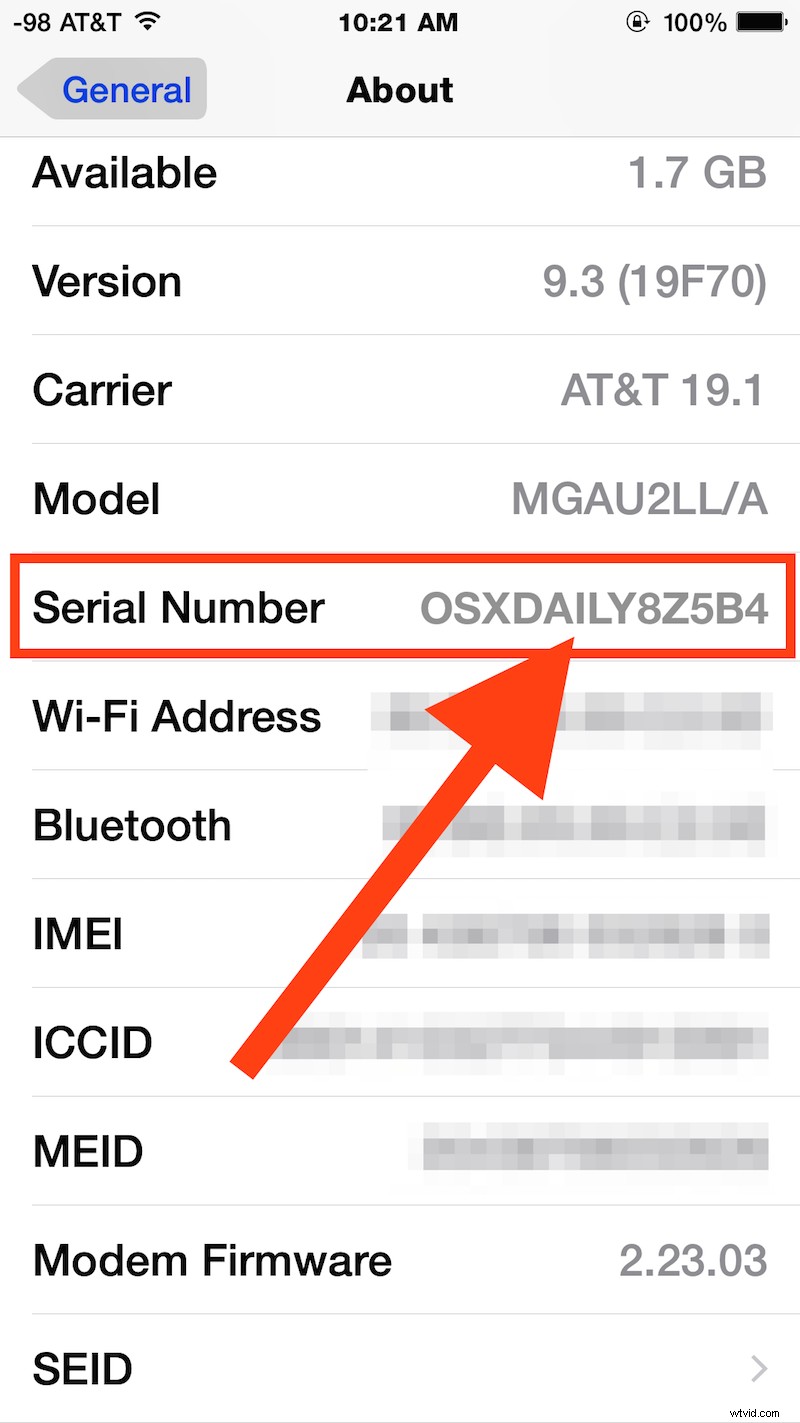
That applies to all versions of iOS and on any iPhone, iPad, or iPod touch model.
If you’d rather find the serial number of an iOS device from a computer, you can do that too with iTunes.
Find an iOS Device Serial Number from iTunes
You can also quickly retrieve an iOS device serial number from iTunes by doing the following:
- Connect the iPhone, iPad, or iPod touch to the computer with a USB cable
- Open iTunes and select the iOS device
- At the primary “Summary” screen for that device, look for ‘Serial Number’ – for an iPhone it will be underneath the capacity and phone number
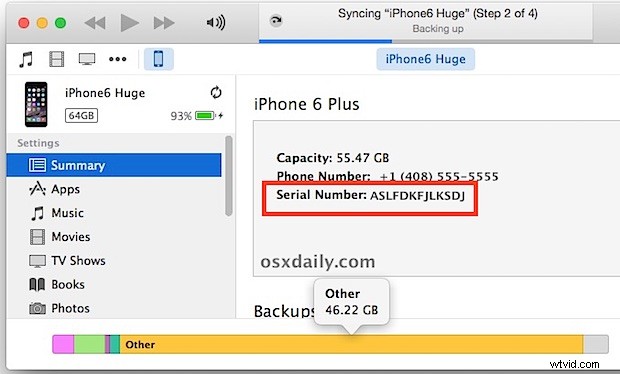
As you can see neither of these methods are particularly complex, though unlike finding a serial number of a Mac, you can’t have it spoken to you without enabling separate text to speech settings in iOS.
It’s worth mentioning another method to find an iPhone serial number or iPad serial number: the box it came in. If you still have the original box that the device shipped in, the serial number will be printed on the outside of the box with the other defining specs of the hardware. This can be helpful in particular if you don’t have physical access to the device but you do have access to the box.
Though the serial number may look totally random, serial numbers are assigned to devices in an orderly way, with details about the devices factory and machine ID, the week of production, the year it was manufactured, the color, and the storage size of the model. You can decipher this information about the device by reading the serial and knowing the format as it applies to the iPhone or iPad, though it does vary per model and per device.