
 We’ve all been there; you want to change a setting on your iPhone, iPad, or iPod touch, but you can’t remember where that preference or option is located in the Settings app. Fortunately, thanks to a search feature built into the Settings app of iOS, you no longer have to wonder and poke around to find a particular setting, you can just search for it by typing it into a hidden settings search box.
Settings Search requires a modern iOS version, and as mentioned, similar to the general Search feature in iOS, it’s somewhat hidden, so don’t be surprised if you haven’t seen the search box within the Settings app yet. Not to worry, it’s easy to use, and we’ll show you how to access this handy feature.
How to Search Settings in iOS
Use this to quickly find and access settings in iOS:
- Open the Settings app on the iPhone, iPad, or iPod touch
- At the primary Settings app screen, tap and pull down on the settings screen to reveal the “Search” box at the top of the Settings screen
- Type your search parameters to find the matching options in Settings app, then tap on any of the results to jump immediately to that portion of the Settings app
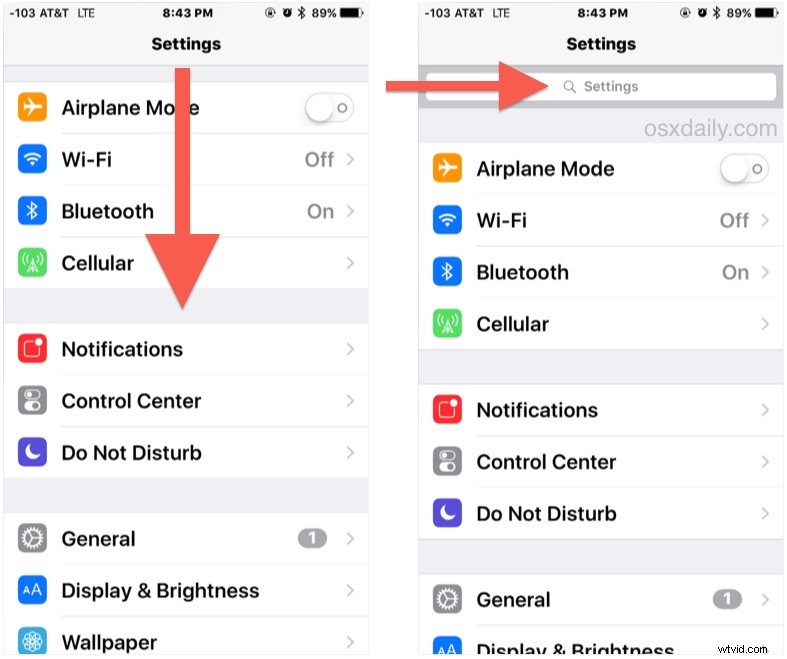
You’ll notice the search results also have the path to the setting within the Settings app itself, which can make this a useful assistance tool for locating where an option is located and either memorizing it yourself, or relaying that to someone else.
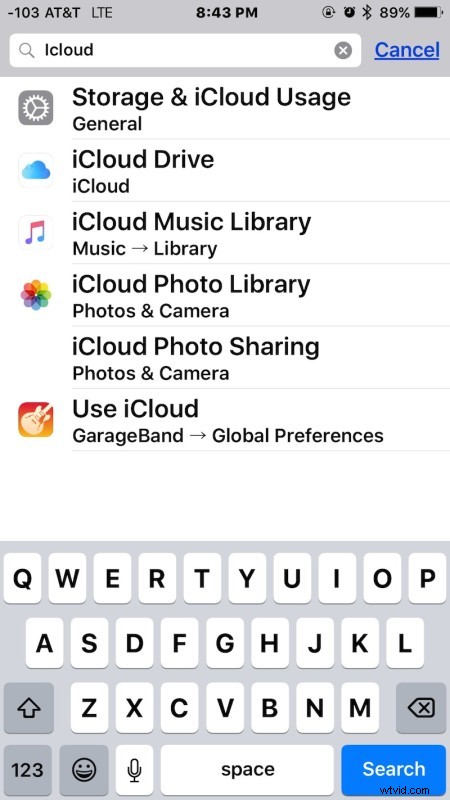
This is obviously much easier than fishing around aimlessly for a given setting, particularly since some settings are spread throughout iOS Settings app and not always in the most obvious locations. As you can see in the search example above, various iCloud settings are located in six different places within the Settings app.
The video below demonstrates the Settings Search feature in iOS on an iPhone, as you can see it’s quick and easy to use:
As iOS gains additional features and complexity, Settings Search becomes ever more useful, so the next time you’re wondering where to change a preference or make an adjustment, don’t forget this feature exists, it’s sure to make your life a bit easier.
Of course, another option is to rely on Siri, though Siri is a bit more limited. Nonetheless, you can also open specific settings with Siri by making a request, and you can even have Siri make changes to some settings too by issuing a proper command too.
The ability to search Settings is limited to the newer versions of iOS system software, anything past version 9 will have the capability whereas earlier releases do not. So if you’re up to date on iOS 12, iOS 11, 10 or onward, you’re absolutely covered with iOS Settings Search!