
Are you looking for a specific note on the Notes app of your iPhone or iPad, but you can’t quite remember which note it was or where to find it? Maybe you have a bunch of notes and you want to quickly get to one about a particular topic? No problem, you can search through Notes in iOS by keywords or search terms instead, and the search will offer matching notes to whatever phrase or word you’re looking for.
Searching within Notes offers the quickest way to locate a particular note, and it provides a great solution for quickly sorting through and browsing through large notes collections. As is often the case with search tools in iOS, the Search box is a bit hidden and thus it’s easy to overlook or not even realize it exists – not to worry, it’s super simple to find and use, as we’ll demonstrate.
How to Search Within Notes for iPhone and iPad
- Open the Notes app on the iPhone or iPad if you have not done so already
- At the primary notes listing screen, tap and hold while pulling down on any note to reveal the “Search” box at the top of the screen
- Tap into the “Search” box in Notes
- Type the search term, word, phrase, or keyword to search Notes for and return matching notes
- Tap on any of the found Notes to open that matched note directly within the iOS Notes app


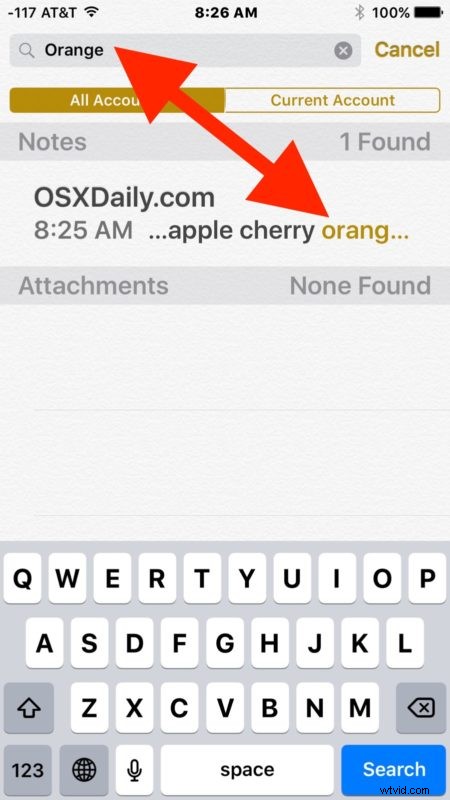

In the example above, we searched for the term “orange” and found one matching note with the text matching ‘orange’ in that note.
Searching Within Notes on iPhone & iPad from Sharing Menu
You can also start a Notes search from the Sharing action menu in the Notes app on iPhone and iPad.
- Open a Note in the Notes app and then tap on the Sharing button (it looks like a box with an arrow flying out of it)
- Locate “Find in Notes” and use the search field to enter the keyword, phrase, text, or match you are looking to find in the notes
It does not matter which method you use to search Notes on iPhone or iPad, both will work the same.
You can search for any word, phrase, term, keyword, or other text or numbers to match, and any matching notes will be found and listed. While notes that have drawings in them will be returned as well if there it included text which matches a phrase, you can’t search for a specific drawing by a description of it (yet, anyway). Additionally, only the names of password protected Notes in iOS will turn up but content within the password protected notes will not display or be searched.
The searched notes will include whichever notes collection you are in, whether those are Notes stored in iCloud or notes stored locally on a device, or even shared Notes.
Most iOS apps with large amounts of data offer a search feature, including searching on web pages in iOS Safari, searching in Messages on the iPhone or iPad, searching in Reminders in iOS, searching for descriptions or objects in Photos for iOS, and much more.
Oh and by the way, if you prefer to search by voice, than you can also perform basic searches of Notes as well as some other tasks by using Siri to find, make, and modify notes data too.
Do you know of any other interesting Notes tricks? Do you have some search tips or tricks for uncovering information in the Notes app on iOS even faster? Share with us in the comments!