
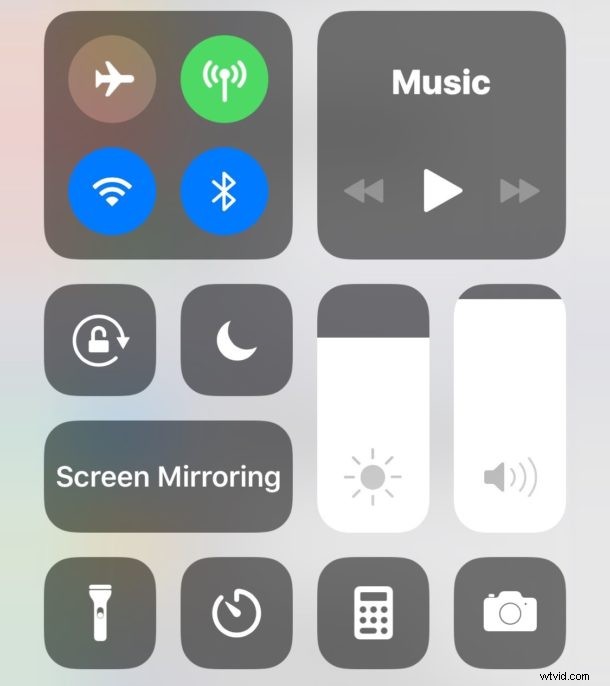
iPhone and iPad users can now customize Control Center to better suit their needs. For example, if you frequently use Voice Memos, Notes app, Stopwatch, Magnifier, or the Alarm feature, you can add those to Control Center for ultra-fast access from anywhere in iOS. Or if you never use the Flashlight feature or Camera via Control Center, you could remove those from Control Center too.
Customizing Control Center is a great way to personalize the quick-access controls which are available from anywhere in iOS, here’s how it works.
This feature is available on iPhone and iPad and it works the same on both device, but you will need a modern iOS version to have the capability to customize Control Center, anything beyond iOS 11.0 or newer will have the functionality.
How to Customize Control Center in iOS
Customizing Control Center is demonstrated on iPhone here, but it works exactly the same on iPad too. Here’s what to do:
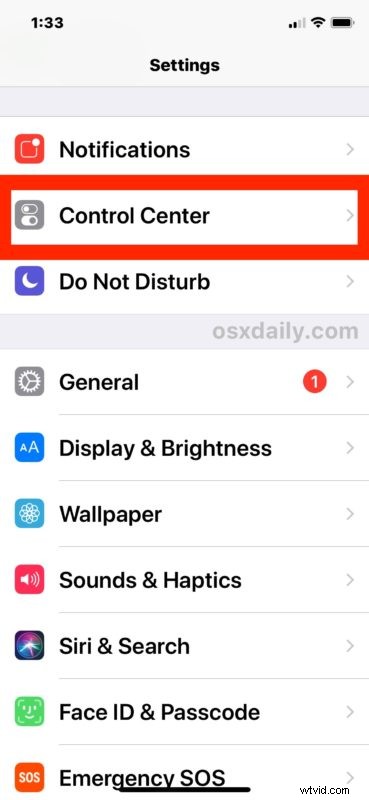
- Open the “Settings” app on the iPhone or iPad
- Tap on “Control Center”
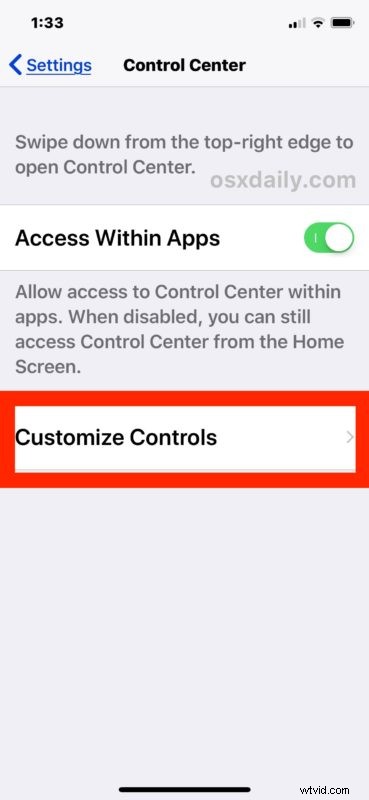
- Now tap on “Customize Controls” where you will be able to add or remove options from Control Center:
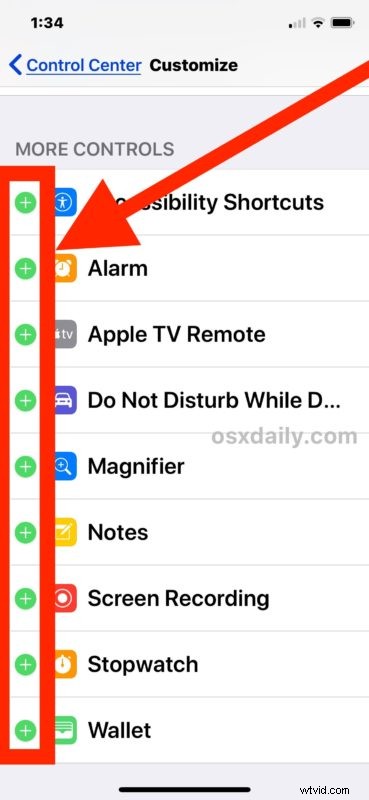
- To add new control options to Control Center, scroll down and tap on the green (+) plus button next to a control feature name. After the green button is pressed the item will pop to the top of the Customize section and be included in Control Center
- To remove control features from Control Center, tap the red (-) minus button next to control center features at the top of the settings screen. If an item is removed from Control Center it will appear on the bottom of the Customize list
- Access Control Center in iOS to see the changes to control center you made *
- When satisfied, exit out of Settings as usual

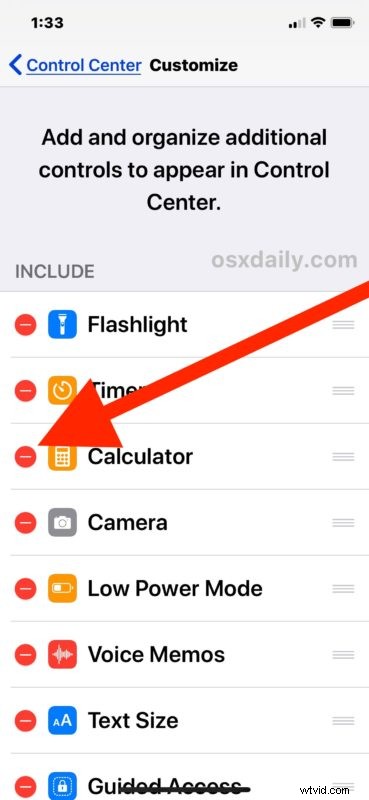
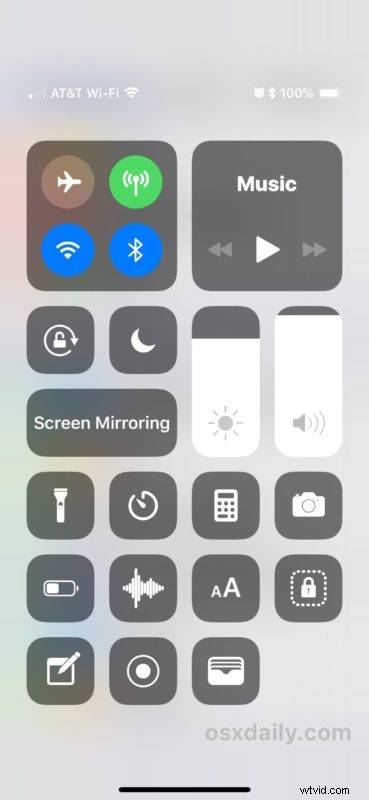
That’s it, you have now customized Control Center in iOS. You can do this at anytime, so if you enabled or disabled a setting you wish you hadn’t, just go back to the Control Center Settings panel and adjust again as needed.
* For the unfamiliar, accessing Control Center on iPhone and iPad is accomplished by swiping up from the bottom of the screen, unless you have an iPhone X in which case accessing Control Center is then accomplished by swiping down from the top-right of the screen.
You’ll find that some features can’t be removed from Control Center, for example the extra large “Screen Mirroring” button can not be removed despite the fact that many users don’t have an Apple TV and will never use it, and the large “Music” control can’t be removed either. The classic controls for options like Wi-Fi, Flashlight, networking, Bluetooth, AirDrop, Cellular, Volume, Screen Orientation Rotate Lock, and Brightness, are also all permanently in place in Control Center.
Currently only Apple-provided options are available for Control Center, and as already mentioned there are some features that are not able to be disabled or removed from Control Center, or added to Control Center either. But it’s always possible that this will change down the road with a future iOS release, as Apple often adds and changes features for iPhone and iPad.
Personally I like having a lot of toggles in iOS Control Center for efficiency, since it’s much faster to open Control Center than to fiddle around in the Settings app or dig around in the Home Screen for particular apps to access some of the same features, but everyone will have different uses and preferences. Just adjust it however works best for you, and have fun customizing Control Center!