
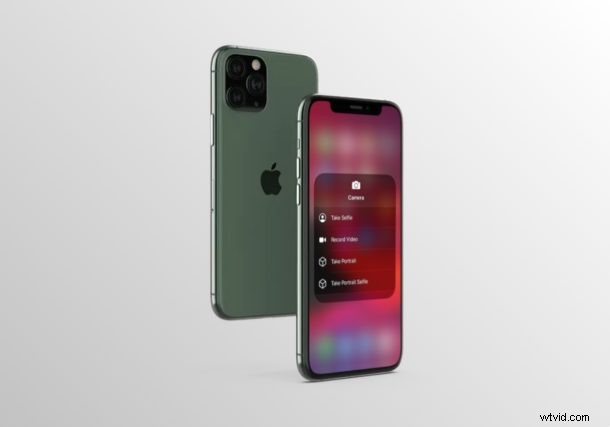
Do you want to launch your iPhone or iPad camera in a specific mode? If so, you’re in luck. Thanks to the iOS Control Center, it’s fairly easily to select a specific capture mode before you even open the Camera application on your device. Instead, you an jump directly to selfies, portraits, video recording, or even a portrait selfie.
By default, users can switch between the various camera modes within the app. However, if you want the Camera app to be ready to take a quick selfie or record a video clip as soon as you launch it, you can make use of the camera shortcuts that are hidden in the Control Center.
Read on to learn how you can use camera shortcuts from Control Center on both the iPhone & iPad.
How to Use Camera Shortcuts from Control Center on iPhone & iPad
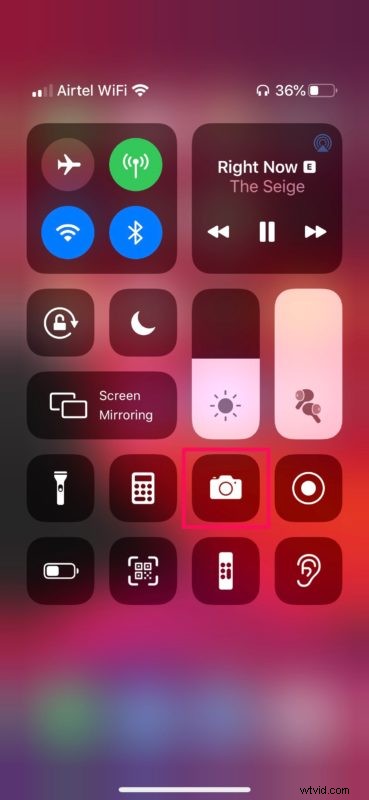
The iOS Control Center houses a shortcut to quickly open the Camera app by default. However, if you don’t see the Camera icon, you’ll need to customize your Control Center and manually add it, before you go ahead with this procedure. Once done, simply follow the steps below.
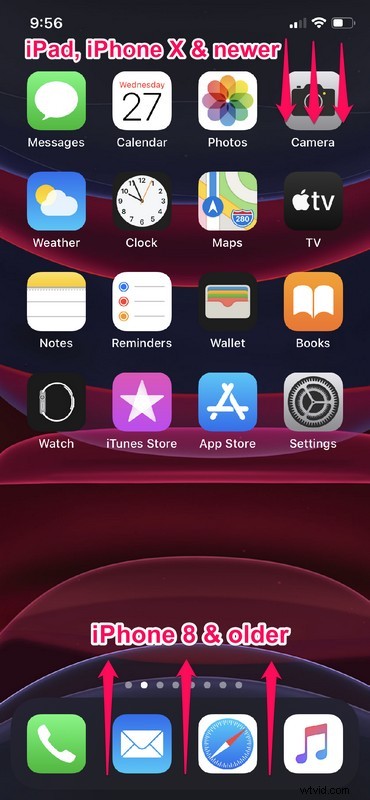
- If you’re using an iPad, iPhone X or newer device, you can access the Control Center by swiping down from the top-right edge of the screen. However, if you’re using an iPhone with a big forehead and chin, like the iPhone 8 or older, simply swipe up from the bottom of your screen as show in the screenshot below, in order to access it.
- Now, long-press on the camera icon to access more options. This is for devices running iOS 13 or later. However, if your device is running an older version like iOS 12, use the 3D Touch gesture and force press on the slider to access the same functions.
- As you can see here, you’ll be able to access shortcuts to various camera modes that are available for your iPhone or iPad. Simply tap any one of these shortcuts to launch the Camera app in your desired mode.
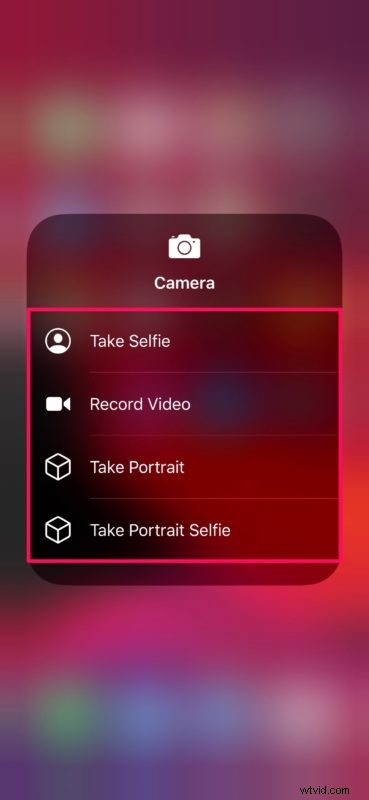
And there you have it, you’re now ready for yet another way to access camera modes from iPhone or iPad.
Now, whenever you want to snap a quick selfie or take a portrait, you could simply use the camera shortcuts located in the Control Center to launch the Camera app in the desired mode.
In particular, this feature could come in handy when you want to launch your iPhone or iPad camera while using an app, since you can access Control Center at any time from anywhere on the device.
Unfortunately, you’re limited to the shortcuts that are already listed there. So, if you were hoping to customize this and add various other camera modes as shortcuts, you’re out of luck (for now anyway), and there are not currently any shortcuts to features like Slow Motion or Time Lapse.
In addition to this functionality, the Control Center on iOS houses a bunch of toggles for wi-fi and other settings that allows you to quickly enable or disable certain features from the comfort of your home screen or without having to exit the application that you’re using.
Did you manage to make use of the camera shortcuts within the iOS Control Center to take pictures? What other features do you quickly access using the iOS Control Center? Do let us know your thoughts and opinions in the comments section down below.