
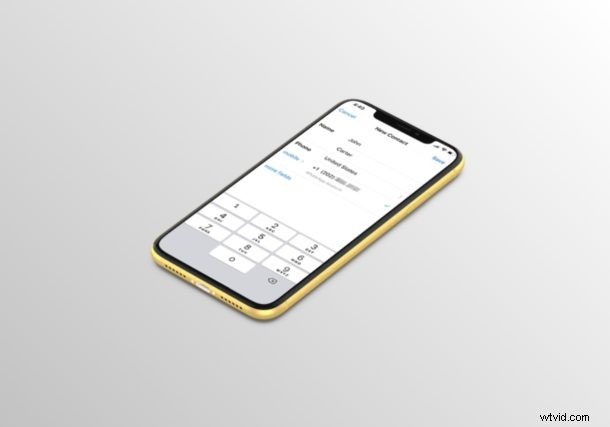
Do you want to manually add contacts to your WhatsApp account for initiating conversations? Regardless of whether you’re using an iPhone or Android, this is a fairly simple procedure.
By default, WhatsApp automatically syncs contacts that are stored on your phone and checks if they have a WhatsApp account. However, if you want to manually add a new contact to your WhatsApp account at a later point, you don’t really have to use the Contacts section on your smartphone and wait for it to sync with WhatsApp.
If you’re interested in learning how you can manually add contacts to WhatsApp on both iPhone and Android smartphones, you’re in the right place.
How to Manually Add New Contacts to WhatsApp on iPhone & Android
Regardless of whether you’re using an iPhone or Android device, the following procedure is going to be identical for adding contacts to WhatsApp:
- Open “WhatsApp” from the home screen of your iPhone or Android smartphone.

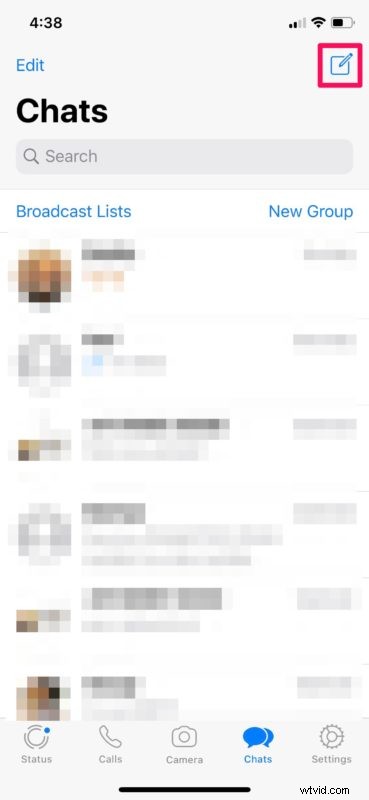
- Tap on the “new chat” icon located at the top-right corner of the screen.
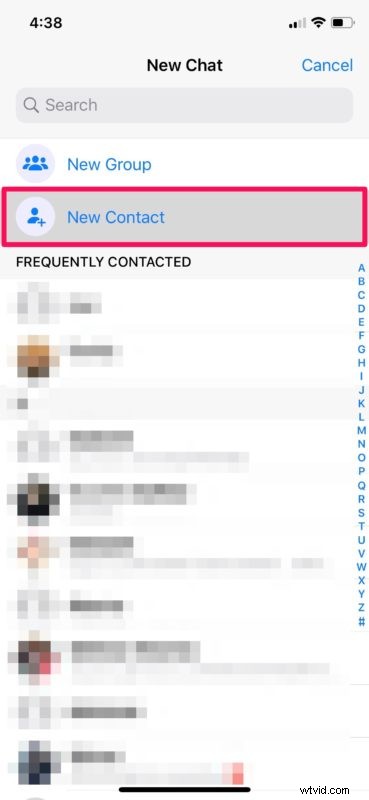
- Now, tap on “New Contact” in order to manually input the details.
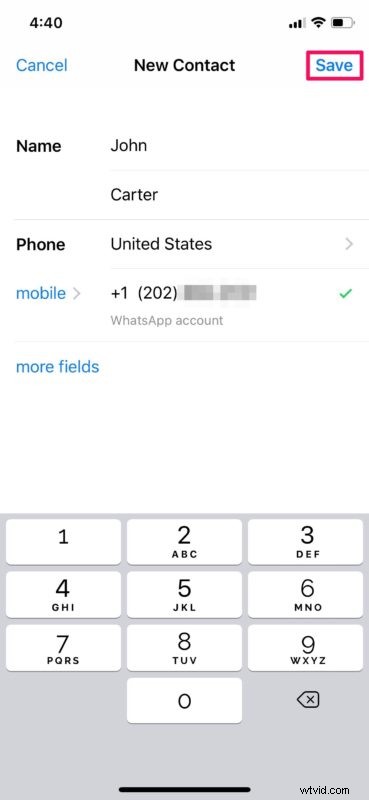
- Here, enter the phone number and other details and tap “Save” as shown in the screenshot below. If the contact you’re trying to manually add has a WhatsApp account, it will be indicated right below the phone number once you’ve typed it out.
That’s all there is to it.
Now, you can initiate the conversation with the contact you just added.
Alternatively, you can manually add contacts using the Phone app and wait for WhatsApp to sync it. However, with this method, you can input the details and start messaging right away, without even having to exit WhatsApp.
If you’re trying to add a contact that was sent to you over WhatsApp, you can simply hit “Save Contact” right below the message to quickly save the details on to your device, instead of following this procedure.
Are you a regular WhatsApp user? If so, you might be interested in backing up all your WhatsApp chats to iCloud and make sure you don’t accidentally lose them due to some error, a corrupted software update, or uninstallation of the app.
Did you manage to manually add a new contact to WhatsApp on your iPhone or Android smartphone? How do you feel about the way WhatsApp manages and syncs your phone contacts and conversations? Do let us know your thoughts and opinions in the comments section down below.