
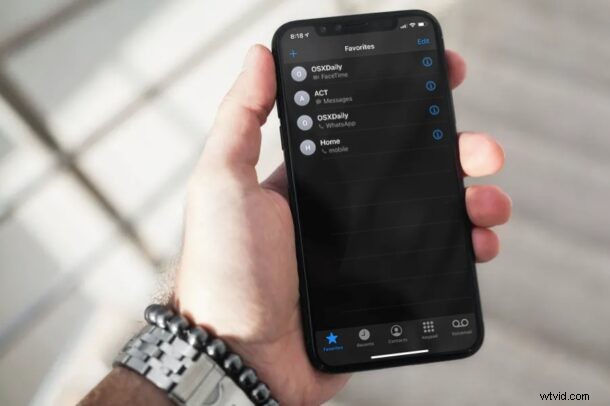
Do you want to emphasize some of the people you frequently contact from your iPhone? Maybe you want to have certain phone numbers on speed dial? This can be easily done by adding select contacts to the Favorites list on your iPhone.
Most people have hundreds of contacts stored on their iPhones and it can become inconvenient to scroll through the entire list just to find and call that one person you want to speak to. Thankfully, the Favorites list on iOS devices serves as a “Speed Dial” and allows you to quickly call the contacts you get in touch with the most. This could be your family members, partner, close friends, colleagues, your boss, or anyone else really.
If you’re relatively new to the iOS ecosystem, you may not necessarily know how to take proper advantage of this. No concern, because that’s what we’re here for, as we’ll be covering how you can add contacts to the Favorites list Speed Dial feature on your iPhone.
How to Add Contacts to Favorites on iPhone
There are two ways to add contacts to the Favorites list and we’ll be covering both of them. It’s actually pretty simple and straight forward. Let’s take a look:
- Launch the stock Phone app from the home screen of your iPhone.

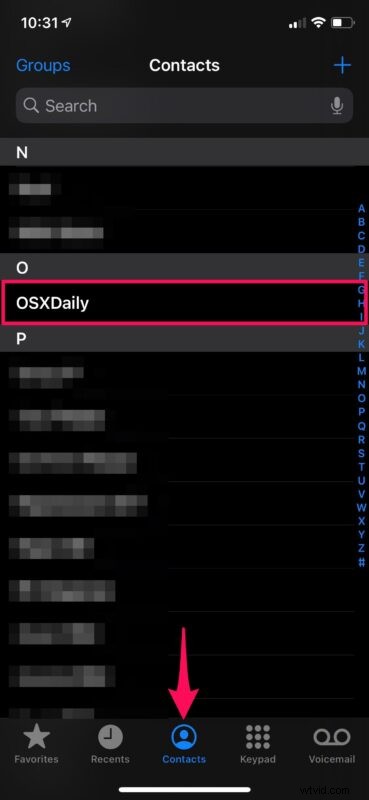
- Head over to the Contacts section of the app, scroll through the list, and tap on the contact you want to add to Favorites.
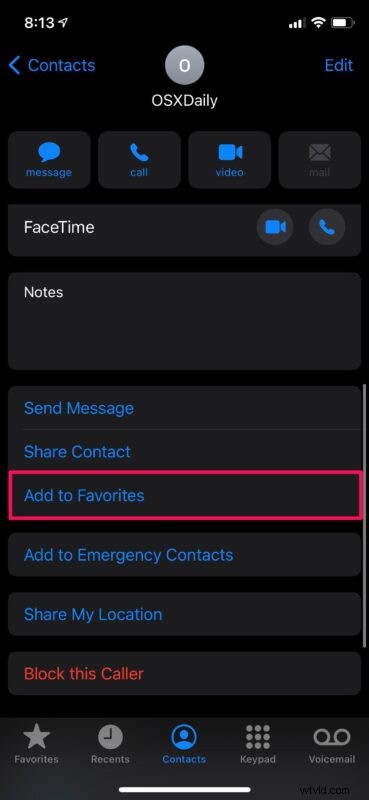
- Now, scroll down and tap on “Add to Favorites” as shown in the screenshot below.
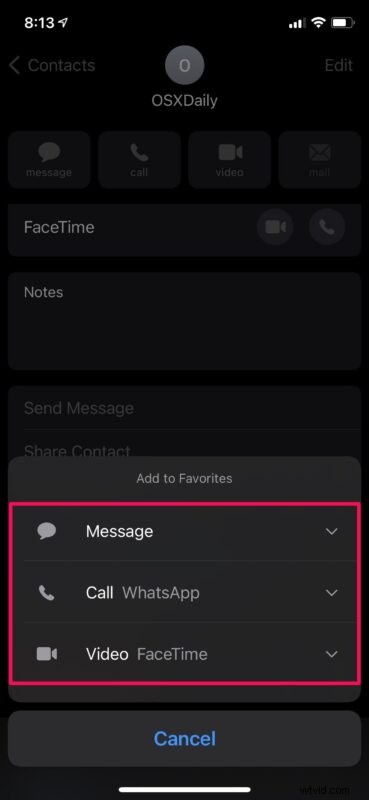
- This will bring up a menu where you’ll have multiple options for the Favorites dial. You can choose “Message”, “Call”, or “Video” as the preferred mode of communication you want to use when you tap on the contact’s name from the Favorites list.
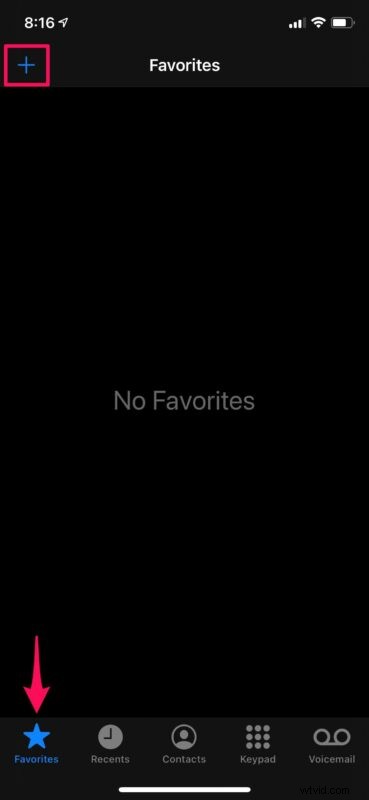
- Alternatively, you can add contacts to this list by heading over to the “Favorites” section and tapping on the “+” icon at the top-left corner of the screen.
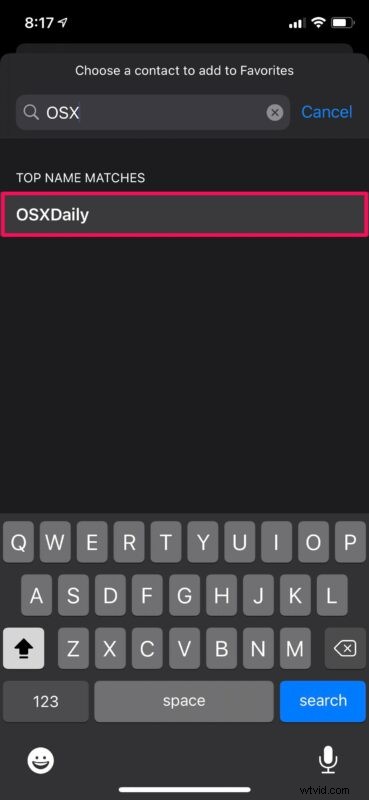
- Now, you’ll be able to scroll through your contacts list or use the search bar to find and add a specific contact in an identical way.
There you go. If you hadn’t done it before, now you’ve finally added someone to the Favorites list. Whether it was a family member, friend, emergency contact, clinic, work, colleague, or anyone else doesn’t matter of course, that’s for you to decide who to add to your favorites list for quick dialing.
From now on, whenever you want to get in touch with your regular contacts, all you need to do is just head over to the Favorites list and tap on their names. You can add the same contact to Favorites more than one time with different modes of communication. So, whether you want to FaceTime, Message, or just make a phone call, you can specify the communication method separately.
One of the best features of the Favorites list is its third-party integration. Certain supported third-party apps like WhatsApp can also be used as a preferred communication method while setting up Favorites on your iPhone. For example, if you selected WhatsApp for calls while adding a contact to Favorites, tapping on their name will launch WhatsApp and make a call over the internet rather than using your cellular connection.
It’s worth pointing out that incoming phone calls from contacts in your Favorites list will not be silenced or sent to your voicemail when Do Not Disturb is enabled. However, this is just the default iOS setting for Do Not Disturb and can be easily changed if necessary.
Since you had trouble figuring out how to add contacts to Favorites, you may also be interested in learning how to remove one or more contacts from your Favorites list. The people you contact regularly may change over time and you may need to keep this list updated every now and then.
Now that you’ve learned how to properly make use of the Favorites list on your iPhone, you’re ready to add people to that favorites list, whether for quick calls, messages, or and video chats. Any thoughts or experiences with this feature? Share with us in the comments, as always.