
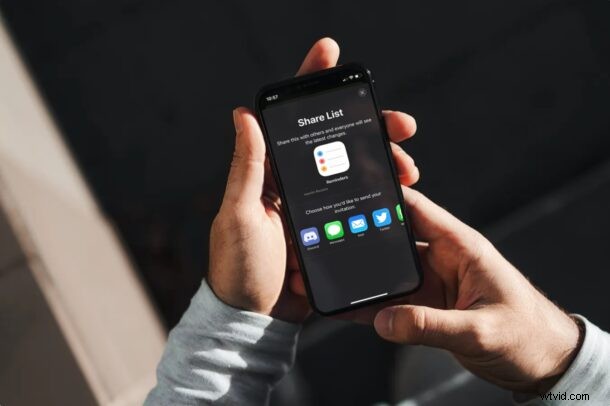
Do you want to share a reminder, or a list of reminders with someone? Perhaps, you may want to send a shopping list to your a roommate, or a to-do list to your colleague? Sharing Reminders is pretty easy to do from the iPhone and iPad, provided the person you’re trying to send to has an Apple account.
The stock Reminders app on iOS and iPadOS devices not only helps you stay notified about important things to do and your chores, but also lets you send tasks to other users which they can access using the app on their own Apple devices. The same reminders list can be accessed and updated by multiple users at the same time, making it easy to complete checklists together without any communication errors.
Let’s take a look at how you can share Reminders, right from your iPhone or iPad.
How to Share Reminders Lists from iPhone & iPad
First of all, your device must be running iOS 13/iPadOS 13 or later, since this particular feature isn’t available on older versions. Assuming that’s the case, you can share reminders:
- Launch the stock Reminders app from the home screen of your iPhone or iPad.
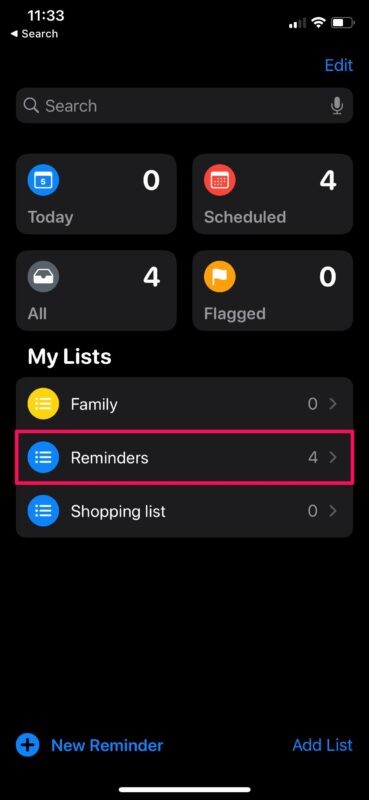
- Now, you’ll find all the reminders lists that are stored on your device under the My Lists section. Tap on the reminders list that you want to share.
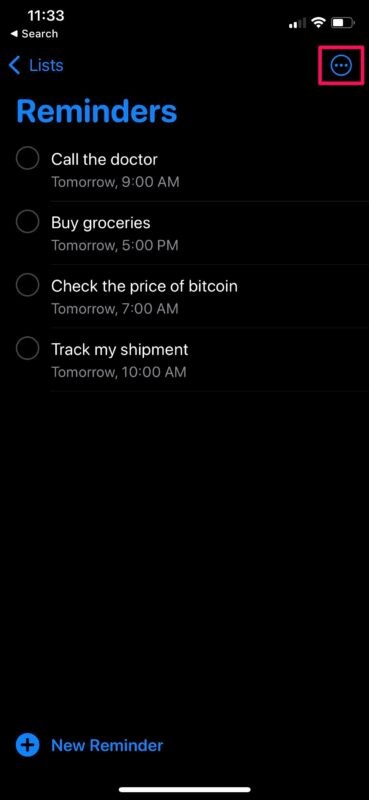
- You’ll now be able to see all the reminders for that particular list. Tap on the triple-dot icon at the top-right corner to access more options.
- Next, tap on the “Share List” option from the context menu that pops up on your screen.
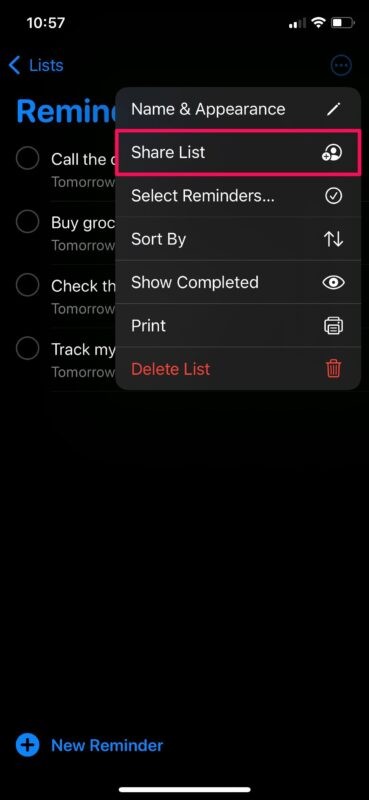
- This will take you to the following screen where you can send an invitation for your reminders list. You can use either the Messages app to send the invitation or invite via email.
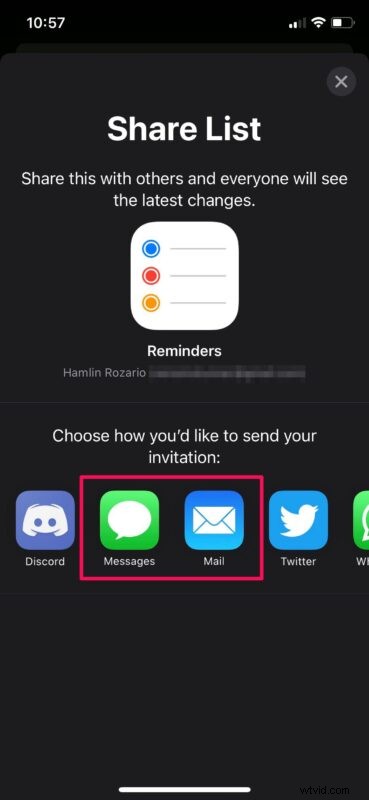
- If you’re using Mail, type in the email address and tap on the arrow icon to send it. On the other hand, if you’re using Messages, simply choose the contact that you want to send the invitation to.
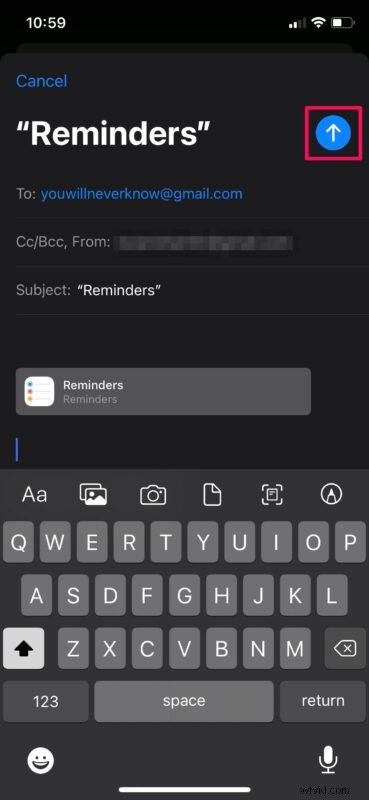
At this point, you just need to wait for the recipient to accept the invite so that they can access and view your shared reminders list. Ta da, you have shared reminders with someone else. Easy, right?
How to Stop Sharing Reminders List on iPhone or iPad
Now that you know how to share reminders from your iPhone or iPad, it’s also important to learn how to stop sharing them if you ever change your mind, or wish to restrict access to fewer people. Just follow these steps:
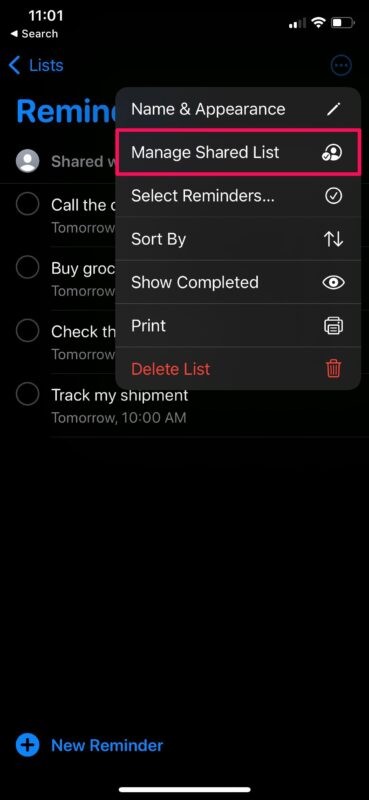
- Once you start sharing a list, you’ll be able to see who you’re sharing it with at the top, as indicated in the screenshot below. Tap on the triple-dot icon at the top-right to access more options.
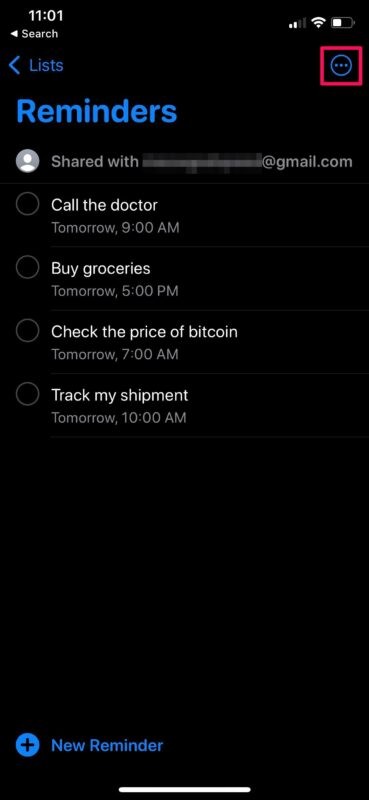
- Next, select the “Manage Shared List” option from the context menu to proceed.
- In this menu, you have two options. You can either revoke access for a specific user by swiping left on their name or stop sharing with everyone who currently has access to the reminders list.
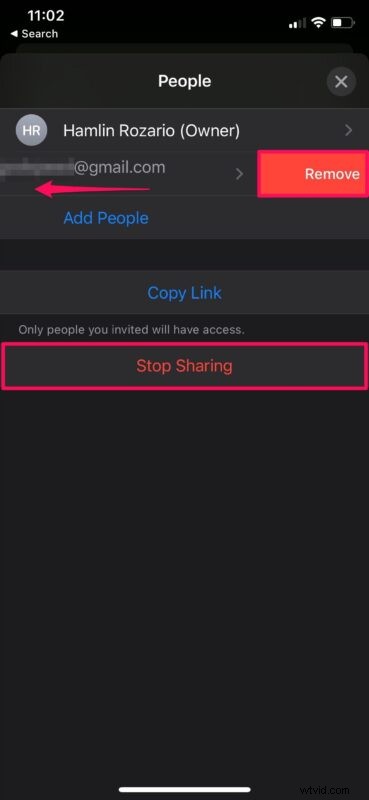
Just select your choice and you’ll get a prompt to confirm your action. That’s pretty much all you need to do.
As you can see, it’s really easy to share reminders from your iPhone and iPad. The one limitation that could be a major factor for users is the requirement of an Apple ID to access the shared list, since typically people who don’t have an iPhone, iPad, or Mac won’t have one. You don’t even need to own an Apple device though, since you can use the iCloud web client to view the reminders on any device with a web browser. If the recipient doesn’t have an account, they can easily create a new Apple ID from the web.
This is just one of the ways to share a reminders list from your device. If you’re not too keen on using this method because the recipient doesn’t have an Apple account, you can save the reminders list as a PDF file on your device and then share it using any social platform or via email. You shouldn’t be running into any compatibility issues since you’re just using a PDF file. The recipient will also be able to print out the list, if necessary.
Do you use a Mac as your primary computing machine? In that case, you may also be interested in learning how to share a reminders list from your macOS device. And, if you don’t have a Mac and use a PC instead, you can even share reminders lists from iCloud.com.
Are you sharing your reminders lists? Did you run into any issues while sharing? Have you tried any other unique ways to share your reminders? Let us know your thoughts and experiences in the comments.