
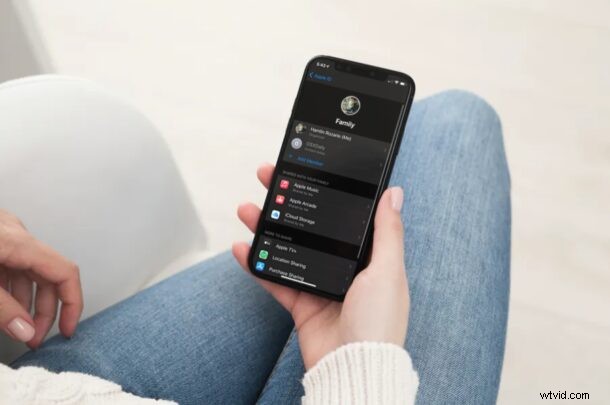
If you have plenty of unused iCloud storage space, then you may be interested in sharing your allocated space with family or even friends. Thanks to Apple’s Family Sharing feature, it doesn’t cost the other person a penny and you can share your storage right from your iOS and iPadOS devices.
Apple offers 50 GB, 200 GB, and 2 TB storage plans for iCloud which can be used for storing photos, music, backup data, and your settings securely. While the 50 GB allocation may barely be enough for one user, the 200 GB and 2 TB plans could be shared with one or more people depending on how much unused space you have. By sharing your plan with a family member, let’s say a kid, you can save some money and you have complete control over their access.
If you’re interested in taking advantage of Family Sharing with your Apple account so that you can share your iCloud storage with family or friends on your iPhone and iPad.
Sharing iCloud Storage with Family Sharing from iPhone & iPad
Sharing your iCloud storage space is a whole lot easier than you think. The steps are identical regardless of the iOS/iPadOS version your device is currently running.
- Head over to “Settings” from the home screen of your iPhone or iPad.

- In the settings menu, tap on your Apple ID name located right at the top.
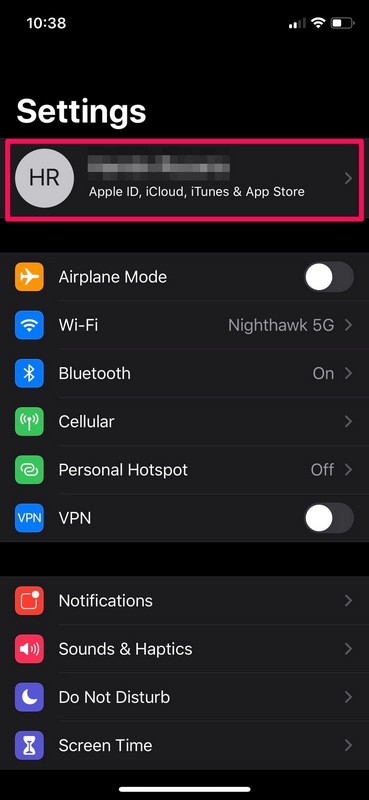
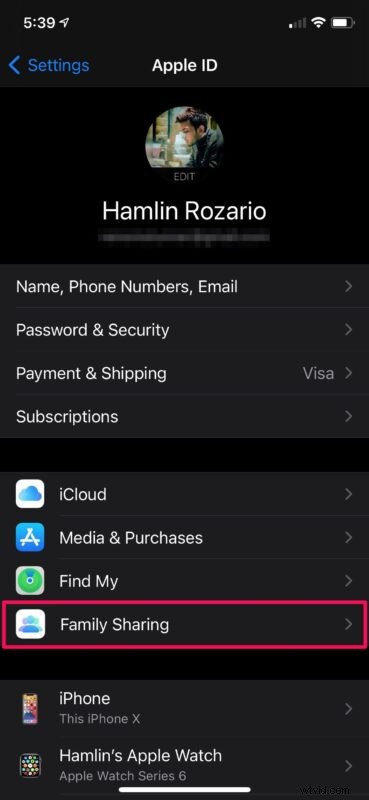
- Next, tap on the “Family Sharing” option located just above the list of devices you currently use.
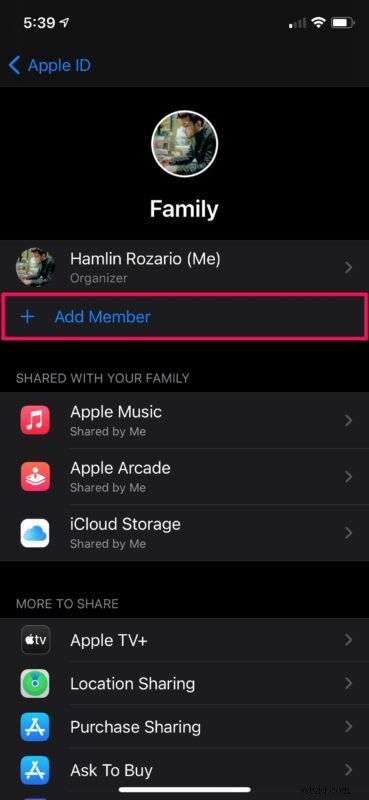
- Now, tap on “Add Member” located just below your Apple ID name.
- Next, choose “Invite People” to add people to your family. Or, if you’re looking to share your iCloud storage with a family member who’s less than 13 years old, you can create a child account instead.
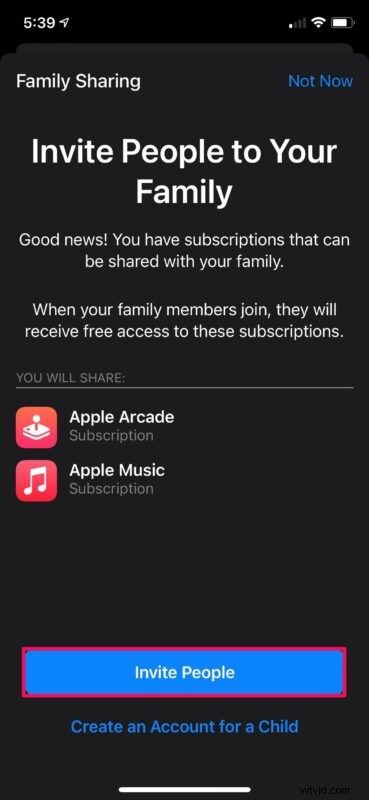
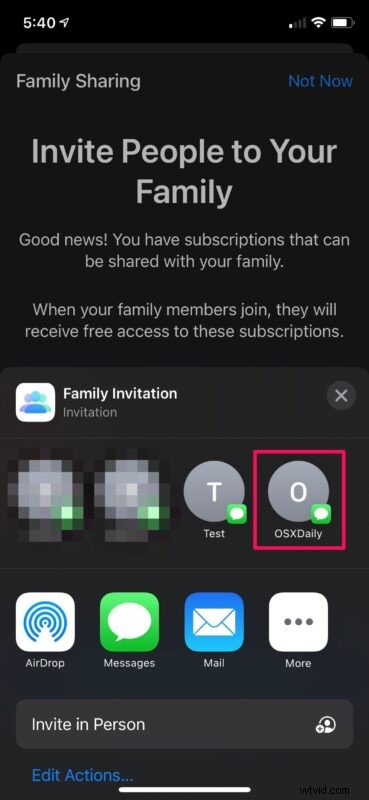
- Now, you’ll have the option to invite anyone you want. The invite can be sent via AirDrop, Mail, or Messages. Simply select the contact you want to send the invite to.
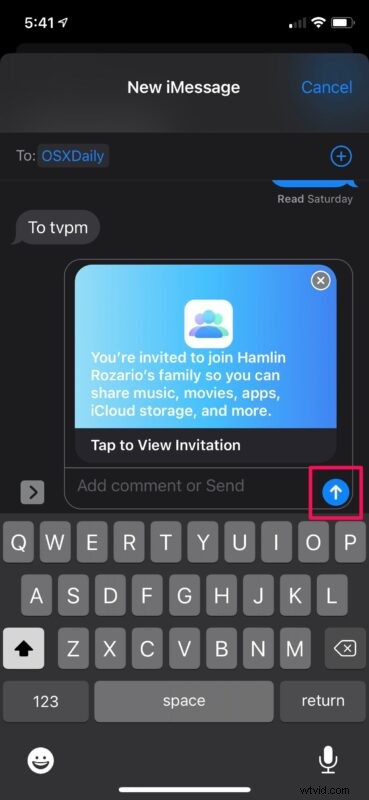
- The invite will pop-up as shown below. If you’re using Messages to invite people, tap on send when the preview shows up.
- At this point, you just need to wait for the recipient to click and accept the invite. Now, go back to the Family Sharing menu and choose “iCloud Storage”.
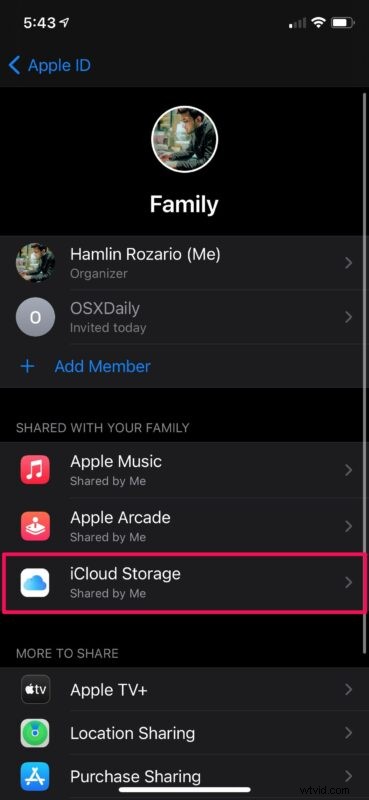
- Here, you’ll be able to see how much storage space your family member is using. You’ll also have the option to revoke their access to your shared iCloud storage.
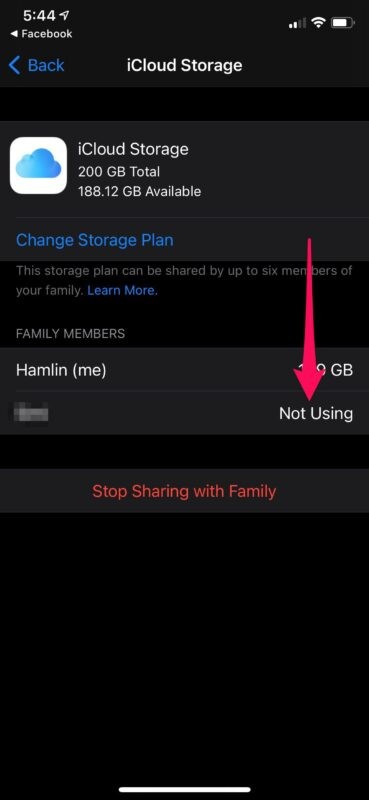
As you can see, it is easy it is to share your iCloud storage space right from your iPhone and iPad.
It’s important to note that you can only share your iCloud storage space if you’re on an eligible plan that supports Family Sharing. For iCloud subscribers, you’ll need to be on the 200 GB or 2 TB plan to share your storage. If you’re paying for Apple One, you’ll need to be subscribed to either the Family or Premier plan.
Apple One subscribers who add a new member to their family for sharing iCloud storage will also be sharing other Apple services that come in the bundle like Apple Music, Apple Arcade, Apple TV+, and more. However, family access to any of these services can be revoked individually if needed.
Keep in mind that there’s a limit on how many people you can share your iCloud storage with. Regardless of whether you’re paying for the 200 GB plan or 2 TB plan, you can share your iCloud storage with up to five people. This limitation applies to family plans for other Apple services as well.
You can also remove someone from Family Sharing if you no longer want to share with them for whatever reason.
We hope you were able to learn how to share your unused iCloud storage space with your friends and family members. What’s your take on Apple’s Family Sharing feature? How many people are you sharing your iCloud storage with? Do share your valuable opinions and experiences in the comments section down below.