
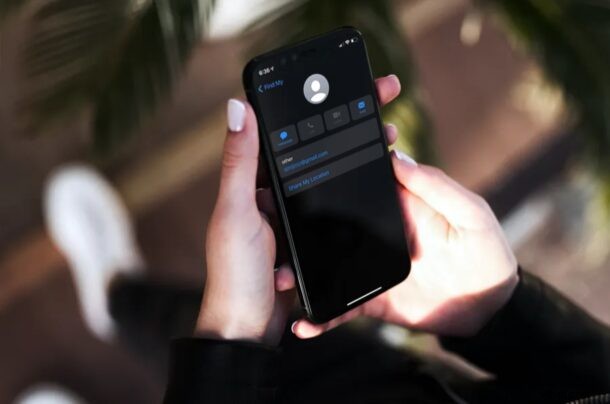
Looking to share your location with your family members to let them know where you are? Tired of having to make phone calls to tell someone how long it’ll take until you get home? In that case, you’ll be pleased to know more about Location Sharing for iPhone and iPad, which allows you (or they) to share location as you move from place to place.
If you use Family Sharing on your iPhone and you have all your family members in your family group, then sharing your location is a whole lot easier. This feature can be used by parents to keep on their children’s whereabouts if necessary for safety reasons, and it’s also super convenient for couples, and other family members too.
Let’s check out how to use Family Sharing on the iPhone so that you can always know where members of your family are located, and they’ll know where you are too.
How to Share Location with Family on iPhone & iPad using Family Sharing
Before you get started, you’ll need to add people to your family group if you haven’t already. You can learn more about adding and removing members from Family Sharing right here. Once you’re done, simply follow the steps below.
- Go to “Settings” from the home screen of your iPhone or iPad.

- In the settings menu, tap on your Apple ID name located right at the top.
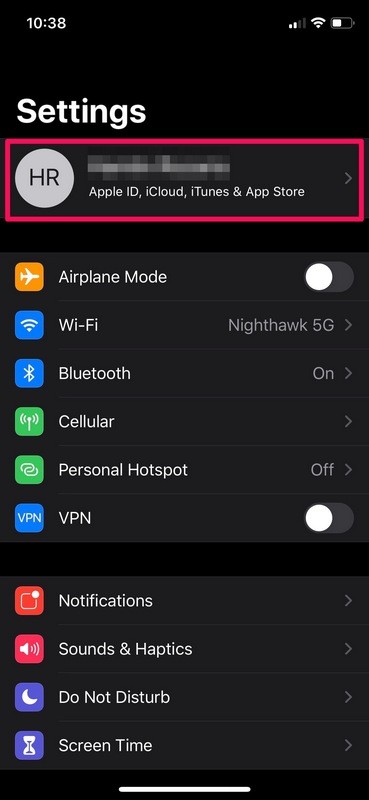
- This will take you to your Apple ID settings menu. Here, tap on “Family Sharing” located just above the list of all your linked devices.
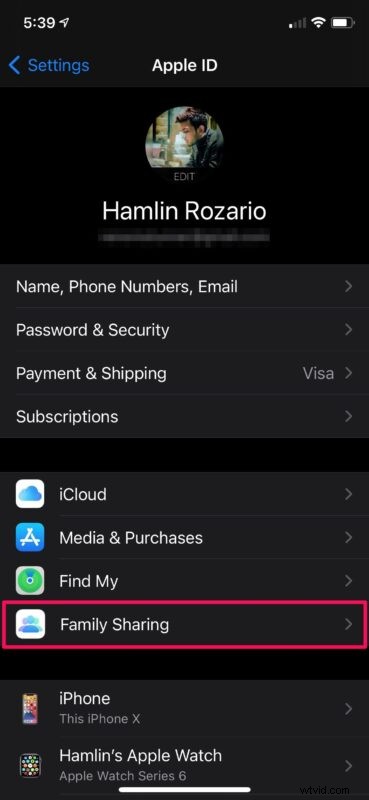
- Here, you’ll find all the family members you’ve added to the group. If you don’t see anyone here, make sure to add members first before you continue. Now, tap on “Location Sharing” as shown below.
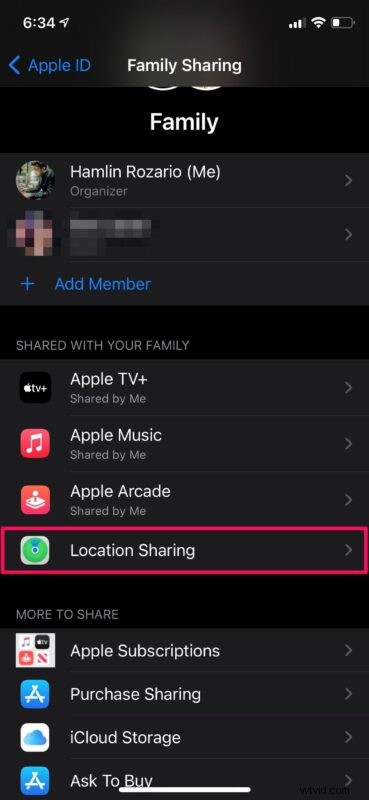
- This will take you to the Find My menu. First, make sure the toggle for “Share My Location” is enabled. Next, tap on any of your family members in your group.
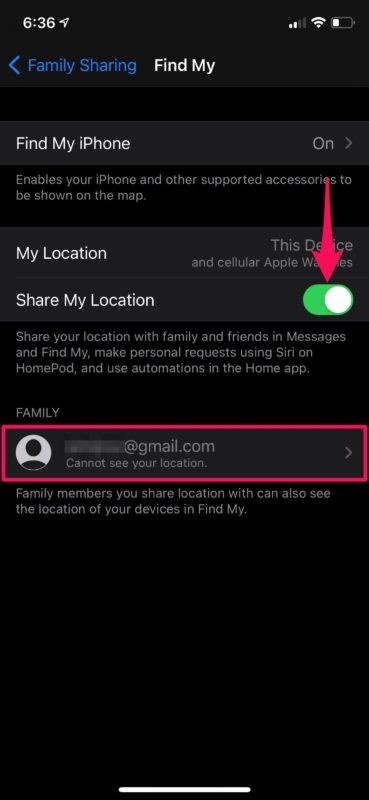
- Now, simply tap on “Share My Location” and you’re good to go.

- Sometimes, you may not want to share your location with someone in your family group. In that case, you can select the specific member from the same menu and choose “Stop Sharing My Location”.

There you go. Now you know how easy it is to share your location with family members on your iPhone and iPad.
From now on, whenever you’re stuck in traffic while driving and running late, your family members can easily check your location using the built-in Find My app.
Also, don’t forget that you don’t need to share your location with all members in your family group if you don’t want to, as you can choose to disable location sharing on an individual basis.
If this is a feature that you really make good use of, you may also be interested to share your location with close friends which could come in handy when you’re meeting up with them. With the Find My app, you can even set up location-based notifications for a specific contact. With this enabled, you will be notified once your contact has arrived or left a designated location right on your device’s lock screen.
Do you use iMessage regularly to text your friends and colleagues? If so, you can quickly send your location to your contacts with just a phrase. This is without a doubt the fastest way to share your current location. How much easier can it possibly get?
Manually sharing your location details over a phone call can be considered a thing of the past, all thanks to Location Sharing, and now there’s no need to call someone to say something like “I’ll be there in ten minutes” because they can see that for themselves.
What’s your take on this nifty location sharing feature? How often do you find yourself making use of this? Let us know your opinions and share your experiences in the comments section down below.