
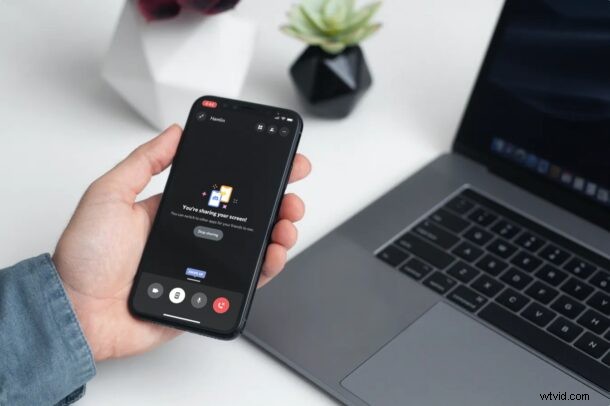
Did you know you can screen share with Discord, right from your iPhone or iPad? Of course you can screen share from your other devices too, but we’ll be covering iOS and iPadOS here.
Discord has become one of the more popular social networking platforms over the past couple of years with roughly 300 million users across the globe. If you recently started using this app for group video chats, meetings, or even online classes in some cases, you may be interested in the recently added screen sharing feature that it has to offer.
Although Discord originally focused on gamers, the service has diversified to become a solid social networking platform for everyone partly due to the global pandemic. Screen sharing has been available on Discord for a while now, but the feature just made it to the mobile version of the app more recently. Thanks to this feature, you can share the content that’s displayed on your iPhone and iPad with other people in the video or voice call.
Let’s check out using screen share with Discord on both the iPhone and iPad, and yes it uses the Screen Recording feature native to iOS and iPadOS.
How to Use Screen Share With Discord on iPhone & iPad
First and foremost, make sure you’ve installed the latest version of Discord from the App Store. If not, now would be the perfect time to update. Once you’re done, simply follow the steps below:
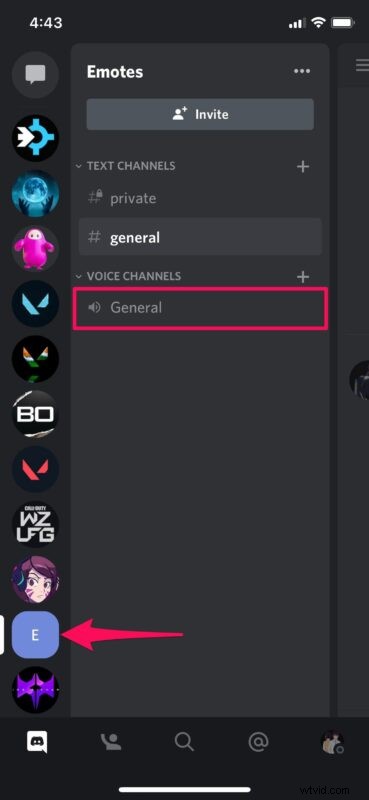
- Launching the Discord app will take you to the last direct message or server channel that you had opened. Simply swipe right on your screen to access the list of all your servers.

- Now, select the server where you’ll be joining your friends or colleagues for a video/voice call. Once selected, you’ll be able to view the channels list. Scroll down to the Voice Channels category and tap on the voice channel that you want to connect to.
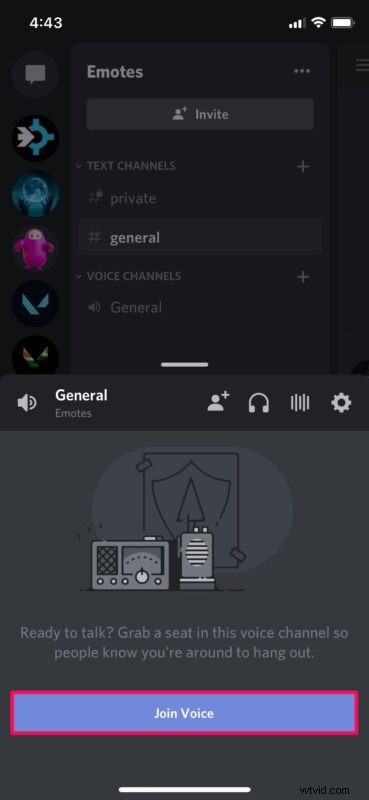
- Now, tap on “Join Voice” to connect to the channel.
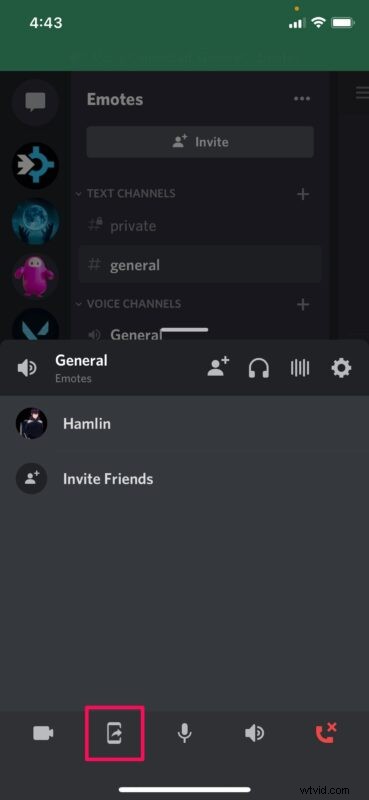
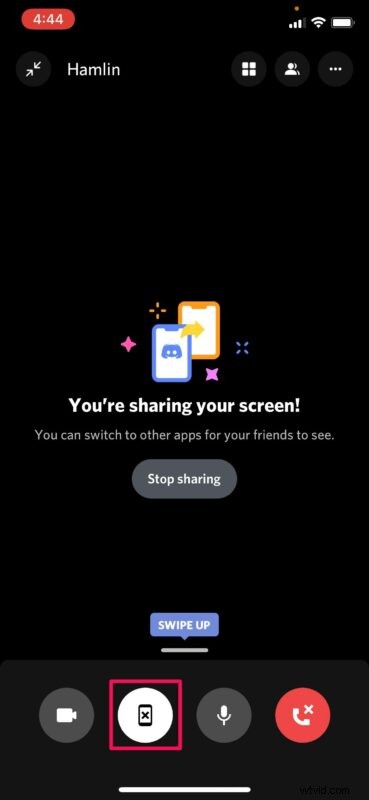
- Once you’re connected to the voice channel, you’ll have access to call options at the bottom. Here, tap on the phone icon with an arrow next to the mute button to access screen share.
- This will bring up the built-in screen recording tool on your iPhone or iPad. Tap on “Start Broadcast” to begin sharing your screen.
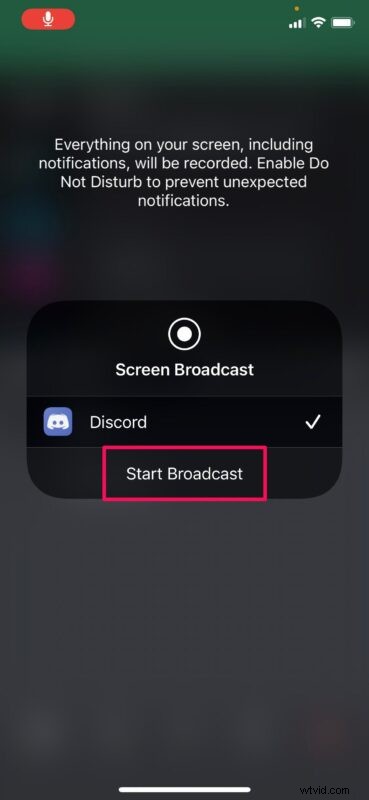
- Now, you can leave the app and share everything that’s shown on the screen. To stop sharing your screen at any time, simply tap on the same phone icon again as shown below.
If you follow along, you’ve learned how to take advantage of Discord’s screen sharing feature.
Do note that if you’re sharing your screen in a public discord server, the people who are not in the voice or video call will be able to notice that you’re sharing the screen since there’ll be a video icon next to your name. This could potentially make other curious people join the voice channel if it’s not locked, and that may pose a privacy or security issue for you (or others) so be mindful of that.
The above steps covered how you can share your screen in a private or public discord server. However, you can do the same in a direct message as well. All you need to do is make or join a voice call and then access the screen share option from the menu. The steps are fairly identical.
If you use other popular platforms for video calls, online meetings, or anything else, you may also be interested in learning how you can share your iPhone or iPad screen on apps like Zoom, Skype, Webex, Hangouts, Google Meet, Facebook Messenger, and many more. They all make use of the same built-in screen recording tool that’s available on iOS and iPadOS devices, but of course they’re all different platforms.
Now you can go about sharing your device’s screen with other users on Discord with ease.
Let us know if you have any particular tips, thoughts, experiences, or opinions about screen sharing in Discord, or using anything else for that matter.