
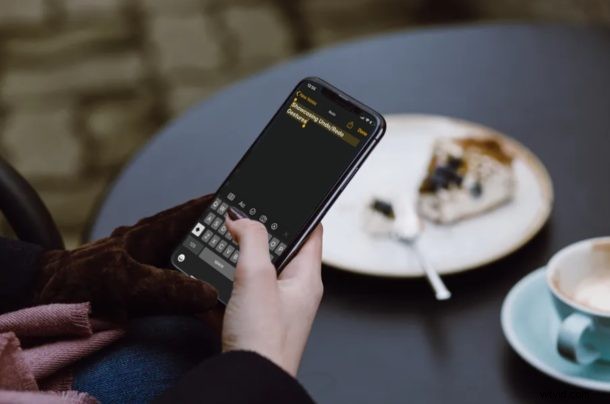
Did you know that you can undo and redo on iPhone and iPad with gestures? This is a very useful feature that is not well known, but once you master it you’ll be glad you did, and it works a lot better for some users than the “Shake to Undo” feature.
If you make mistakes while typing on your iPhone or iPad, you’re probably used to backspacing and editing your texts, but you might not necessarily be aware of the new gestures that have been added to iOS which makes text editing a lot quicker and easier.
Are you interested in trying out these new gestures on your iOS or iPadOS device? Then read on so you can learn how to use the undo and redo gestures on your iPhone & iPad.
How to Use Undo & Redo on iPhone & iPad with Gestures
The gestures that we’re gonna be discussing here are exclusive to iPhones and iPads running modern iOS and iPadOS versions. They will work anywhere on your device where you’re allowed to type text information.
- Although you can try this out on any app, we’ll be using the Notes app for the sake of this article. Simply open the “Notes” app from the home screen of your iPhone or iPad.

- Type anything in the blank note in one go. Now, double tap anywhere on the screen with 3 fingers. You’ll notice the text you just typed got removed.
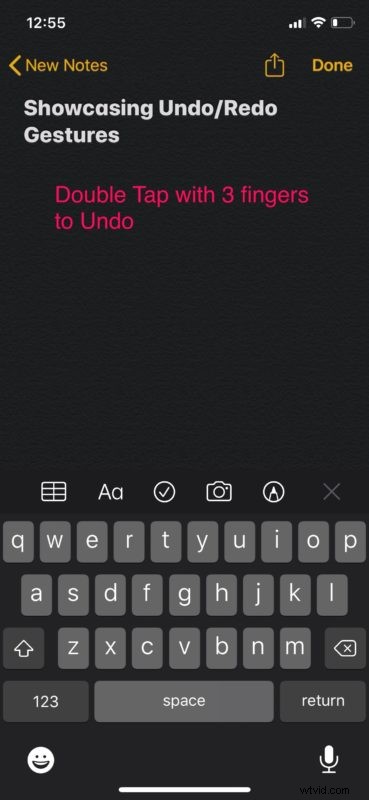
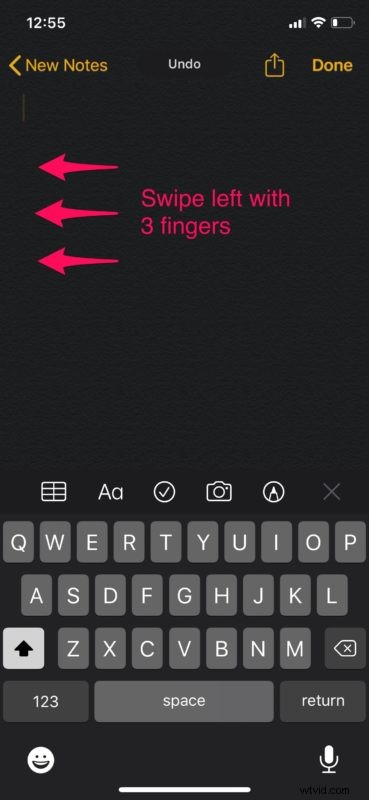
- Alternatively, you can swipe left using three fingers after typing to perform the undo action. If your action was successful, it will be indicated by an “Undo” badge at the top of your screen as shown in the screenshot below.
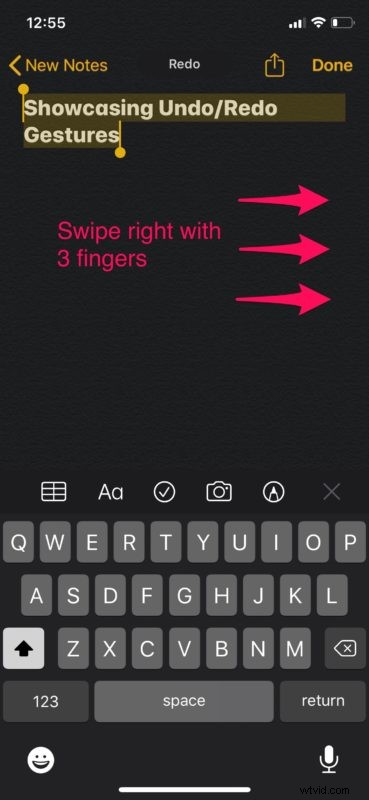
- Now, there’s only one way to Redo text messages apart from the “Shake to Redo” gesture. Simply swipe right using three fingers on your screen after an undo, in order to revert the action.
That’s pretty much all you need to do to perform undo and redo actions on your iPhone and iPad.
In addition to reverting mistakes that you make while texting, both undo and redo actions can be performed within certain apps, like the Stock Mail app which comes in handy for quickly retrieving accidentally deleted mails.
Unlike the popular “Shake to Undo” gesture that most of us were using so far, these new gestures don’t pop up a confirmation prompt on the screen and as a result, is a lot quicker to perform the action this way.
If you’re using an iPhone, this gesture will need some time getting used to, due to its small form factor when compared to performing the same gestures on iPad. However, once you get the hang of it, you might not shake your phone to perform undo/redo again.
The ability to undo and redo via gesture was added in iOS 13 and iPadOS 13, so you’ll need to be sure you’re running a modern version of iOS or iPadOS to have this capability.
Similar to the gestures that are used for performing undo and redo actions, iOS and IPadOS offers plenty of other gestures for improving the usability of your iPhone or iPad. For example, you could select multiple photos quickly within the stock Photos app with a drag & slide gesture, or you could zoom in and out of a video with a pinch-to-zoom action.
What do you think about the gestures that have been added to iOS and iPadOS for improved text editing? Do you plan to use these new undo/redo gesture on a regular basis instead of shaking your device? Let us know your thoughts and opinions in the comments section down below.