
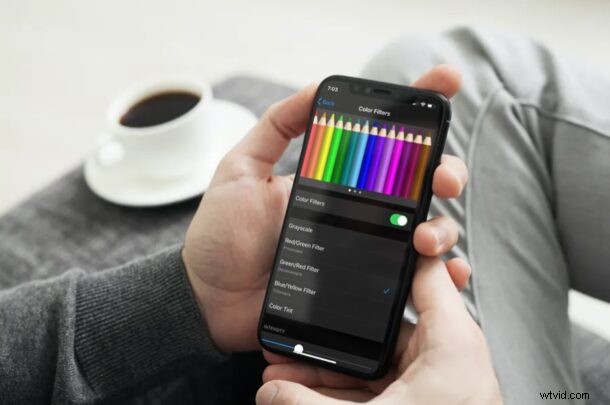
Color Filters can be applied to the iPhone and iPad screen, offering a way to adjust the tint and hue of devices screen. This can be helpful if you feel the iPhone or iPad screen is too yellow, warm, blue, or cool. And of course, if you have color blindness or some other visual disturbances, you may find adjusting colors on the devices screen to be beneficial as well. Anyone can easily try out Color Filters on an iOS or iPadOS device for a quick and easy color adjustment of their devices screen.
Color Filters is one of the many accessibility features that iOS and iPadOS has to offer. With this, you can not only adjust the color tint and intensity, but also have pre-set filters for Deuteranopia, Tritanopia, and Protanopia color blindness conditions. All in all, you can adjust the colors on your screen however you want.
If you are interested in taking advantage of this feature, read on as we’ll be guiding you through the necessary steps to properly use Color Filters on both the iPhone and iPad.
How to Use Color Filters on iPhone & iPad
Enabling Color Filters on an iOS device is a fairly easy and straightforward procedure, but just turning this feature on isn’t going to make a difference. Simply follow the steps below to get started.
- Head over to “Settings” from the home screen of your iPhone or iPad.
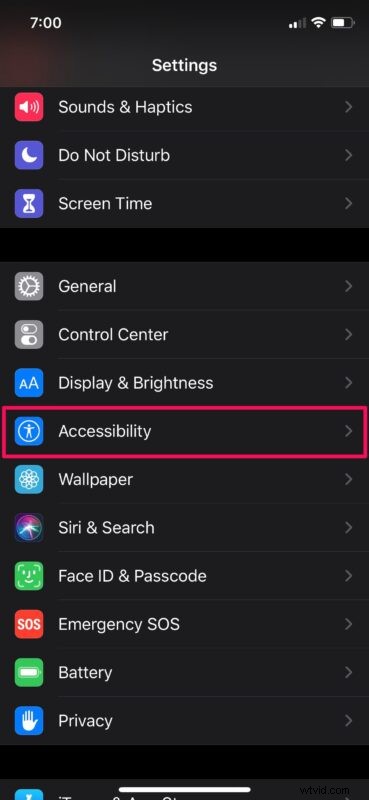
- In the settings menu, scroll down and tap on “Accessibility” to proceed further.
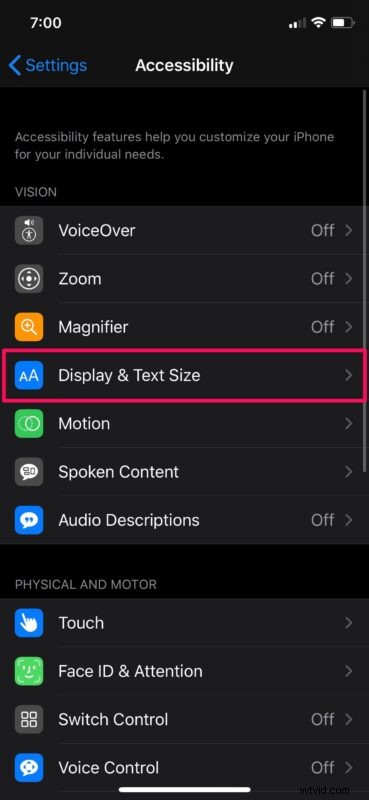
- Next, tap on “Display & Text Size” located under the Vision category.
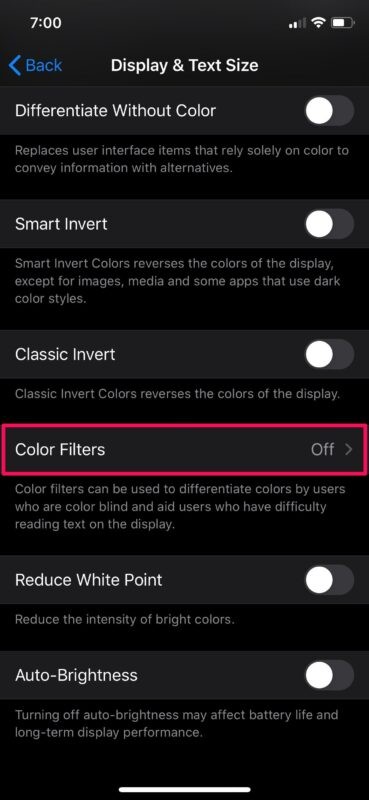
- Here, scroll down and tap on “Color Filters” as shown in the screenshot below.
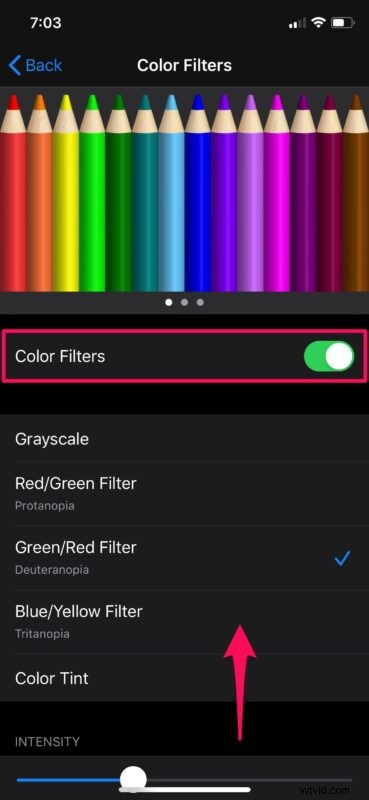
- Now, use the toggle to turn on Color Filters. If you’re color blind, you can choose one of three available filters as per your condition.
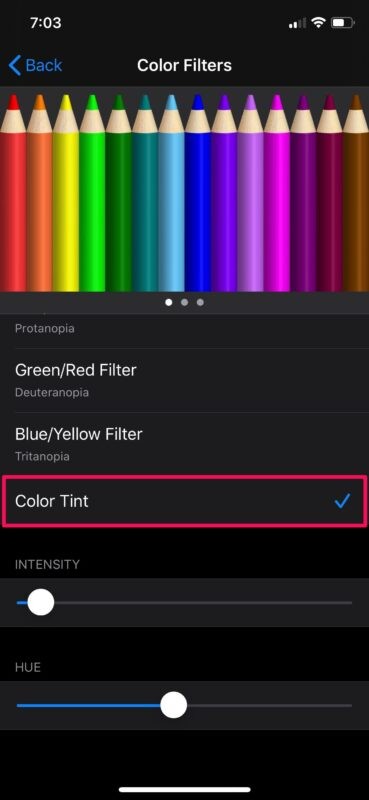
- If you want to adjust the tint of your display, select “Color Tint” and use the sliders below to adjust the hue and intensity according to your preference.
That’s pretty much all there is to it. Now you know how to access and use Color Filters on your iPhone and iPad.
Before you make any adjustments to your devices screen color, make sure Night Shift isn’t enabled on your device as it also makes the display appear a lot warmer than it normally would.
Apart from these three filters for color blindness, there’s also a Grayscale filter which can be used to turn your iPhone’s screen black & white. Grayscale can help with smartphone addiction, as the idea here is to make your phone less fun to use.
Not all iPhones and iPads have the ideal white point when they come out of the factory. So, if you feel like the display on your iPhone or iPad looks slightly yellowish or more blue-ish than you’d like, you can use the Color Tint feature to correct the tone within a matter of seconds. We’ve even discussed that particular issue before with some iPhone models, but not all users are impacted, and some users like the various warmer or cooler tones of some screen calibrations too.
In addition to this, iOS has several other accessibility features that can help people with visual or hearing impairment like VoiceOver, Magnifier, closed captioning, Live Listen, etc. For example, with the Live Listen feature, you can sort of use your AirPods as hearing aids.
We hope you were able to use the Color Filters for adjusting the display of your iPhone and iPad according to your liking. What other iOS accessibility features do you take advantage of? Do share your valuable opinions and experience in the comments section down below.