
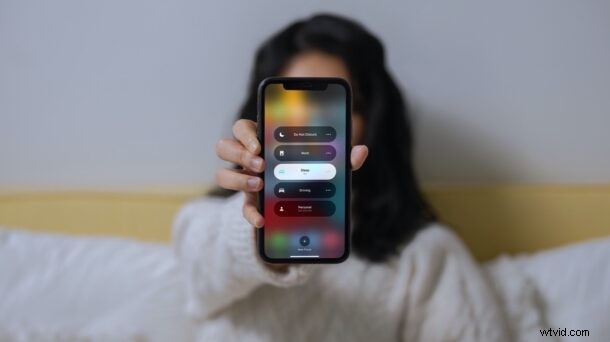
Focus Mode is the revamped Do Not Disturb mode, offering more options and control over how you can keep some peace while working on iPhone and iPad. Introduced with iOS 15 and iPadOS 15, it’s a bit different from simple Do Not Disturb mode, but that doesn’t mean it’s hard to use. Read along and you’ll learn how to use Focus Mode on your iPhone or iPad with the latest system software.
The new Focus mode will filter the notifications from contacts and apps depending on your current activity. Consider this as a more customizable and personalized version of the Do Not Disturb mode you’re familiar with. You can either set your iPhone and iPad to enter Focus mode automatically or manually toggle it when you need to. Focus replaces the Do Not Disturb toggle in the Control Center. However, to use this feature properly, you’ll need to set up a proper Focus mode, so let’s review how this all works.
How to Set Up and Automate Focus on iPhone & iPad
Before starting the procedure, you need to ensure that your device is running iOS 15/iPadOS 15 or later. If not, update the software and then follow the steps below:
- Launch the “Settings” app from the home screen of your iPhone or iPad. In the settings menu, scroll down and select “Focus.”
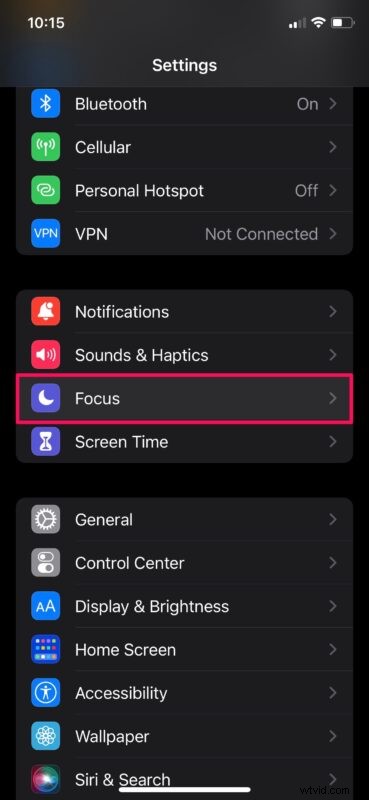
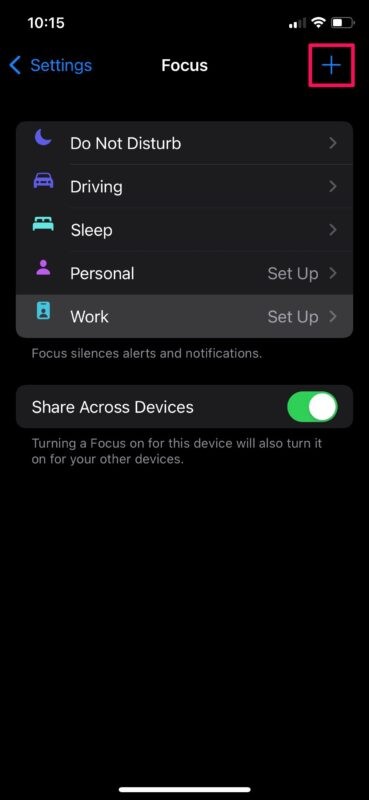
- Now, you’ll see a bunch of pre-configured Focus modes. You can select Personal or Work to set up the respective Focus modes. Or, if you want to create a new one from scratch, just tap on the “+” icon at the upper-right corner.
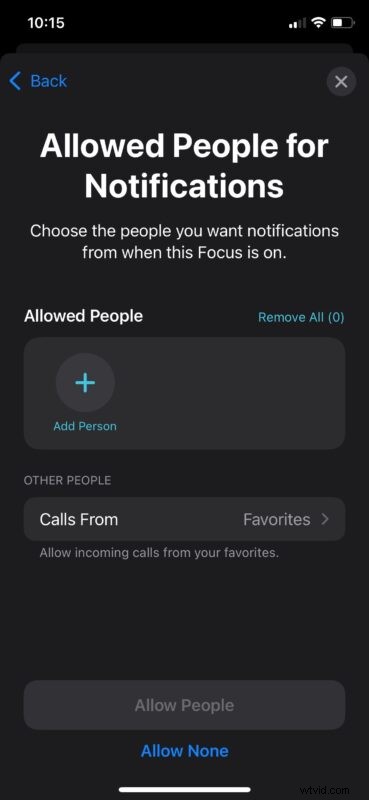
- When you create or set up a new Focus mode, you’ll be prompted to select the contacts you want to allow for notifications. Everyone else’s alerts will be silenced when this Focus mode is enabled.
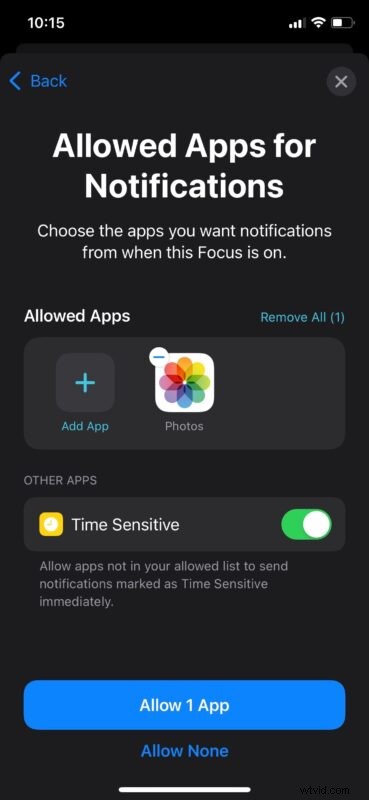
- Next, you’ll have the option to choose the apps you want to allow notifications for, when this Focus is turned on. You can select “Allow None” if you want to block notifications for all your apps.
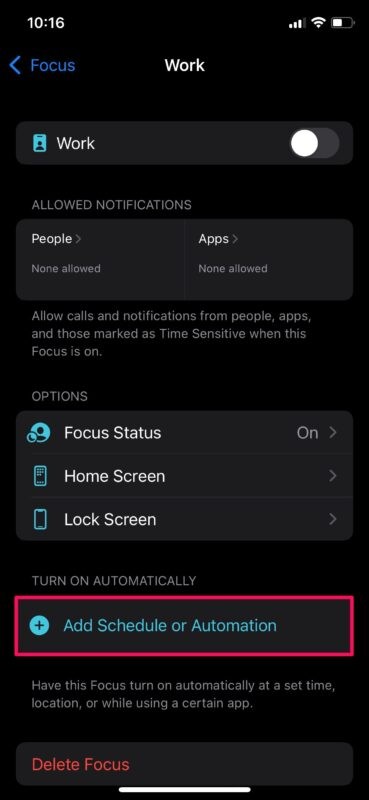
- In this step, you’ll find the setting to automate this Focus based on several factors. Tap on “Add Schedule or Automation” to get started with this.
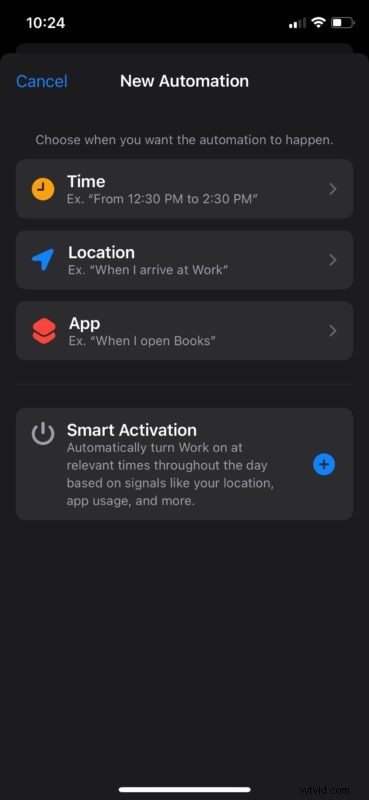
- You’ll find the option to set a time schedule or trigger the automation when you arrive at a certain place. You can set your iPhone to enter this Focus the moment you open a specific app too. Besides all these options, you have access to a Smart Activation feature which will automatically enable the Focus based on your daily activity such as app usage, location, etc.
That’s how to set up and automate a new Focus mode on your iPhone and iPad.
Some users like to have finer control over features like this. If you’re one of them, you can check out the manual method below.
How to Enable Focus Mode on iPhone & iPad Manually
Automating the Focus mode may not be ideal for someone who’s on a flexible schedule. In such cases, the manual method is the way to go. You can quickly do this from the Control Center. Here’s what you need to do:
- Bring up the Control Center on your device by swiping down from the upper-right corner of your screen. Now, tap on “Focus” to continue.
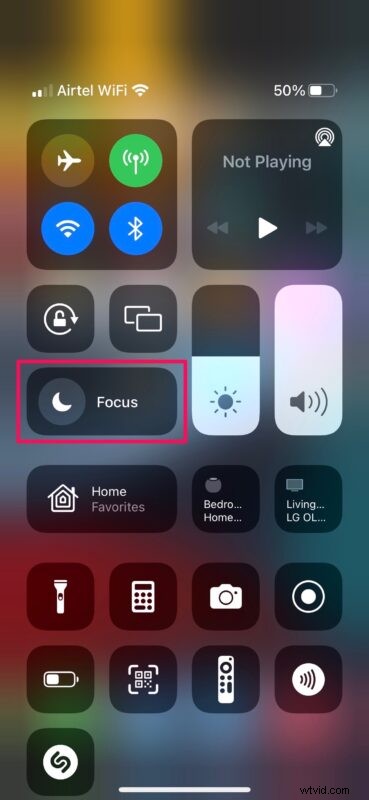
- You’ll now see the various Focus modes you’ve set up on your device. Tap on the mode you want to turn on.
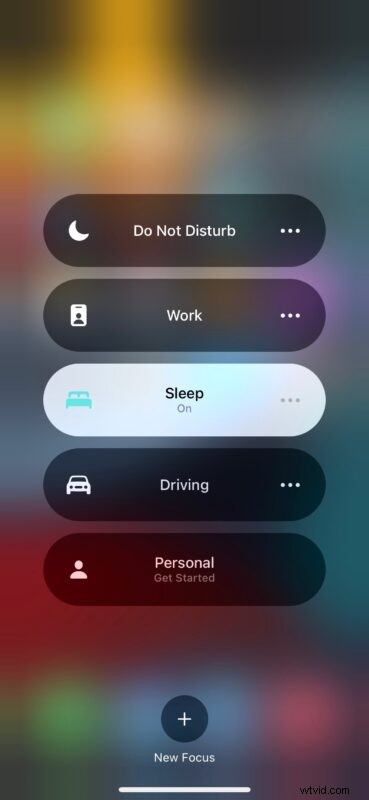
- To access more options for a particular Focus mode, you can tap the three-dots icon, if available. You can also head over to the settings menu from here and make the necessary changes if needed.
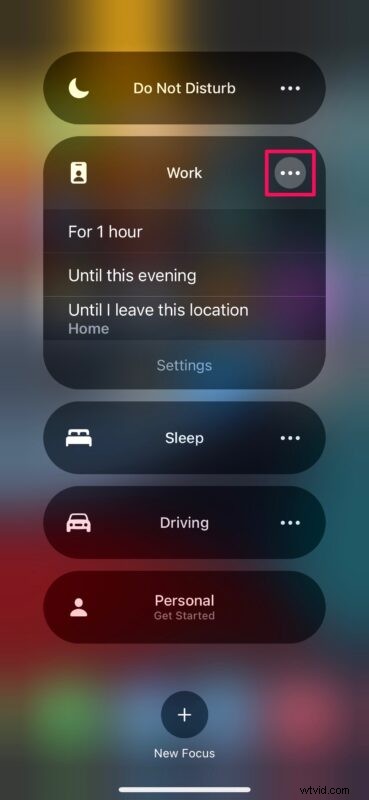
Although we used the Settings menu to set up and configure a new Focus mode, you can do the same from the Control Center too. You’ll find this option below all the Focus modes.
To make the setup process a lot easier, Apple suggests a few pre-set Focus modes like Fitness, Gaming, Mindfulness, Reading, Personal, and Work. The best part about Focus mode is that it syncs across all your Apple devices. So, if you own an iPhone, iPad, and Mac, you only have to enable a particular Focus on one of your devices.
Focus mode is just one of the many features that iOS 15 has to offer. Apple has also overhauled Safari after several years with features like Tab Groups, support for browser extensions, and more. FaceTime now supports non-Apple devices too, as you can create a web invite link right on your iPhone, iPad, or Mac.
These features are just the beginning. At some point down the line, Apple is looking to roll out a major feature called SharePlay that lets users share screens, watch movies, or listen to music with their contacts.
We hope you were able to get the hang of Focus pretty quickly. How often do you use Focus to filter your notifications? Do you automate the feature or enable it manually? What’s your favorite iOS 15/iPadOS 15 feature so far? Let us know your personal opinions, and feel free to leave your valuable feedback in the comments section below.