

Have you been using the new built-in Translate app to communicate with people who speak a different language? If so, you may be excited to learn about the hidden Attention Mode feature that the app has to offer.
Attention mode helps the other person to be able to read the translated text on your phone easily. So, if you’re interested in trying this out for yourself, read on to learn how you can use this particular feature on your iPhone.
How to Use Attention Mode in Translate App
Translate app is only available on iPhones running iOS 14 or later, and iPads with iPadOS 15 or later, so make sure your device is updated before going ahead with the procedure.
- Launch the native “Translate” app on your iPhone.
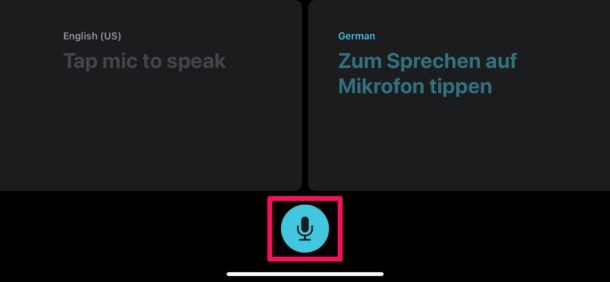
- Next, you’ll need to enter conversation mode by switching to landscape view on your iPhone. Tap on the microphone icon to speak out the sentence that needs to be translated.
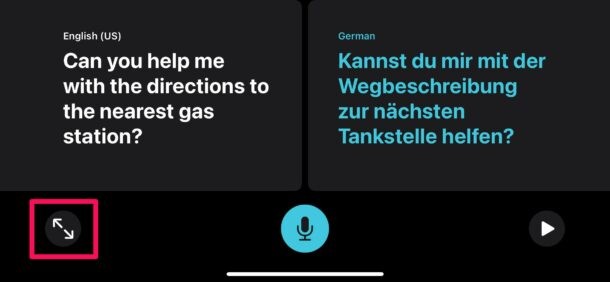
- Once you get the translated result on your screen, tap on the expand option located at the bottom-left corner of your screen. as shown below in landscape view.
- As you can see here, you’ve entered Attention mode. Here, the translated text will take up your entire screen to make it easier to read. You can go back by tapping on the conversation mode icon at the bottom-left corner.

Now you know how to take advantage of the hidden attention mode on your iPhone.
Next time, when the person you’re trying to communicate with is having trouble reading the translated text from your iPhone’s small screen, just enter attention mode to make sure the text is enlarged in size to fill the whole screen. Alternatively, you can choose to playback the translated text as audio.
Both the conversation and attention modes can be used while you’re offline, as long as you have the necessary languages downloaded to your iPhone. Offline translations could prove to be extremely useful in scenarios where you’re in the middle of a flight with no Wi-Fi or if you’re in a remote location with no cellular connectivity.
We hope you were able to get the most out of Apple’s Translate app with features such as attention mode and conversation mode. Have you used this feature? How do think Apple Translate compares to Google Translate? Do share your valuable thoughts and opinions in the comments section down below.