
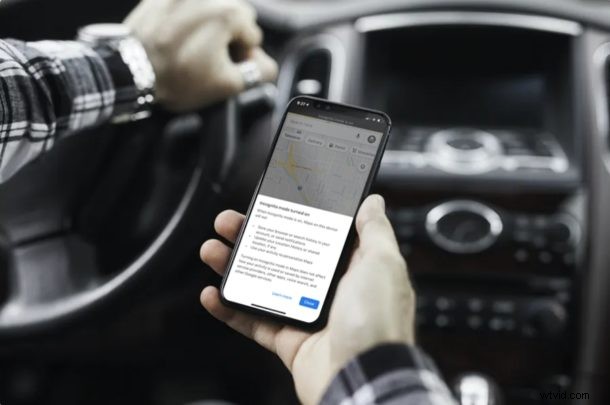
Do you use Google Maps as your primary app for navigation on your iPhone or iPad? If so, you might be interested in taking advantage of the Incognito mode it has to offer, which can help to make Google Maps use a bit more private.
Most of us are already aware of the Incognito mode that’s available on Google Chrome to browse the web privately. Google Maps’ incognito mode basically serves the same purpose. It allows you to search for places and navigate privately, without saving all the data to your Google account. This is a feature that most privacy buffs out there would appreciate.
Looking to try out this privacy feature for Google Maps on your iPhone or iPad? Then read on!
How to Use Google Maps Incognito Mode on iPhone & iPad
Navigating privately using Incognito mode in Google Maps is a fairly simple and straightforward procedure. However, since this is a relatively new feature, make sure you’ve installed the latest version of Google Maps from the App Store before you go ahead with the procedure.
- Open “Google Maps” on your iPhone or iPad.

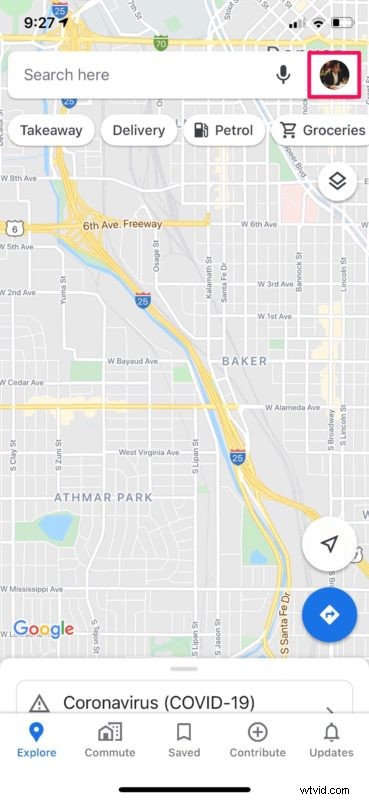
- You need to be signed in with a Google account to use this feature. Tap on the profile icon located right next to the search bar.
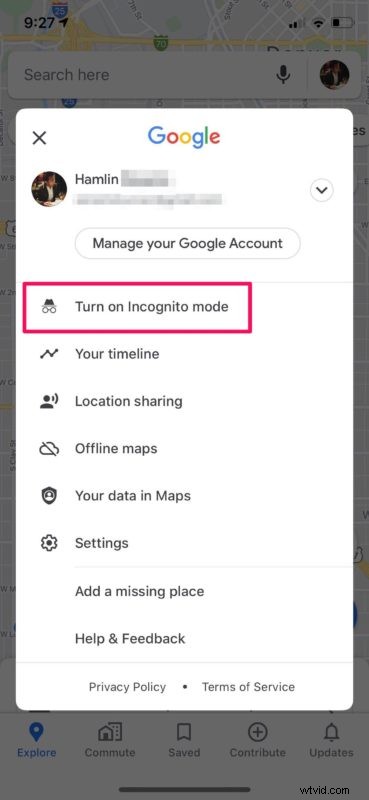
- Now, tap on “Turn on Incognito mode”, which is the first option in the menu.
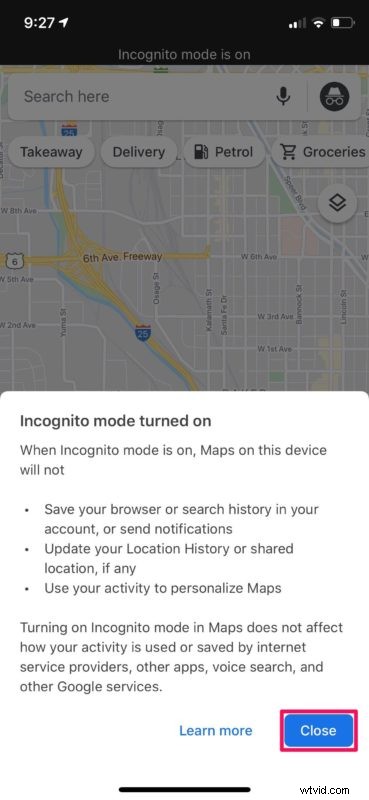
- You’ll get a pop-up with a brief description of Incognito mode. Tap on “Close” to start searching privately.
That’s all there is to it.
Now you know how to navigate privately with Incognito mode on your iPhone and iPad. You can follow the same procedure to turn on Incognito mode on an Android device too.
Once you’ve enabled Incognito mode within the Google Maps app, your searches will no longer be saved and the places you’ve navigated to, will not be updated in your Google Location History. That being said, you won’t be able to take advantage of personalized features within Google Maps, like restaurant recommendations based on your previous visits.
If you’re concerned about your privacy, you might want to set up automatic deletions within Google Maps to remove your search history every now and then. You can also turn off Location History to stop Google from keeping a record of the places you travel to as well.
We hope you were able to search for places and navigate privately with Incognito mode on iPhone and iPad. What other privacy-oriented features do you take advantage of while using Google Maps? Do share your thoughts and experience in the comments section down below, and don’t forget to check out more articles and tips on privacy.