
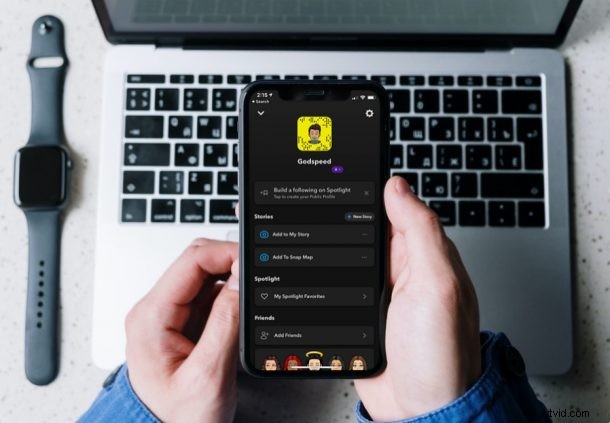
If you’re a regular Snapchat user and you also use dark mode on your iPhone, there’s a pretty good chance that you’ve been waiting for a dark-themed version of the app. Well, in that case, we’re pleased to tell you that your wait is finally over.
Dark mode has become a common feature among apps in the last couple of years. While popular social networking apps like Instagram, Twitter, Whatsapp, and others were quick to jump on the bandwagon early on, Snapchat users were left behind for some reason. Thankfully, the developers have finally updated the app with support for dark mode after testing the feature out with a limited of users last year. Are you excited to check the feature out first-hand? Well, there’s no better place to be as that’s exactly what we’ll be focusing on here.
How to Use Dark Mode in Snapchat on iPhone
The first thing you need to before you actually get started with the necessary steps is to make sure you’re running the latest version of Snapchat on your iPhone. Once you’re certain, here’s what you need to do to enable and use dark mode:
- Start off by opening Snapchat on your iPhone.

- Upon launching the app, tap on your Bitmoji avatar located at the top-left corner of your screen.

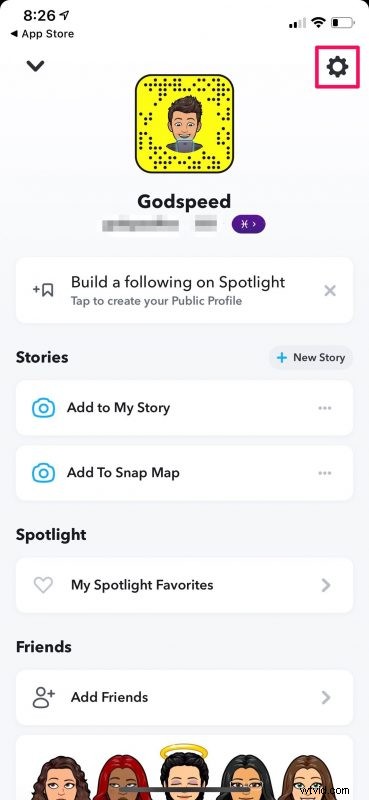
- This will take you to your Snapchat profile. Here, tap on the gear icon at the top-right corner to view the app settings.
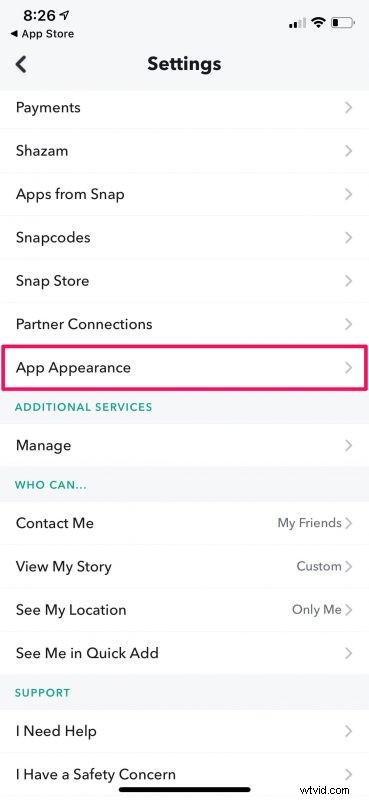
- Here, scroll down and you’ll find the option called “App Appearance” right above the Additional Services category. Tap on it to proceed.
- Now, you can set the “Always Dark” setting to immediately switch to dark mode indefinitely. Or, you can set the app to match the systemwide appearance setting.
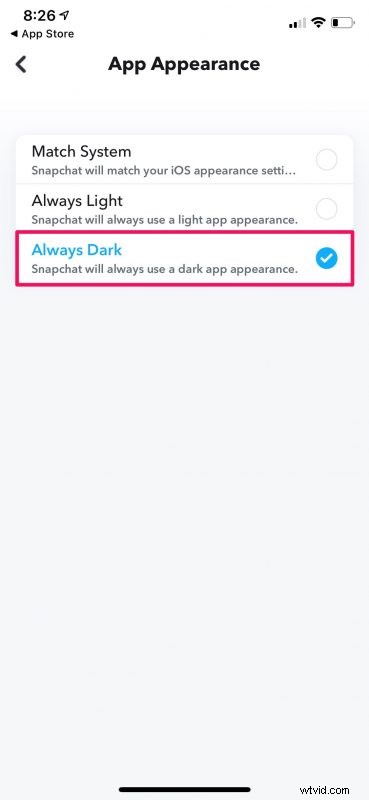
- Now, you should be able to browse the app with an all-black theme.
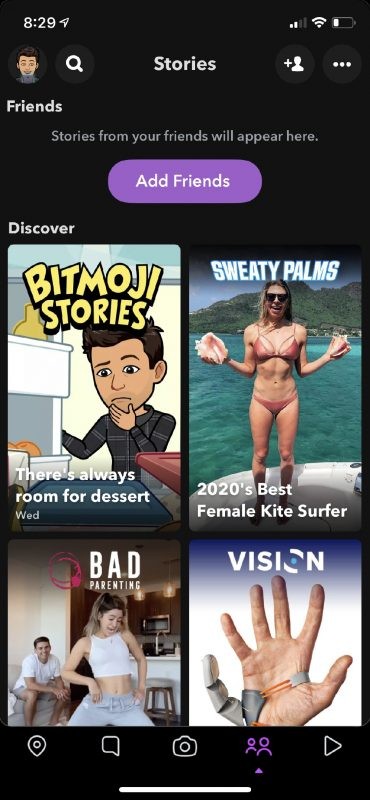
That’s pretty much all you have to do. How long did that take for you?
It’s worth noting that dark mode is not yet available globally. At the time of this writing, it’s only available for iPhone users in Australia and some parts of the United States. So, you may not find this option in the settings menu. This should change in the coming weeks, however.
Prior to this release, there has been multiple instances where Snapchat tested this feature out with a select bunch of users. But this isn’t a testing phase, so you don’t have to worry about it being taken away.
Dark mode brings a few functional benefits apart from being aesthetically pleasing too. For example, it minimzes the usage of blue light which can help reduce eye strain while you’re using the app at nights. On iPhones with OLED displays, the dark theme can reduce the batter consumption too since they shut off the pixels for displaying black content.
If you use other social networking apps and you haven’t check out dark mode on them just yet, you can learn how to enable and use dark mode on popular apps like Instagram, Facebook, Whatsapp, etc.
We hope you were able to put Snapchat’s new dark mode to good use on your iPhone. How often have you been waiting for this feature to arrive? What other apps do you use that don’t have a dark theme just yet? Let us know your experiences, share your personal opinions, and sound off in the comments section down below.