
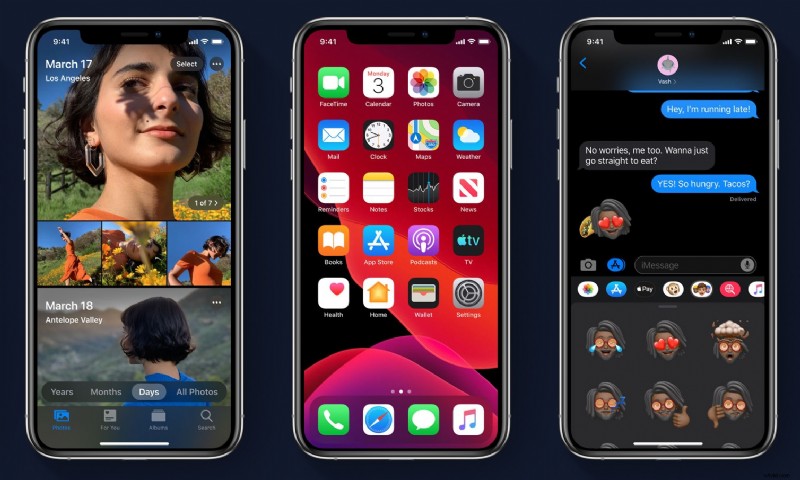
The Dark Mode visual theme on iPhone is one of the most popular features of modern iOS releases, and many iPhone users may appreciate using the Dark Mode theme on their iPhone.
With Dark Mode on iPhone, screen elements are changed from bright whites to darker grays and blacks, offering a dramatically different visual experience.
This walkthrough will demonstrate how to turn on Dark Mode on an iPhone.
How to Enable Dark Mode Theme on iPhone
Enabling Dark Mode on iPhone and iPod touch is easy, keep in mind you’ll need a modern iOS version to have this feature available to you:
-
Open the “Settings” app on iPhone
- Locate and tap on “Display & Brightness”
- Look under the Appearance section and tap on “Dark” to instantly change the iPhone theme to Dark Mode
- Exit Settings

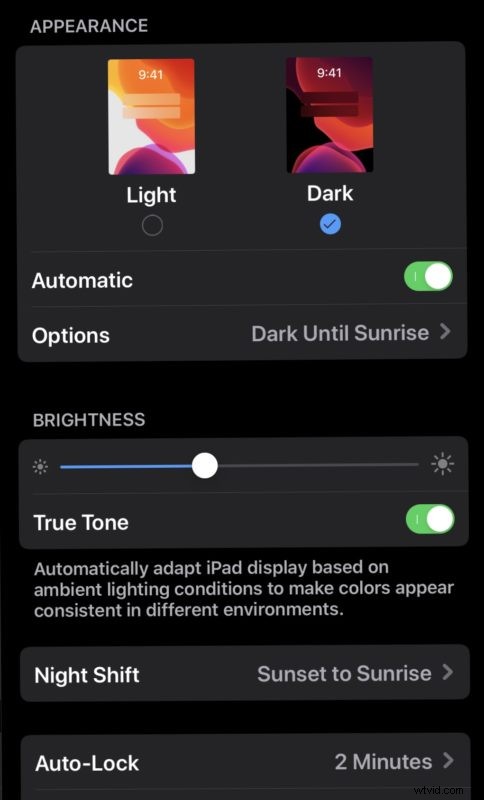
Changing to Dark Mode on iPhone happens instantly, and the appearance adjustment will impact most apps, the Home Screen, the Lock Screen, the wallpapers, and even some websites too, as they shift to adjust to the darker visual appearance.
You can always change back from Dark Mode to Light Mode at anytime if desired, simply by returning to the Settings app and choosing the “Light” appearance theme from the Display settings section.
Another helpful option is to set Dark Mode and Light Mode to enable automatically at specific times, or at sunrise and sunset, and that setting is available in the same Display section of the Settings app.
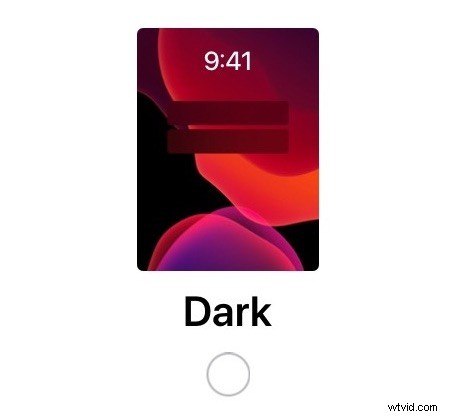
Using Dark Mode theme on iPhone and iPod touch requires iOS 13 or later, as earlier versions of iOS do not include the Dark theme option.
While this article is obviously discussing Dark theme on iPhone, you can also turn on and use Dark Mode on iPad and enable Dark mode theme on Mac too.