
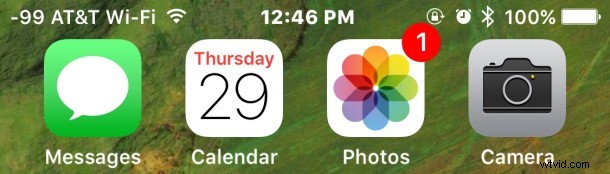
Most major cellular carrier networks support a feature known as Wi-Fi Calling, and now you can enable wi-fi calling on the iPhone as well.
For the unfamiliar, Wi-Fi calling essentially uses an available wireless network for phone calls to improve the connection quality, rather than relying entirely on the cellular network. The result is generally cleaner and crisper sounding call quality, similar to the difference audibly observed through other Voice Over IP services like Skype and FaceTime Audio.
Another significant perk to wi-fi calling is that you’ll be able to make and receive phone calls even if your iPhone is in an area where you otherwise wouldn’t have cellular service, assuming the area or region does have wi-fi. This is a really common scenario in many cities and buildings, and this is really where wi-fi calling is at its best.
Wi-Fi calling is available now on most new iPhone models with most cellular carriers, though some devices may need to be running the latest version of iOS to have access to the feature.
Enabling Wi-Fi Calling on iPhone
Assuming your iPhone and cellular provider supports wi-fi calling, here’s how to enable this feature:
- Open the Settings app and go to “Phone”
- Tap on “Wi-Fi Calling” and toggle the switch for “Wi-Fi Calling on This iPhone” to enable the feature
- Read the confirmation dialog and tap on ‘Enable” to enable wi-fi calling, you’ll then be brought to a few pages of terms and conditions and important details* about the wi-fi calling feature dependent on your cellular provider, agree to the terms to continue enabling the feature
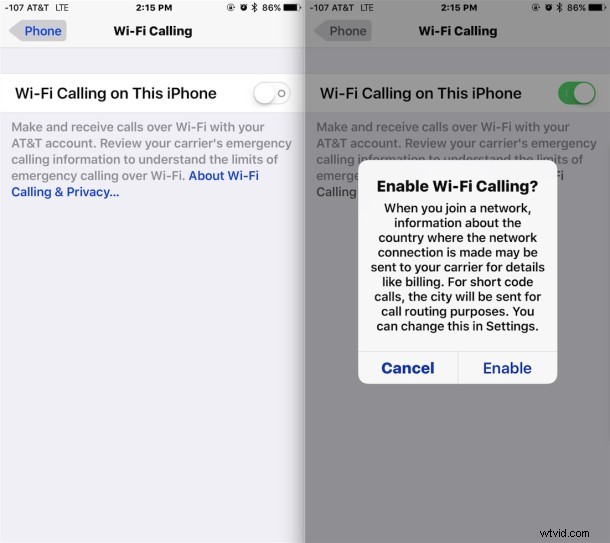
Once enabled the Wi-Fi calling button will be green.
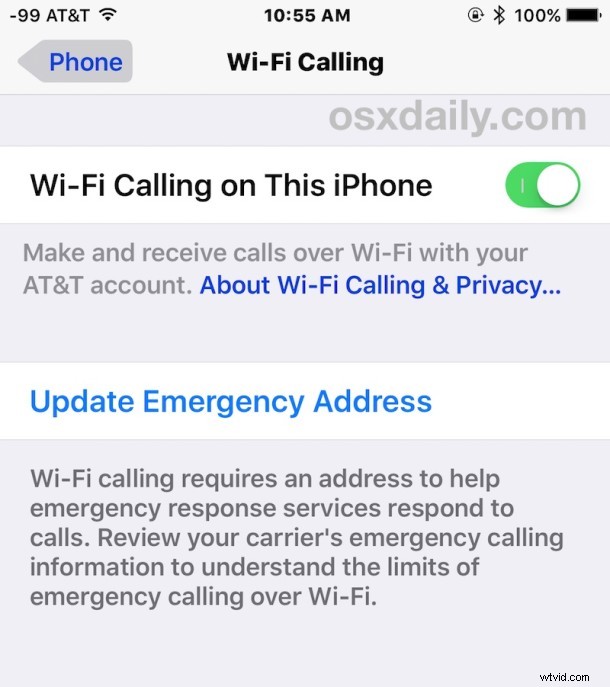
You’ll want to be sure to review the emergency information, because if you were to dial emergency services from a location with wi-fi calling, it’s the information that is relayed to the responder. This is important and not something to overlook or ignore, and also shows the potential downside to the wi-fi calling feature, since the set address doesn’t change with your location, whereas a typical cellular signal can be triangulated for a general idea. If you decide this is not appropriate for your situation, you can always turn wi-fi calling back off again.
Once Wi-Fi Calling is active and you join a wi-fi network with the iPhone, you should see the cellular carrier data change in the upper left corner of iPhone to demonstrate the feature has been enabled and is active. This looks like AT&T Wi-Fi, Sprint Wi-Fi, Verizon Wi-Fi, T-Mobile Wi-Fi, and so on (for those who may be wondering, the numbers next to the carrier name are the cellular signal strength as shown from Field Test Mode, which can replace the usual signal dot indicators if you’d like).
As mentioned before, wi-fi calling is really most helpful if your cellular connection service is poor, but you have a wi-fi network to connect to. This can help to eliminate the no-signal zones that are often found in office buildings and parts of a town where some obstruction blocks a clear cellular signal.
* All cellular providers will relay some important information to the user when enabling wi-fi calling. Perhaps the most important element pertains to emergency services and the requirement of setting an emergency address. For AT&T, the entire notification for enabling wi-fi calling is as follows:
Other cellular providers will have a similar notification, be sure to read and understand the limitations and details before using the wi-fi calling service on any network.