
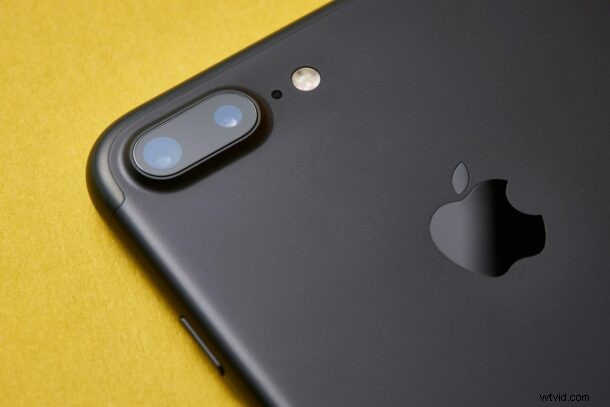
How’d you like the LED camera flash on the back of iPhone to flash when a notification or phone call comes into the device? Do you place your iPhone face down on the desk? Or, do you keep it in silent mode most of the time? In any case, you might be interested in taking advantage of its LED flash for notification alerts.
Normally when you receive a notification, your iPhone’s screen lights up. However, that’s not the case if it’s placed face down. In such cases, using the built-in LED flash can be a good indicator when you get alerts. It’s particularly helpful when your iPhone is in silent mode and you don’t hear the alert tones, or if you just want a visual indicator of a call coming in. Looking forward to take advantage of this nifty trick? Let’s cover how to turn on the LED flash notifications feature on your iPhone.
How to Get LED Flash to Blink on iPhone with Notifications & Calls
Using the iPhone’s LED flash for alerts is considered as an accessibility feature in iOS and it’s disabled by default. Simply follow the steps below to turn this feature on.
- Head over to “Settings” on your iPhone.

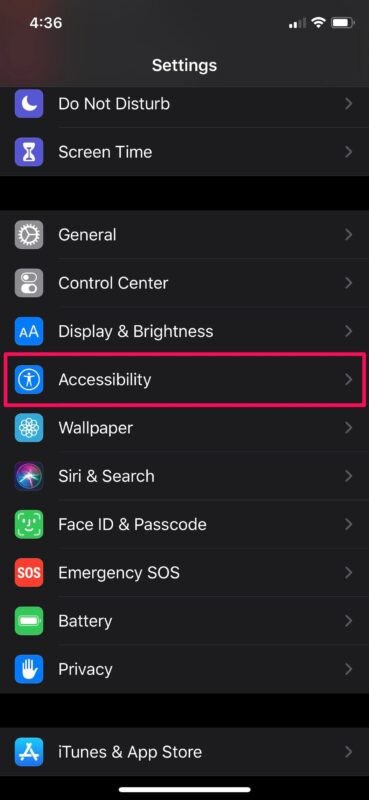
- In the Settings menu, scroll down and tap on “Accessibility” located just below Display & Brightness settings.
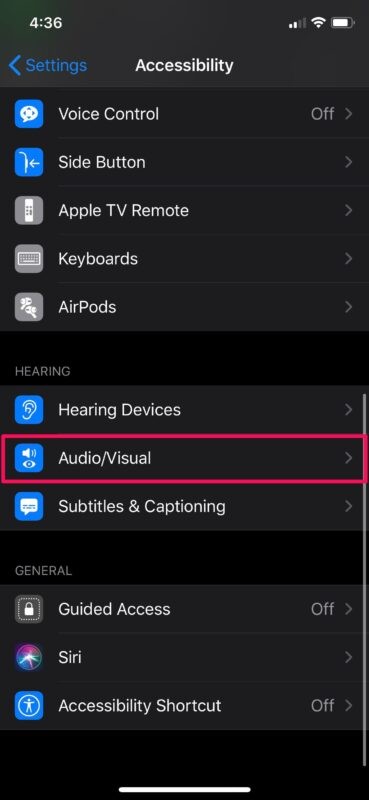
- Here, scroll all the way down and choose “Audio/Visual” located under the Hearing category.
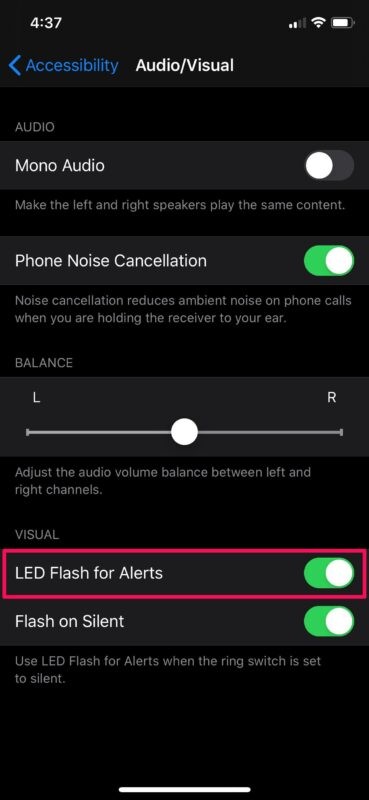
- Now, use the toggle to turn on “LED Flash for Alerts” at the bottom.
That’s pretty much all there is to it. Now you know how to use your iPhone’s LED flash for alerts.
Note that when you enable LED notifications, your iPhone defaults to “Flash on Silent”, meaning whenever your iPhone’s mute switch is set to silent mode, the LED will flash to indicate alerts. However, this can be turned off using the toggle in the same menu, according to your preference.
Although we were focusing primarily on the iPhone, you can follow the above steps to take advantage of LED Flash notifications on an iPad Pro as well. This could make up for the fact that the iPhone lacks a dedicated notification light, unlike some Android smartphones.
The flash not only serves as a visual indicator when you receive messages and other alerts, but also during an incoming call, which could prove to be useful if your iPhone is in silent mode.
If you use a Mac, you can turn on screen flash for notification alerts on a macOS device with ease as well, which makes the entire screen flicker as an alert.
This cool feature has been around on iPhone for a while, and older devices can use it too with older iOS releases, so even if you’re using a much older iPhone you can still use this capability.
We hope you were able to use your iPhone’s LED flash for indicating notifications. What are your overall thoughts on this nifty feature? Do share your valuable opinions and experience in the comments.