

Some privacy conscious WhatsApp users may which to enable disappearing messages for a particular text message thread or conversation. By turning on the disappearing messages feature, the messages in the chat will vanish automatically from all parties in the chat, at the specified time frame.
This feature can be useful for many obvious reasons, so let’s see how you can make messages disappearing automatically in WhatsApp on iPhone, iPad, or any other device.
How to Turn On Disappearing Messages in WhatsApp Chats
Here’s how you can enable disappearing messages for a particular message chat thread in WhatsApp.
- Open WhatsApp if you haven’t already, and then tap on the chat you want to turn on disappearing messages for
- Tap on their name or number at the top of the message chat
- Scroll down and tap on “Disappearing Messages”
- Choose the time you want the messages to disappear after: 24 hours, 7 days, 90 days, Off
- Return to the chat and enjoy your new disappearing messages
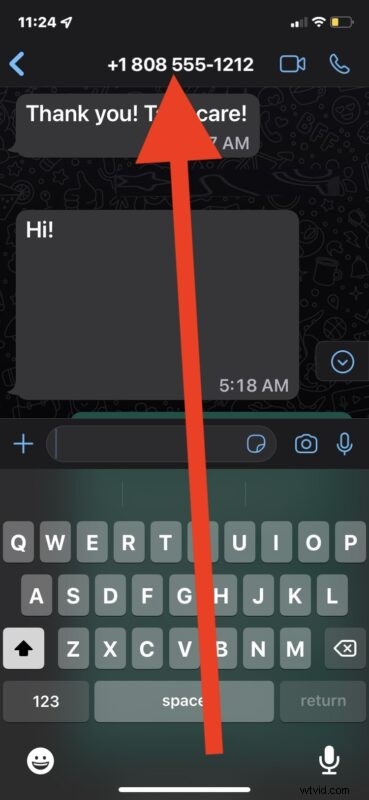
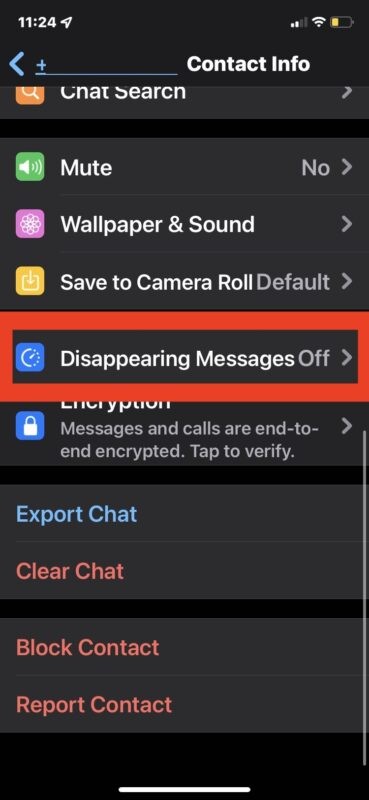
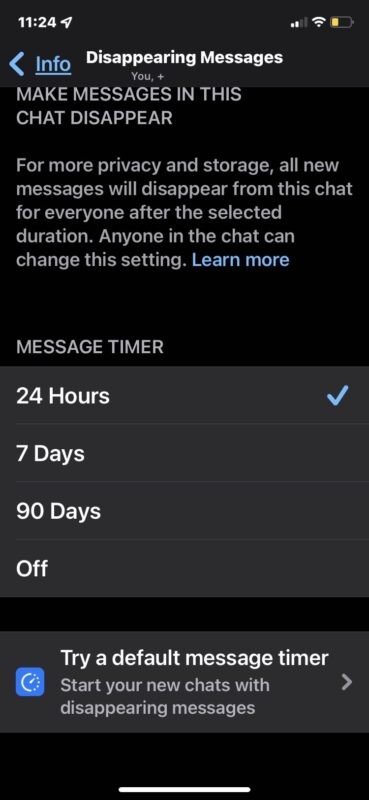
Now your new messages with the recipient will disappear in the amount of time you specified.
Whenever you set or change the time for disappearing messages, the chat thread will get an alert stating that disappearing messages has been enabled, and showing the timeframe.
Anyone in a particular message thread can enable or disable disappearing messages for that thread.
This process is basically the same on any device with WhatsApp, whether iPhone, iPad, Android, or even a Mac or PC, so if you want to use disappearing messages in WhatsApp, it doesn’t really matter what device you’re using it on, it works everywhere, and setup is the same.
This feature is not unique to WhatsApp, and in fact just about every other major messaging app offers the same feature to make messages to away automatically, including Signal (perhaps the original with this capability), Telegram, Instagram, and more.
Do you use disappearing messages on WhatsApp to increase your privacy or security? If you have any particular thoughts or experiences with this feature, share in the comments.
If you’re confused by any of this, the video below from WhatsApp shows and describes the process a bit as well: