
Picture-in-Picture video mode is a popular feature that allows you to watch a video in an overlay panel while doing other stuff on your iPhone or iPad. While using Picture in Picture with YouTube should work for most users as expected (even without the YouTube Premium subscription), not everyone can get it working. Fortunately, we’ve found a workaround for getting Picture in Picture mode working on iPhone or iPad, by using Shortcuts and a third party app.
It’s important to point out this approach isn’t necessary for everyone, as YouTube should work with Picture in Picture on iPhone or iPad as expected and without further tinkering. But if it’s not working for you for some reason, this workaround does the trick, and you’ll be able to have YouTube videos in PiP mode anyway.
Using the Workaround for YouTube Web Picture-in-Picture on iPhone & iPad
We’ll be making use of the Shortcuts app as a workaround, but you can access this tool from the iOS share sheet menu while you’re watching YouTube videos in Safari. No, it doesn’t work with the official YouTube app. Before you get started, you’ll need to set your device to install third-party shortcuts. Once you’re done, follow these steps:
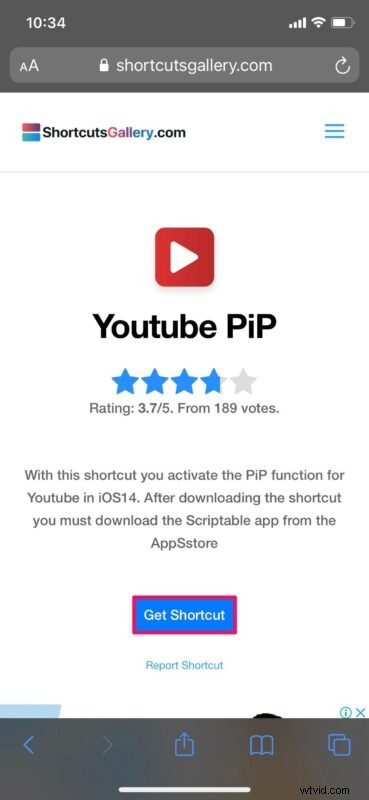
- First of all, head over to this link and tap on “Get Shortcut” to download the YouTube PiP shortcut on your iPhone or iPad.
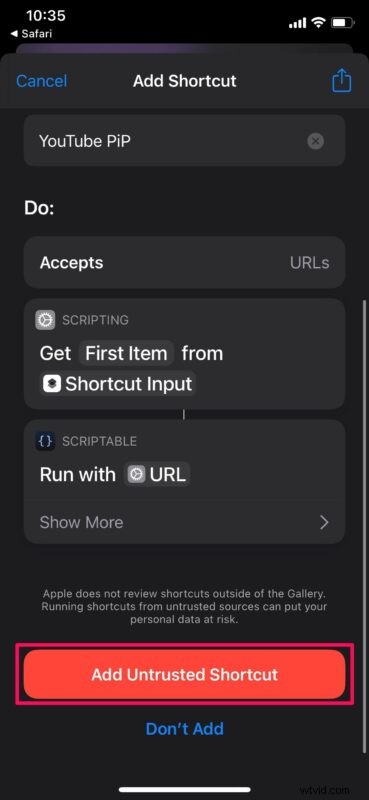
- This will launch the Shortcuts app on your device and list out all the actions of YouTube PiP. Scroll down to the bottom and tap on “Add Untrusted Shortcut” to install it.
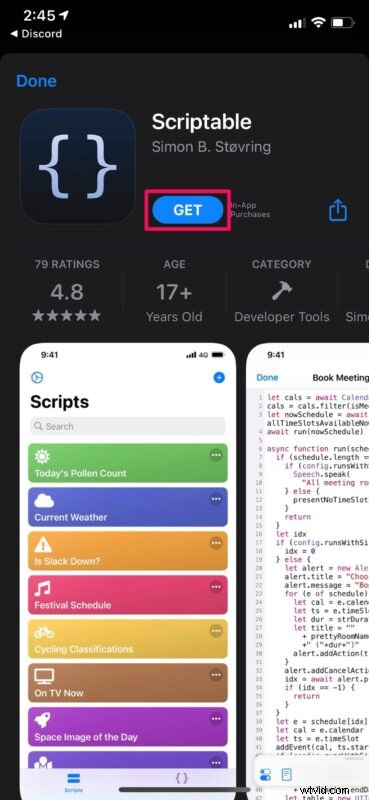
- Next, you need to install a third-party app called Scriptable for the shortcut to work. You can download it from the App Store for free.
- Now, launch Safari and open up the YouTube video that you want to watch in picture-in-picture. Don’t enter full-screen mode. Instead, tap on the share icon from the Safari menu to bring up the iOS share sheet.
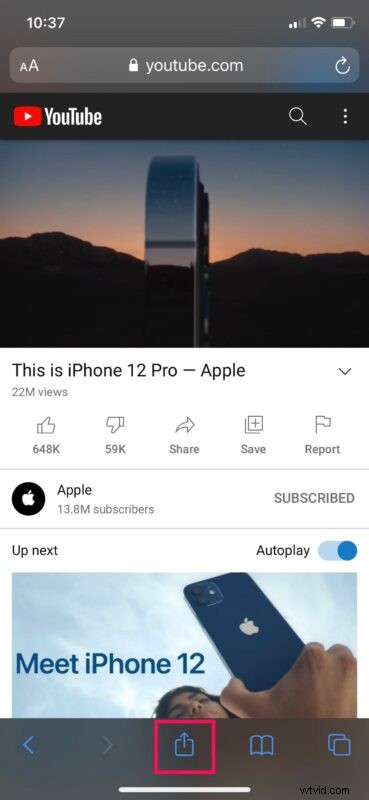
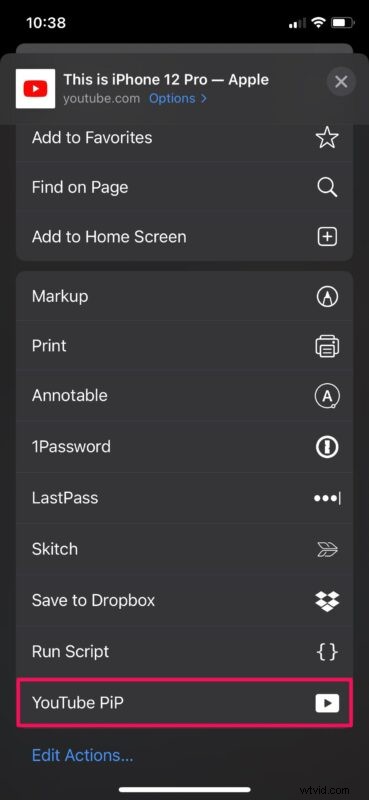
- Here, scroll down to the very bottom of the share sheet and select “YouTube PiP” as shown below.
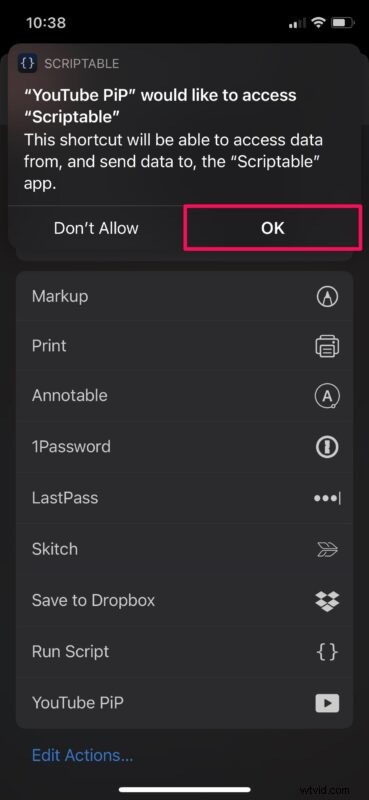
- Now, you’ll get a small pop-up at the top of your screen indicating that YouTube PiP is trying to access Scriptable. Tap on “OK” to allow it.
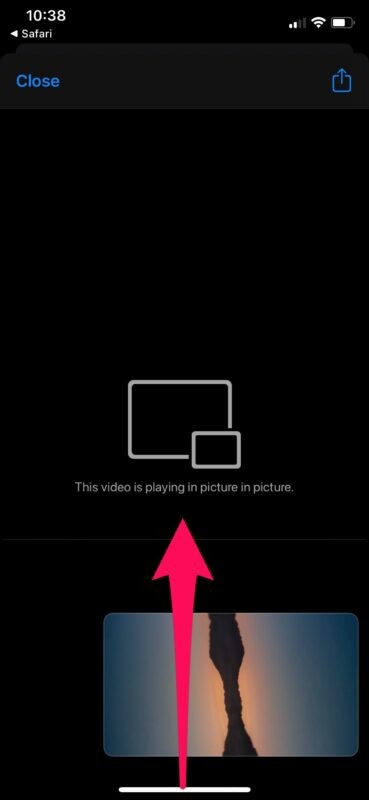
- You will now enter picture-in-picture mode. Instead of tapping on close, just swipe up from the bottom of your screen or press the Home button to go back to your iOS home screen while continuing to watch the video.
There you go, you’ve finally managed to play YouTube videos in picture-in-picture mode on your iPhone, even if the standard approach with YouTube app isn’t working for whatever reason.
Although the Shortcuts app is available for devices running iOS 12 and later, you will not be able to make use of this workaround to enter picture-in-picture mode on your iPhone unless it’s running at least iOS 14. Also, if you’re having trouble getting the shortcut to work, double-check if you have installed the Scriptable app, and that appropriate Shortcuts permissions are set, and try again.
This might not be the ideal way to use picture-in-picture mode with YouTube, but it’s a functional workaround if you’re having problems playing web based YouTube videos in Safari and having them go into PiP mode on iOS or iPadOS. The fact that you can access this tool from the iOS/iPadOS share sheet makes it convenient to a certain extent at least.
Shortcuts app gives you access to a bunch of other handy tools too. For example, there’s a shortcut called “Change Video Speed” that allows you to speed up or slow down any video in Safari, even if the website doesn’t officially support it. You can find it in Apple’s Shortcuts Gallery if you’re interested, and we have plenty of other handy Shortcuts tips available if you’re having fun with the tool.
Hopefully, you were able to get YouTube picture-in-picture to work again without any issues. What’s your take on this neat workaround? Let us know your thoughts in the comments.