

The iOS Files app and iCloud Drive offer a file system of sorts for the iPhone and iPad. One frequently used capability of file systems is the ability to rename files and folders as necessary, and as you might expect, the Files app for iOS offers this functionality too.
Apple is quite consistent with these functionalities across their operating systems, so if you’re already familiar with renaming a file or folder on the Mac or renaming an app folder on iOS then the technique should be immediately familiar to you.
How to Rename Folders & Files on iPhone & iPad with Files App
- Open the “Files” app on the iPhone or iPad
- Navigate to the file or folder you wish to rename in the iOS Files app
- Tap directly on the file or folder name
- Use the keyboard to edit, delete, or rename the file or folder as necessary, then tap on the “Done” button to set the name change

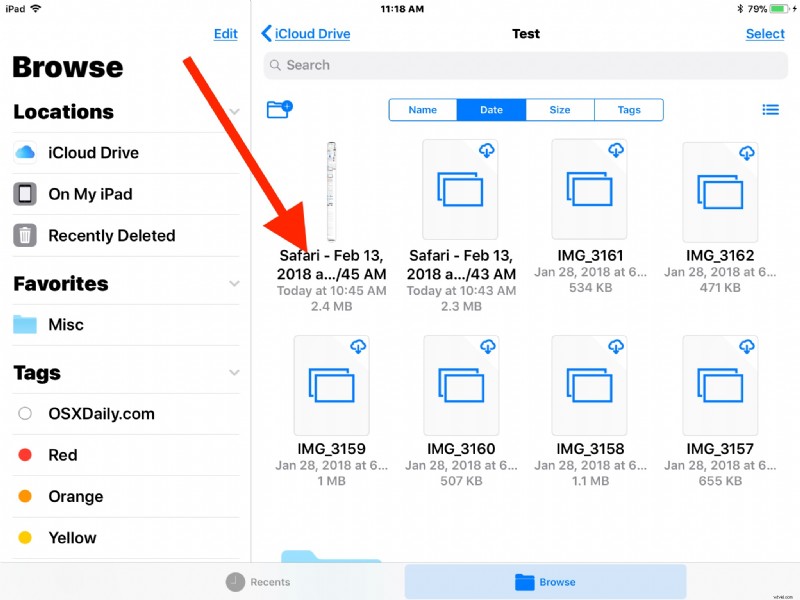
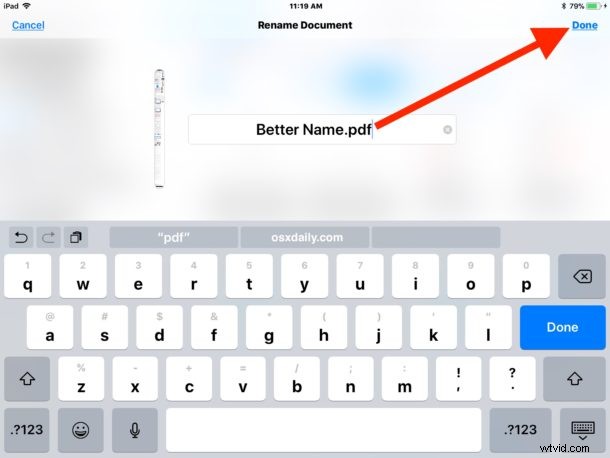
Simple, and easy.
The renaming process is the exact same whether the target item is a file or a folder.
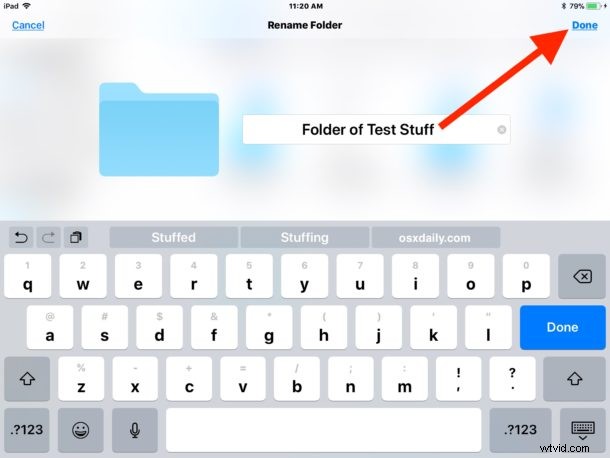
You can rename just about anything found within the Files app and iCloud Drive, whether it’s a folder you just created yourself, a webpage PDF you created, a file that was saved from another iOS app, something copied to iCloud Drive from a Mac, or elsewhere.
Because many items in Files app are stored in iCloud and not locally, there is sometimes a slight delay with the renaming of files or folders from taking effect on other devices using the same Apple ID. For example you may change a file name of a document from an iPad in the Files app, but because it syncs through iCloud and Apple servers, it may take a moment for that change to reflect in the Files app of another shared iPhone, or even the iCloud Drive app on the Mac, any slight lag depends on the speed of the internet connections in use.
Remember, the iOS “Files” app used to be called ‘iCloud Drive’, but with the new name it also earned the ability to have files stored directly on an iOS device through apps (but not directly from user input, as of now anyway). Regardless of how the Files app is named the data stored within will be the same, and it’s the same iCloud Drive data you can access from another iOS device or Mac using the same Apple ID too.