
Have you ever wished you could connect to an SMB share from an iPhone or iPad? If you work with file servers, be it for work or pleasure, you’ll be excited to learn that connecting to SMB shares and servers is now possible directly from the Files app of iPhone or iPad.
This is just one of the many exciting features that Apple gave the Files app iOS 13 and iPadOS 13, and it’s one of those will be highly beneficial to those who work with network file servers whether they are Windows PCs, Mac, or Linux machines. Once connected, you can then open files and save them back to the shared location, too.
How to Connect to an SMB Share on iPhone or iPad
You’ll need a device running iOS 13 or iPadOS 13.1 (or later) for this to work, so make sure you’re all updated.
- Open the Files app to get started. It’s pre-installed on all iPhone and iPads.
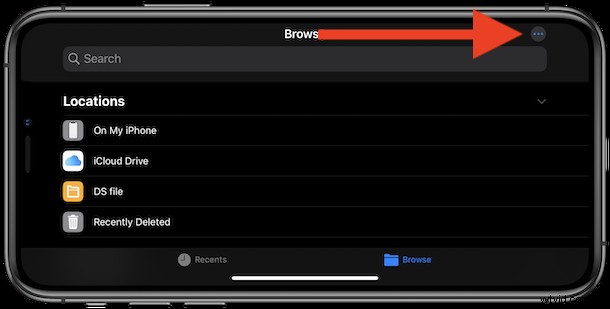
- Tap the “Browse” tab at the bottom of iPhone screen, or look under the Browse sidebar on iPad
- Tap the “…” More icon, it looks like three dots in a row and is shown in our screenshot.
- Tap “Connect to Server.” from the options
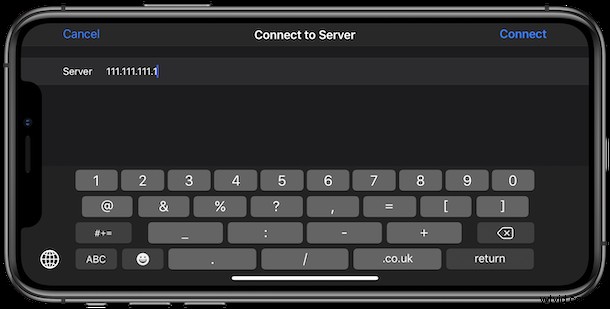
- Now you need to enter the network address of the SMB share that you want to connect to. If you’re doing this at work, your IT department will be able to help here with an IP address. Tap “Connect” when ready.
- The new share will appear under the “Shared” area in the “Browse” menu. Tap it to access the files located on the share.
And that’s all there is to it. Once you’ve set the SMB share up once it will be available whenever you need it. Even when you’re opening and saving files and data via other apps, they too will have access to the Samba share through Files app.
You can use this to connect to any SMB network share, so if you’re already file sharing between Mac and Windows then those machines will be available to connect to as well.
Another cool trick with this is document scanning; as you may recall you can scan documents directly into the Files app on the iPhone or iPad – and that includes scanning files directly to that new SMB share too.
If you have a use for this you’re probably already salivating at the prospect of having Samba shares right in iOS and iPadOS. Being able to have easy access to network shares is incredibly useful, and so is having access to large files off-device, which can help save space on an iPhone or iPad. Whether it’s a set of files for work, a media server, the latest business proposal, or a PDF of your kid’s latest finger painting masterpiece, it’s just a few taps away.
There are of course plenty more tricks and features to enjoy in the newer versions of system software for iPhone and iPad, so check out some great iOS 13 tips for iPhone and some must-know tricks for iPadOS 13, too. If you’ve just recently updated, or bought a new iPhone or iPad, now would be a great time to follow along iOS 13 coverage to learn about everything the new software has to offer.
Will you be making use of the new SMB share functionality? Which files will you be able to access that were normally out of reach? If you’re going to use this to offload data from a low capacity iPhone or iPad, let us know in the comments below. We’re always keen to hear how people manage their growing data needs.