
Apple’s AirPods Pro are fantastic headphones, whether for listening to podcasts and audiobooks, making phone calls, and of course they offer a great way to listen to music when you don’t want to have to wear massive headphones. They’re also a wonderful way of making sure that the outside world doesn’t intrude on your listening experience, too. But if you’ve just picked up a brand new pair you’ll need to set them up before you can use them.
Just like setting up standard AirPods, getting AirPods Pro up and running with iPhone or iPad is a simple affair, but there are some steps required to get things moving. Here’s how to get set so you can go about the job of enjoying your new earbuds.
How to Pair AirPods with iPhone or iPad
Once you’ve excitedly ripped off the packaging and made sure your new AirPods Pro are all charged, make sure you have your iPhone or iPad handy before getting started. You’ll need the AirPods Pro inside their Wireless Charging Case, too. Don’t worry, the rest is super easy:
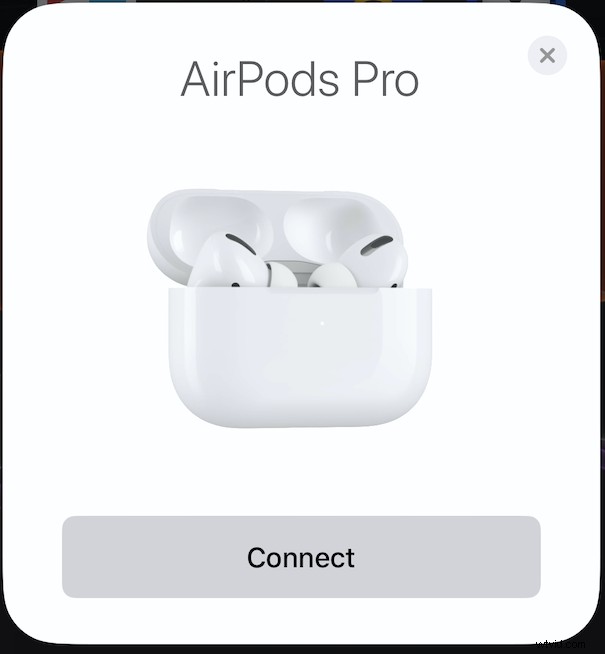
- To get started, place your AirPods Pro near your iPhone or iPad. You’ll see a prompt to connect them. Tap “Connect” to proceed.
- You’ll then be shown a series of tips explaining how to use the media controls and activate Noise Cancellation and Transparency.
- You’ll be given the option to enable “Announce Messages” as well. If you’d like Siri to automatically read your messages, tap “Announce Messages With Siri.” Otherwise, tap “Not Now” to complete the setup process.
- Finally, you’ll be shown the current battery status of your AirPods Pro and Wireless Charging Case. Tap “Done” to finish.
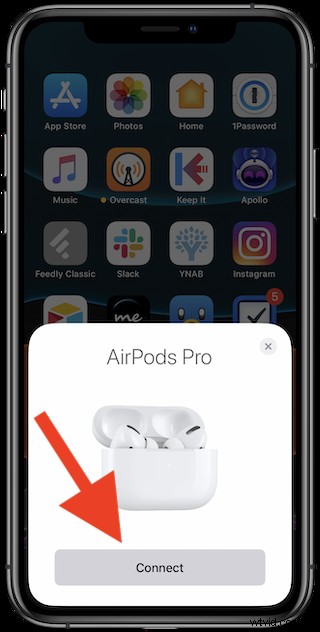
You will automatically be connected to your AirPods Pro and they will be set as the output for any audio, too.
Switching Which Device AirPods are Used & Paired With (iPhone, iPad, iPod touch, Mac, Apple TV, & Apple Watch)
Now that your AirPods Pro are paired with your primary device they can also be used with any other iPhone, iPod touch, iPad, Mac, Apple TV, or Apple Watch that is signed into the same Apple ID / iCloud account.
This is super easy, just select the AirPods Pro as the audio output, and the device in question will automatically connect to them.
No new syncing required!
AirPods Pro Compatibility and Supported Devices
AirPods Pro are compatible with iPhone, iPad, Mac, Apple TV, and Apple Watch. You’ll need to have Bluetooth enabled for them to connect, too.
In terms of specific compatibility, the following devices and software versions are required in order for AirPods Pro to function:
- iPhone and iPod touch with iOS 13.2 or later.
- iPad with iPadOS 13.2 or later.
- Apple Watch with watchOS 6.1 or later.
- Mac with macOS 10.15.1 or later.
- Apple TV with tvOS 13.2 or later.
We have a ton more AirPods and AirPods Pro guides and tips so be sure to browse around and learn some handy tricks for embarking on your new wireless audio adventures.