
Do you want a free and convenient way to share your iPhone or iPad screen to someone else remotely? Maybe you want to demonstrate something, or perhaps you wish to share the iOS device’s screen with someone who’s willing to offer you technical assistance from a remote location? Well, AnyDesk remote desktop software lets you do just that. It’s a popular alternative to TeamViewer, and we’ll show you how to use it.
AnyDesk is primarily used to remote control a desktop and provide technical support. Thanks to the AnyDesk app that’s available on iOS, iPhone and iPad owners can share their screen securely with other AnyDesk users within a matter of seconds. Although you can’t remotely control an iPhone or iPad using AnyDesk on a computer, the screen sharing feature should be good enough for any sort of guidance in most cases.
Trying to take advantage of the screen sharing functionality that AnyDesk has to offer? Read on to learn how you can share your iPhone or iPad’s screen with AnyDesk.
How to Share iPhone & iPad Screen with AnyDesk
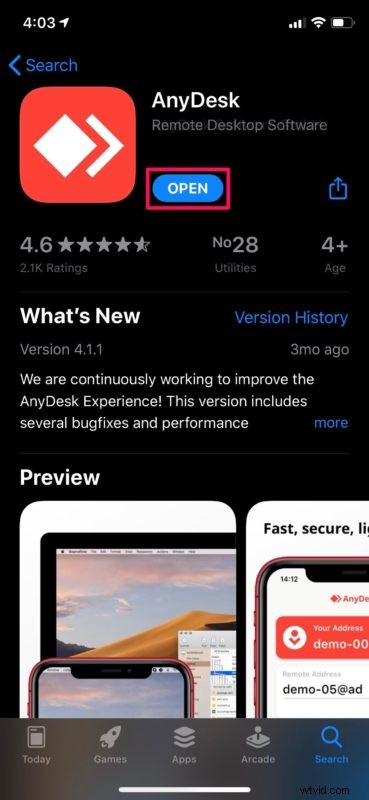
Before you get started with the procedure, you’ll need to download and install the AnyDesk app from the Apple App Store. It’s free to download and use. Once you’ve installed it, simply follow the steps below.
- Open “AnyDesk” app on your iPhone or iPad.
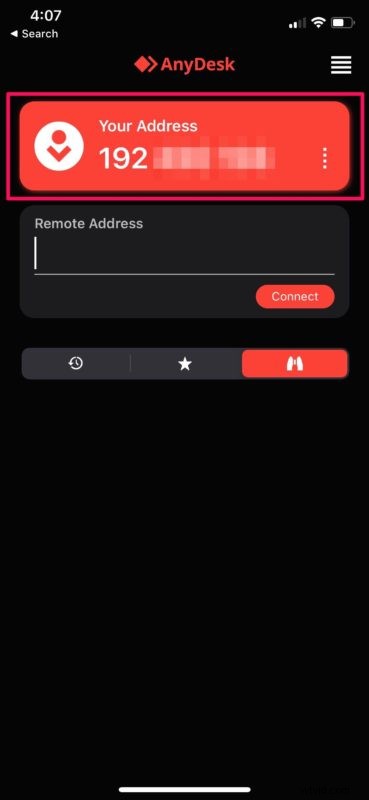
- You’ll notice your AnyDesk address as soon as you open the app. This address will be used by any other AnyDesk user to connect to your device.
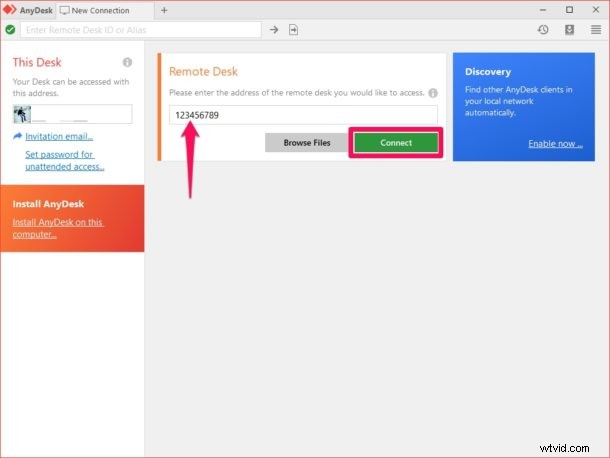
- Head over to anydesk.com/download on your computer using a web browser and install the software on your PC. Now, open it and type your iPhone or iPad’s AnyDesk address. Click “Connect” as shown below.
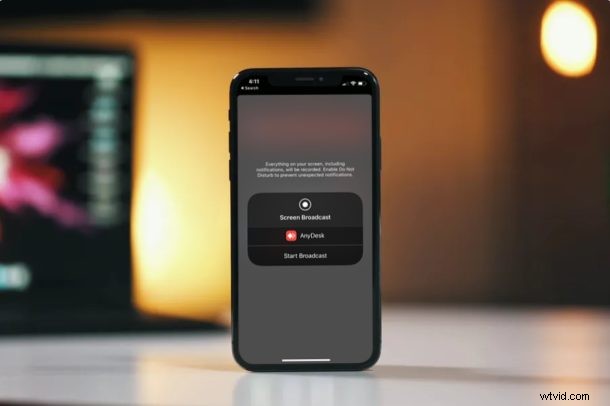
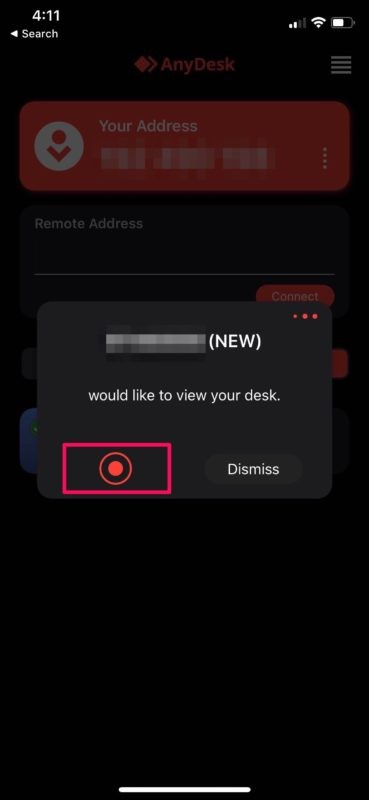
- Now, you’ll get a prompt within the AnyDesk app on your iOS device. Tap on the “recording” icon.
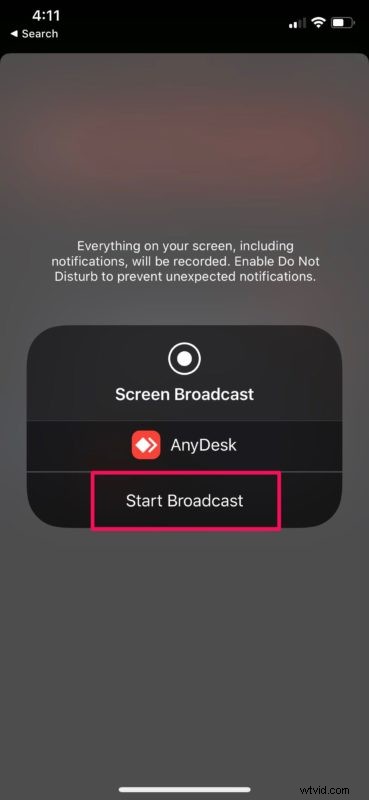
- Next, tap on “Start Broadcast” as shown in the screenshot below to begin the screen sharing session.
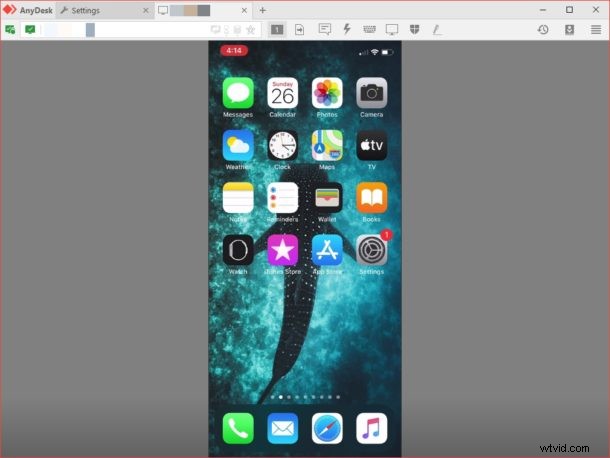
- As you can see here, you’re now able to view your iOS device’s screen on a computer using AnyDesk.
That’s all there is to it. Now, you have a clear idea of establishing a remote connection for screen sharing using AnyDesk. Pretty easy, right?
You can follow the same procedure to share your screen with another iOS device using AnyDesk, so you’re not just limited to using a PC or Mac. This wouldn’t be possible without the built-in screen recording feature that Apple introduced alongside the release of iOS 11.
Similarly, you can also use the AnyDesk app to remotely control your desktop computer. Forgot to shut down your PC at home? Using AnyDesk’s Unattended Access feature, you can connect to your computer by using just a password. This eliminates the need to manually approve a connection request within AnyDesk.
Support personnel and tech gurus can take advantage of this handy feature to assist people and resolve the issues they’re facing with their devices. If you’re not happy with AnyDesk or if it’s not functioning properly on your system, you can try out TeamViewer to share your iOS device’s screen in a similar way. Popular video calling services like Skype, Zoom and Hangouts can also be used for effortless screen sharing.
We hope you managed to share your iPhone and iPad screen using AnyDesk for remote assistance. Have you tried out any other software for the same purpose? If so, how does it stack up to AnyDesk? Do let us know your thoughts and opinions in the comments section down below.