
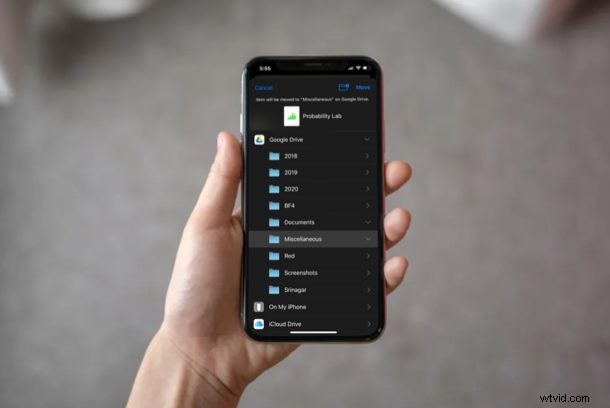
Do you use Google Drive as a cloud storage platform to store your files from multiple devices that you use? If so, you’ll be able to view, edit, access, and manage Google Drive files right on your iPhone and iPad using the Files app.
If you are interested in managing your files that are stored on your Google Drive, then read on to learn how you can access and edit Google Drive files from both the iPhone and iPad.
How to Access & Edit Google Drive Files from iPhone & iPad
Before you go ahead with this procedure, you need to make sure that your iPhone & iPad is running iOS 13 / iPadOS 13 or later, and has the Google Drive app installed. Although Files app has been available since iOS 11, certain functions aren’t available on the older versions. If you don’t see the Files app on your device, simply download it from the App Store.
- Open the “Files” app from the home screen of your iPhone and iPad.
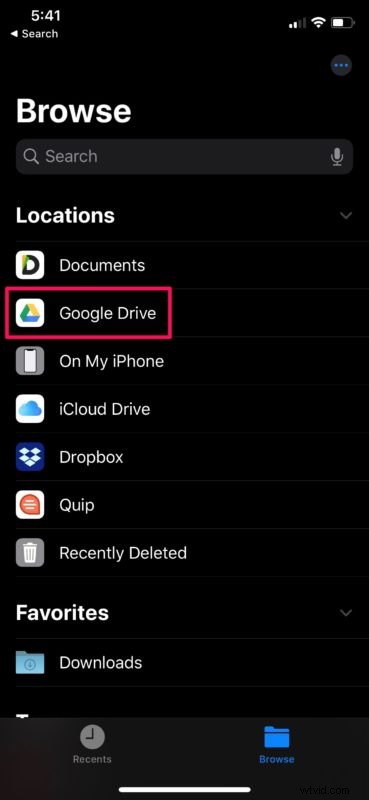
- Under the Browse menu of the Files app, tap on “Google Drive” as shown in the screenshot below.
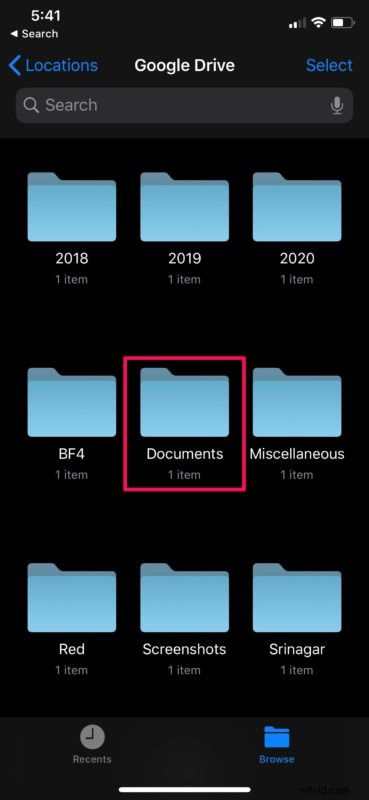
- Here, you’ll be able to view all the folders that are stored on Google’s cloud storage platform. Choose any of the folders listed here to view the corresponding files.
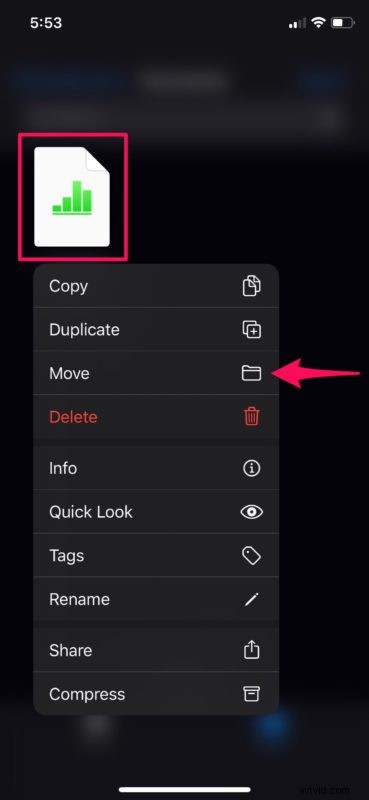
- Now, long press on any file that’s shown here, in order to access the edit options. You’ll be able to rename the file according to your preference, add color tags to sort the files by priority, get a quick preview of the file you’re working with, and even compress it into a Zip file. However, if you’re trying to move this file to a different location and keep your storage organized, choose the “Move” option.
- Now, you’ll be able to move your documents and other files to the physical storage of your device or simply to a different folder within Drive. Additionally, if you take advantage of multiple cloud services, you’ll also be able to move files from Google Drive to iCloud, Dropbox and more.
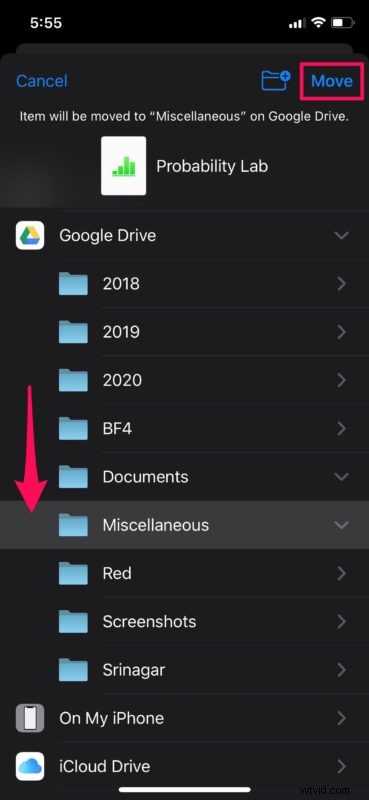
These are pretty much all the steps that need to be followed, in order to view and edit Google Drive files right from the comfort of your iPhone and iPad.
Since this is a cloud-based service, all the changes you make in the Google Drive section of the Files app will be automatically updated on the cloud. Therefore, when you access your Google Drive from a different device like your computer or tablet, the newly added content would show up almost immediately.
Do you use Apple’s own iCloud service to store your files online? Files app can be used in the just the same way to access, manage and edit files that are stored on iCloud Drive too, and iCloud Drive also allows for recovery of lost or deleted documents and files which is a nice perk. Like most other cloud file services, with iCloud Files the changes you make get automatically synced across all your other Apple devices that are signed into the same Apple account.
Files app has made it a whole lot easier to access any kind of file or folder that’s stored on not just Apple’s iCloud service, but third-party cloud storage platforms like Google Drive, Dropbox, etc. as well. File types could include screenshots, PDF documents, zip files, and more. With this app, users can keep all of their files organized under different folders, and the changes they make are constantly updated on the cloud.
If you take advantage of multiple cloud storage services like Dropbox, OneDrive, iCloud, etc., it’s also fairly easy to transfer your files between the cloud storages and keep all of them updated. Most cloud storage platforms offer limited storage space for free, with Google Drive offering the highest, at 15 GB of free space. This allows you to keep a backup of some important files on multiple services, without necessarily having to pay for all of them.
Did you manage to keep all your Google Drive files and documents organized right from your iPhone and iPad? What do you think of the convenience that Files app brings to the table? Do let us know your thoughts and opinions in the comments section down below.