
Do you want to access all your ebooks and audiobooks in the Apple Books app on iPad or iPhone, even when you’re not connected to the internet? If you want to have offline access to ebooks in the Books app (once called iBooks), you’ll need to download the books from iCloud so that they are stored locally on your iPhone or iPad. This is pretty easy to do, and it’s something you may want to do before your next trip.
A lot of people like to read or listen to books while they’re traveling, or passing the time, but you cannot expect to stay connected to the internet at all times when you’re on the move. Maybe you plan on being offline and out of cell range, on a plane, or maybe your cellular connection may get cut off due to poor cellular signal, and of course there isn’t Wi-Fi everywhere you go. In such cases, the offline reading functionality can be a lifesaver. So, with a little planning ahead, you can access your books offline at anytime, right from iPhone or iPad.
How to Download Apple iBooks / Audiobooks to iPhone & iPad Local Storage
The following steps can be used on all recent versions of iOS and iPadOS since the Apple Books app’s interface has remained mostly the same for years. So, let’s get started:
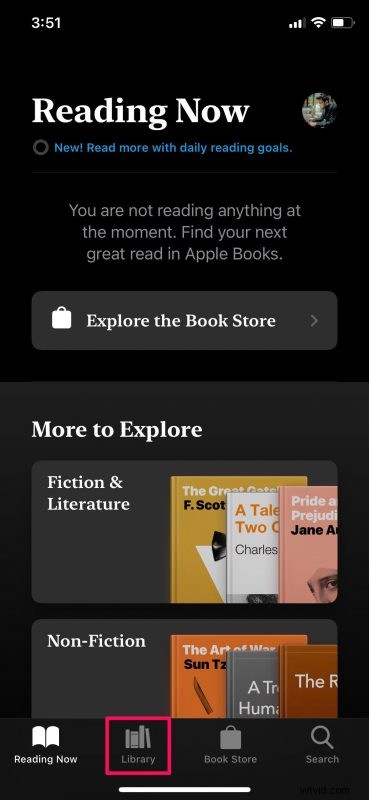
- Upon launching the Books app on your iPhone or iPad, you’ll typically be taken to the Reading Now section of the app. Tap on “Library” from the bottom menu to view all your books.
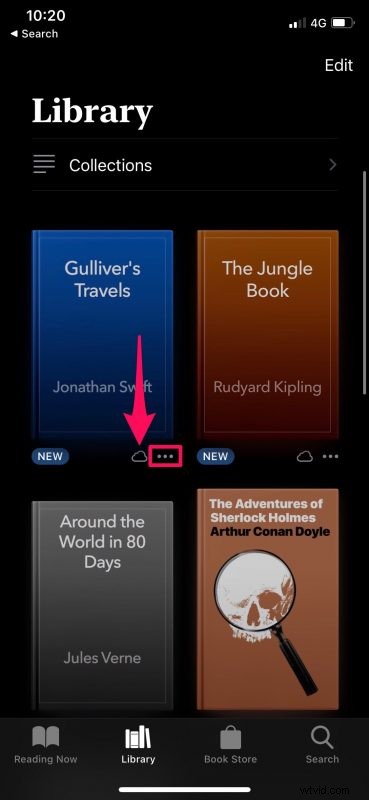
- Here, the books that are stored in iCloud are indicated with a cloud icon right below it, as shown below. Tap on the triple-dot icon next to it to access more options.
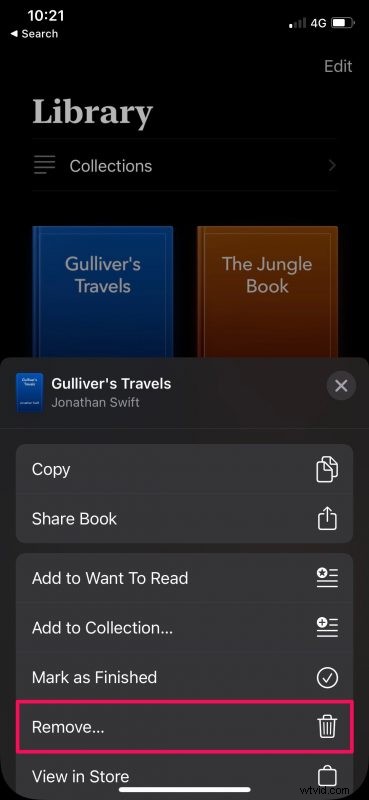
- Now, simply choose “Download” from the options menu that pops up from the bottom of your screen.
That’s it. Your download should be done in a second or two depending on your internet speed.
Once downloaded, you can put your device in Airplane mode and try opening the book to confirm that it’s accessible offline.
When you’ve finished reading the book, make sure to remove it from your device since a lot of people tend to forget about it, and over time, these downloaded books could pile up and consume a lot of physical storage space.
Removing Downloaded Books from Local Storage
To delete a book that you’ve downloaded, you can simply tap on the triple-dot icon and choose Remove from the options menu.
You can also remove multiple books at a time by entering the selection menu.
You can learn more about deleting downloaded books and audiobooks from your iPhone or iPad too if need be, usually to save storage space, or perhaps you’re done reading them.
By the way, you can also download music from Apple Music for offline listening too.
We hope you were able to download a couple of books to read during your next trip. What do you think of the offline Books library capability for iPhone and iPad? Do you use this feature? Do you have any tips or tricks, or thoughts on the matter? Share with us in the comments.