
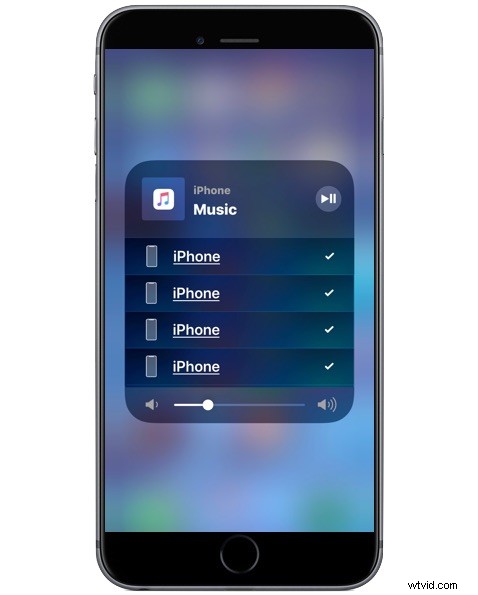
Wondering how to access AirPlay audio controls in iOS 15, iOS 14, iOS 13, iOS 12, and iOS 11 on an iPhone or iPad? You might not be alone, as accessing the AirPlay controls for audio streaming is tucked away behind another panel in the iOS Control Center, making it very easy to overlook.
If you’re looking for the AirPlay audio streaming controls in Control Center for iOS 14 on iPhone or iPad, we’ll show you how to find them.
How to Access AirPlay Audio Settings on iPhone or iPad to Stream to AirPlay Device
Note that any AirPlay receiver or speaker must be on the same wi-fi network as the iPhone or iPad, this is necessary so the devices can find one another and stream audio.
- Start playing music from your audio library, Spotify, or another audio service
- Access Control Center on the iPhone or iPad, from modern iPhone and iPad devices that means swiping down from the top-right corner of the screen to access Control Center
- Locate the Music control panel and now tap and hold on that (or firm press if you have 3D Touch) to expand it
- Now tap the AirPlay button, it looks like a pyramid with concentric circle waves flying out of it
- Select an AirPlay audio output source from the AirPlay audio device list that is visible (tapping multiple AirPlay output options will play to all of them)
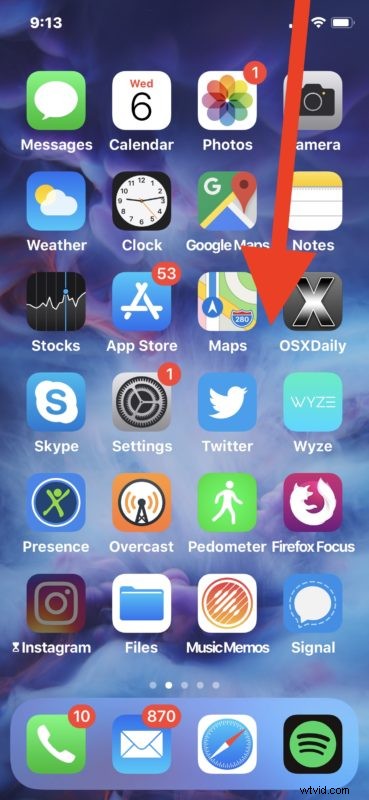
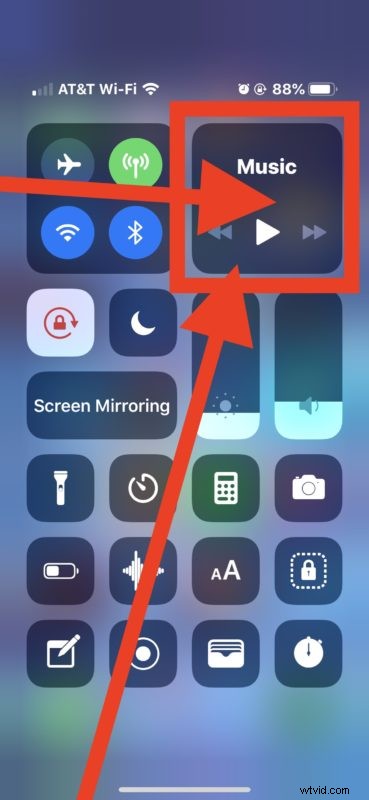
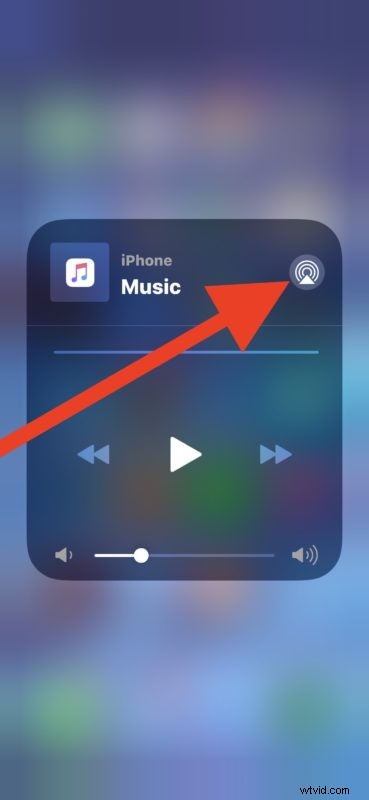
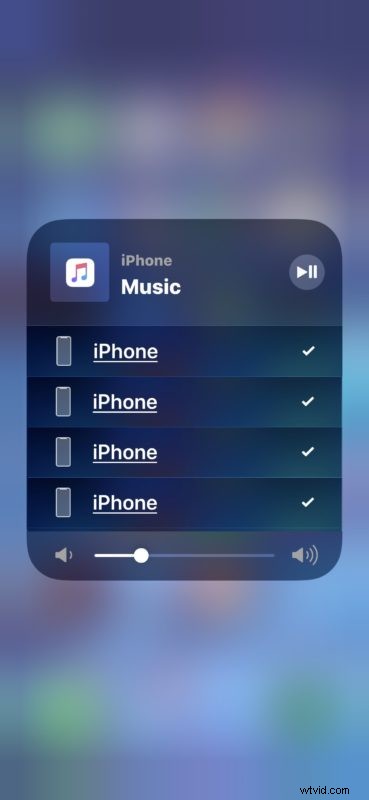
This is where you’ll find audio output sources like AirPods, HomePods, AirPlay speakers, Apple TV, and other AirPlay compatible audio output sources.
Once a selection is chosen, the audio output should now stream wirelessly from the iPhone to the AirPlay speaker. You can select multiple devices here to stream AirPlay audio to multiple speakers or AirPlay receivers.
Why the AirPlay audio option is tucked behind the Music Control Panel isn’t entirely clear, but it can feel hidden to many users who are unfamiliar with long taps and 3D Touches to possibly reveal additional options in iOS. How it is currently with iOS 15, iOS 14, iOS 13, iOS 12, and iOS 11 was not always the case however and so the interface might change again, as earlier versions of iOS Control Center had a more obvious dedicated AirPlay button in earlier iOS versions that were not tucked behind the Music control panel.
AirPlay Speaker Not Showing Up in iOS Control Center?
Depending on what the AirPlay Audio output device, and perhaps what version of iOS you have installed on the iPhone or iPad, you might immediately see the AirPlay speaker available, or you might not. It’s possible to encounter an apparently buggy experience and find the AirPlay speaker never shows up at all in Control Center – nonetheless that doesn’t necessarily mean you can’t use the speaker.
For example in my testing I can successfully output AirPlay audio from an iPhone X to some AirPlay speakers, but they often don’t show up in the AirPlay interface of Control Center of iOS. A way to consistently replicate this quirky experience was to visit a persons home with a Sonos One speaker system setup to use with their unique users iOS device, where my iPhone is able to successfully stream audio output to the Sonos speaker despite the Sonos Speaker never actually showing up in the AirPlay interface of iOS Control Center. Instead, the iPhone is able to stream sound to the Sonos speaker through third party apps like the Spotify app (and again, this is not the iPhone that is setup to use the Sonos so this is not going through the Sonos app), where Spotify finds the speaker in the Spotify device list, despite AirPlay not. Whether or not this is intentional, actually a bug, or a feature with iOS, AirPlay, Sonos, some quirk of this particular configuration, a failure of myself and my own usage, or something else is not clear. Nonetheless it’s not unusual for an iPhone or iPad owner to visit another location with a Sonos or other AirPlay speaker, and a similar situation may be experienced if so.
Here you can see the AirPlay Control Center settings do not find the Sonos Speaker at all, yet despite that the iPhone is streaming audio to the Sonos speaker over AirPlay to the Sonos speaker titled ‘Family Room’:
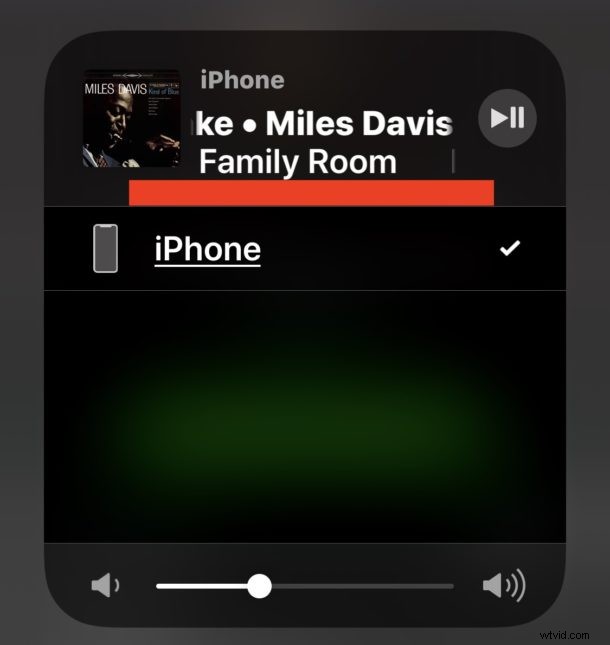
Thus if you are attempting to use AirPlay audio streaming for something like a Sonos speaker, try using an app like Spotify to select the Sonos speaker system from as the audio output, and in that situation you can skip the iOS Control Center approach to AirPlay entirely. This is a bit odd but it could be a bug that exists, but it’s worth mentioning since this configuration is fairly common. Of course if your iPhone or iPad is setup directly to use the Sonos, then using the Sonos app is the solution instead.
If you have any particular experiences using AirPlay audio and streaming to an AirPlay device from an iPhone or iPad, share with us in the comments below!