
The Messages app has changed the way users access all photos from within a message conversation. No longer can you simply tap on the camera button to access your photos library from Messages, in iOS 13 and iOS 12 you will instead access your photos from the app icon drawer within the Messages app on iPhone or iPad. This is a subtle change that is somewhat controversial given that it makes selecting photos a bit slower in Messages for iOS 12, but once you learn how the process works you’ll find it’s not particularly difficult.
We’ll show you exactly how to access all photos and your iPhone or iPad photo library from within the Messages app of iOS 13 and iOS 12 so that you can easily share pictures, photos, and videos as usual.
How to Access All Photos from Messages with iOS 13 and iOS 12 on iPhone and iPad
The easiest way to access all photos to send one from Messages app in iOS 12 is as follows:
- Open the Messages app and open any message conversation or thread
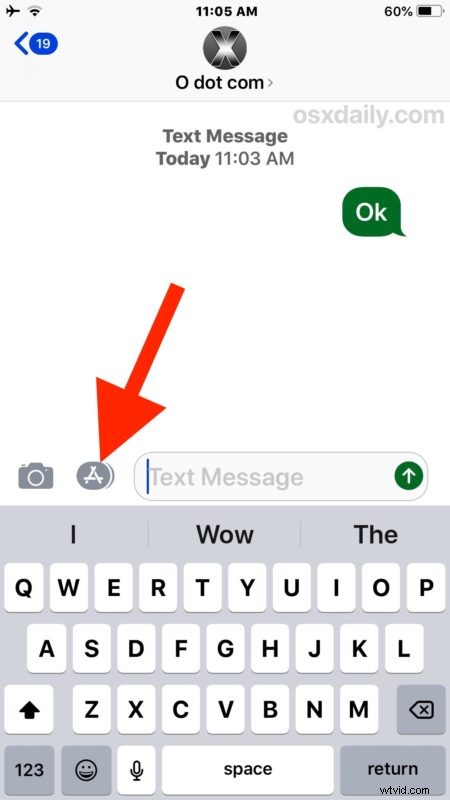
- Tap the “(A)” App Store button, it looks like an A made out of popsicle sticks
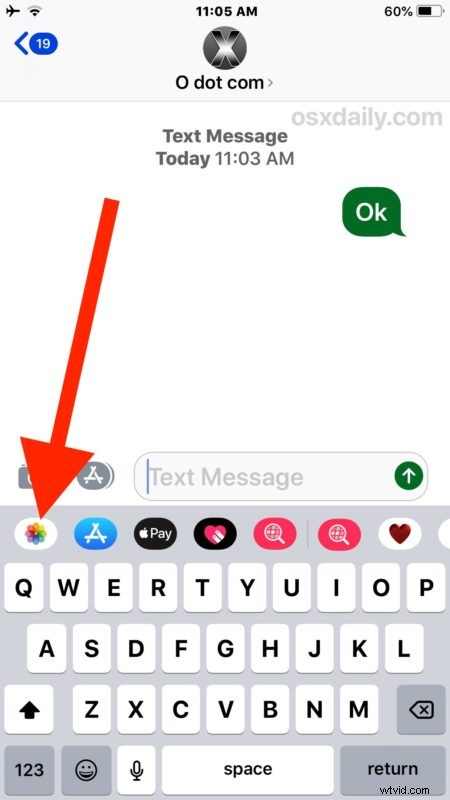
- Now tap the Photos button, it looks like a color wheel
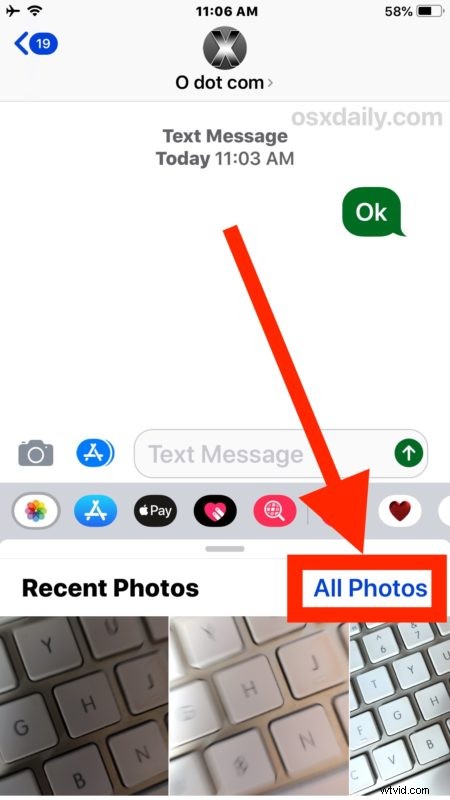
- This will reveal a “Recent Photos” panel, now tap the blue “All Photos” text which is a button
- Select the photo(s) you want to attach to the message from your Photos app as usual, whether from Camera Roll, Favorites, Videos, Selfies, Screenshots, Recently Added, or any other photos album in iOS
- Send the photo as usual by tapping on the send arrow button
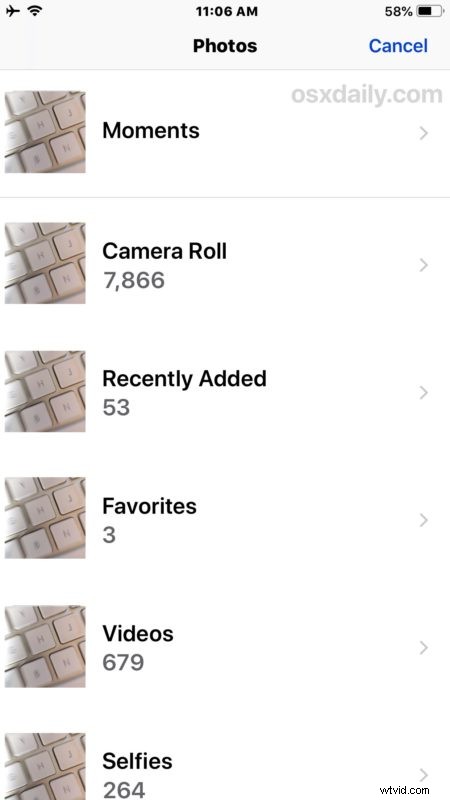
That’s the simplest way to access Photos from Messages in iOS 12, and the trick is the same on iPhone and iPad.
If you regularly hide the Messages drawer of app icons in iOS you’ll need to get used to showing it first again before you can access Photos to send and share with other users through Messages.
Accessing All Photos in iOS 12 Messages via Camera
Another option is available, but it’s likely not faster for most users.
Similar to the above approach, open Messages and go to any message thread. Now this time, choose the Camera button, and then tap the photos button within the top corner of the active Camera app.
That will also bring up the Photos library browser for you to select a picture to send or share via Messages in iOS 12.
For most users, the Photos icon approach is faster, but the camera icon approach may work for others too, so use what works best for you.
Of course you can also still access and share photos directly from the Photos app too.
If you know of any other method or approach to accessing Photos from Messages in iOS 12 on an iPhone or iPad, share with us in the comments below!