
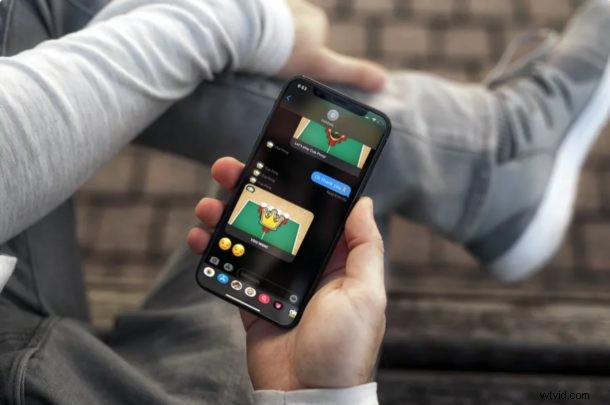
The Messages app on iPhone and iPad allows you to play games directly within the app itself, in addition to what you’d typically expect with sending and receiving regular text messages and iMessages. Does playing games like chess, checkers, cup pong, battleship, darts, mini-golf, amongst many others over iMessage sound fun to you? Then read on to learn how it works!
Apple’s iMessage service is baked into the Messages app and it’s extremely popular among Apple users. It offers a free and convenient way to send text messages, attachments, animojis, etc to other iOS, iPadOS, and Mac users. Every now and then, Apple adds new features to iMessage for keeping users engaged. Being able to play games within the Messages app is one such feature and if you’re running out of topics to talk about while texting your friends, this is a great place to start, because who doesn’t like playing a game or two?
This article will discuss how you can play games in Messages app on both the iPhone and iPad.
How to Play Games in Messages for iPhone & iPad
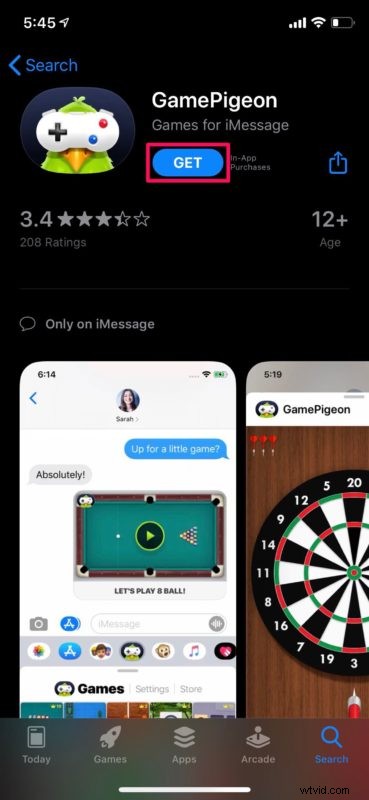
There are several iMessage games that you can install from the App Store. In this instance, we’ll be demonstrating how you can use GamePigeon to play a bunch of cool two-player games, since it’s quite popular in the United States.
- Install “GamePigeon” from the Apple App Store on your iPhone or iPad.
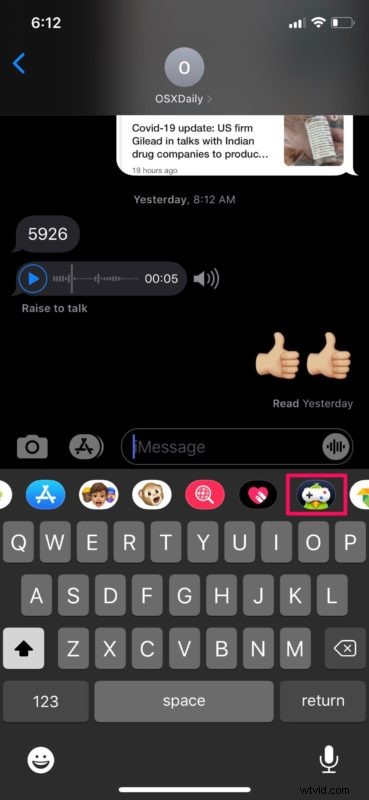
- Next, open a conversation within the Messages app on your device. You’ll see the GamePigeon icon in the iMessage app drawer right above the keyboard. Tap on it.
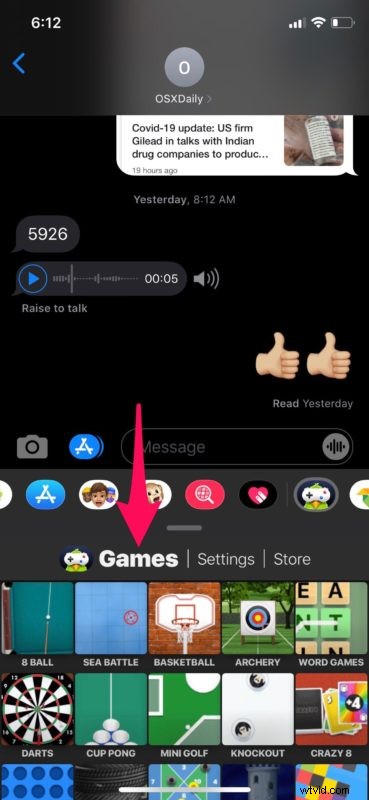
- Now, you’ll see a grid view of all the different two-player casual games that you can play. Select any one of them.
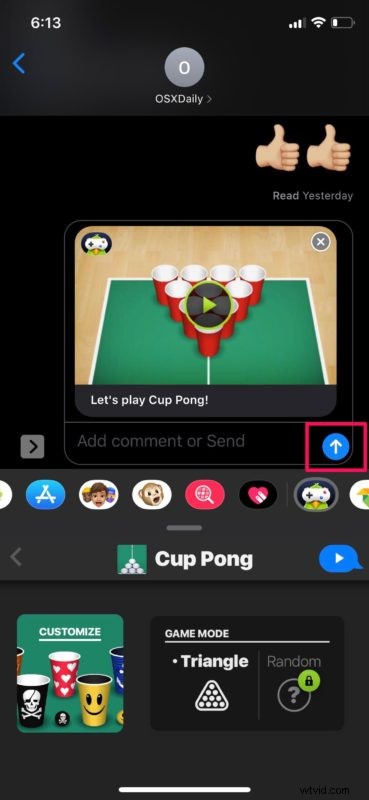
- This will open a preview and invite to the two-player game you selected. You can send this game invite to your iMessage contact by simply tapping on the “arrow” icon as shown in the screenshot below.
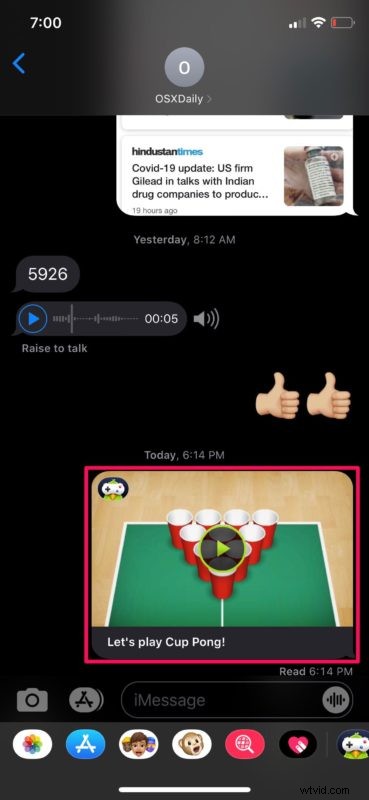
- Now, tap on the invite message you just sent to open the game on your iPhone or iPad.
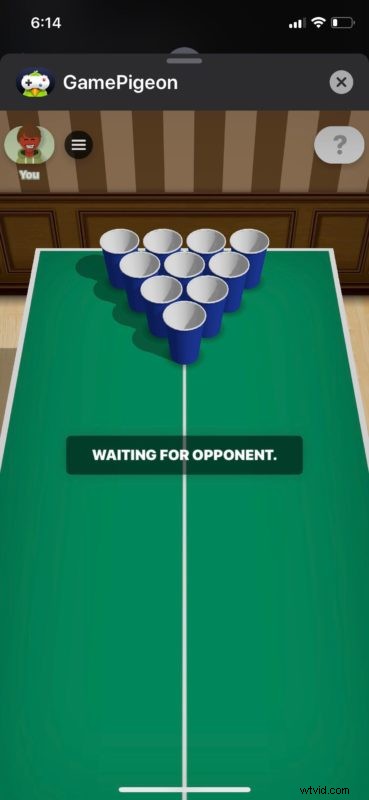
- Although this launches the game, you can’t actually start playing it until the recipient taps on the message you sent. If they don’t have GamePigeon installed, they’ll be prompted to install it from the App Store.
There you go. Now you’ve learned how to play games in Messages app on iPhone and iPad.
GamePigeon has a total of 23 games to choose from including Chess, Basketball, Tanks, 20 questions and more. You don’t always have to resort to GamePigeon to play games over iMessage either. There are plenty of other options that are available on the App Store, like Rock Paper Scissors, Ladders & Snakes, Tic Tac Toe, etc.
If you want to play games with an Android contact, you won’t be able to use iMessage. However, you can take advantage of this popular multi-platform app called Plato that lets you text and play games with other users in a fairly similar way.
Apart from being able to play games to kill time while texting, iMessage also provides other ways to keep conversations engaging. For example, you can record your facial expressions using Animoji on Face ID-supported devices and send them to your friends. Or, you could use Digital Touch to send sketches, taps, or even a heartbeat. And there’s various fun iMessage effects available too, which you can activate directly or by keyword.
We hope you have fun playing games while talking to your iMessage friends. What’s your favorite game to play in Messages? Or do you prefer other games entirely? Do share your thoughts and experience in the comments section down below.