
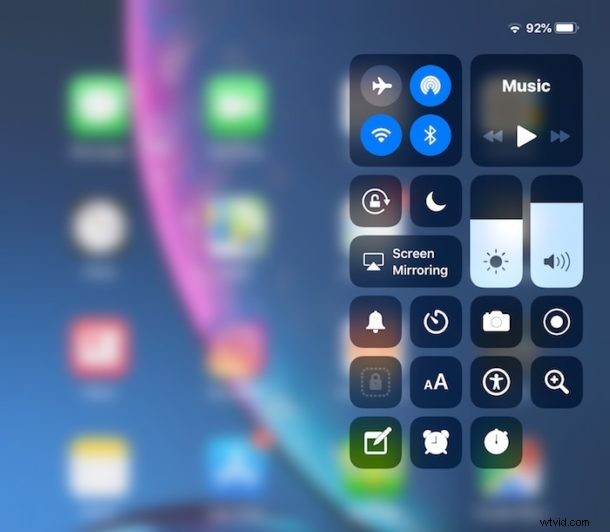
Where did Control Center go in iOS 15, iOS 14, iOS 13, and iOS 12? And how do you access it? If you have these questions about Control Center on your iPad or iPhone after updating to iOS 15, iOS 14, iOS 13, and iOS 12 you’re not alone, as the ability to access Control Center in iOS 15 / iOS 14 / iOS 13 / iOS 12 has changed. But fear not, Control Center still exists on iPad and iPhone, it’s just the gesture that you use to summon the feature that has changed.
No longer do you swipe from the bottom of the screen to access Control Center on the iPad and some iPhone models, instead, all new devices will swipe down from the top right corner of the screen instead to summon Control Center. Everything else is the same, including the ability to customize Control Center and all the options are still there, it’s just that initial access which has changed.
How to Access Control Center in iOS 15, iOS 14, iOS 13, and iOS 12 on iPad and iPhone
This change applies to all iPad models with iPadOS, and all iPhone models with iOS without a Home button:
- From the Home Screen or Lock Screen of iPhone or iPad, look at the top right corner of the screen to where the wi-fi and battery indicator are located
- Swipe down from the top-right corner of the screen to access Control Center in iOS 14 on iPhone or iPad
- Control Center will appear as normal, except it comes from the top right corner of the display
- Swipe back up to dismiss Control Center again
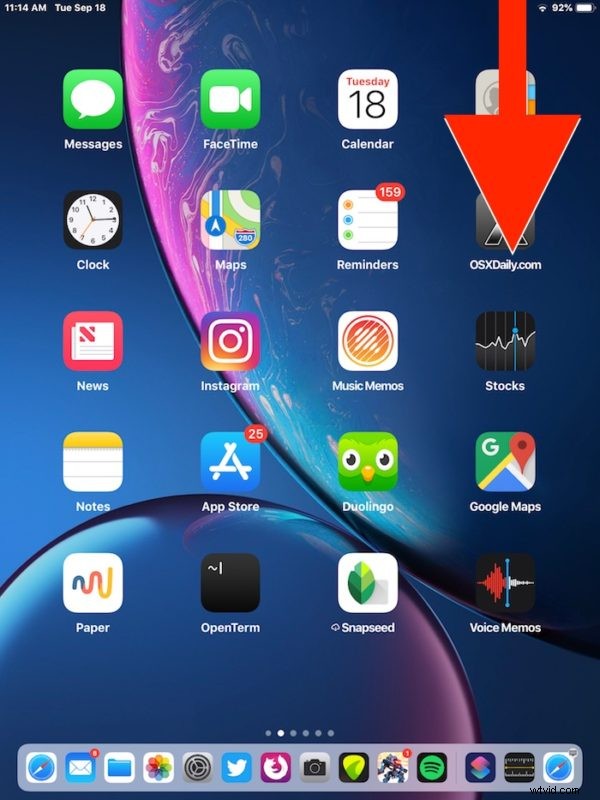
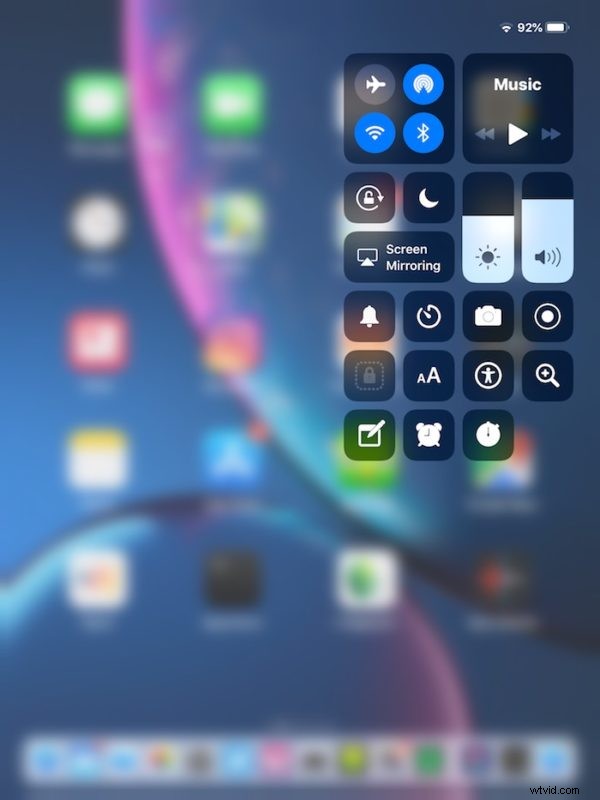
The key thing to remember is that you now swipe down from the top-right corner of the display to access Control Center in iOS 15, iOS 14, iOS 13, and iOS 12, regardless of whether the device is an iPad or an iPhone. All devices now access Control Center this way.
The animated GIF below demonstrates Control Center being accessed in iOS 15, iOS 14, iOS 13, and iOS 12 by using the swipe down gesture from the top-right corner of an iPad, it works the exact same on all other iPad models and some iPhone models as well, like iPhone X, iPhone XS, iPhone XR, and iPhone XS Max, iPhone 12, iPhone 12 Pro, iPhone 12 mini, iPhone 11, iPhone 11 Pro, iPhone 11 Pro Max:
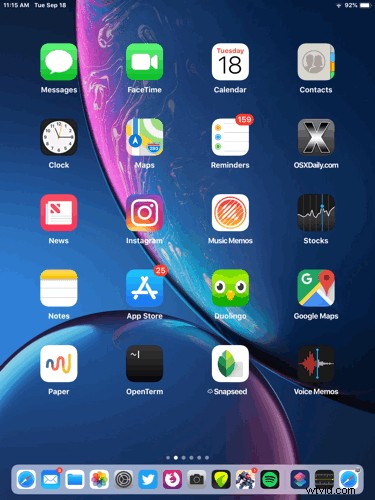
In fact, this change brings the method of accessing Control Center on iPhone X to all other new iPhone models and all iPad devices, it’s the exact same gesture and same move.
This adjustment can lead to a little bit of confusion since many users are long accustomed to swiping up from the bottom of their screen to get to Control Center on an iPad or iPhone, but as iOS evolves and changes so will the gestures and how to access certain features. It may be a little confusing at first, but once you get used to it it’s quite simple, and you’ll soon commit the new gesture location and direction to memory.
If you are swiping down from the top right corner of the display and continue to not be able to access Control Center you might want to check your settings. This is particularly valid if Control Center is inaccessible on the Lock Screen, that’s almost always due to a settings issue in iOS that can be easily resolved, usually because it has been disabled there. Regardless, you’ll still be using the swipe-down from the right-corner to access Control Center, whether it’s from inside an app, on the lock screen, or on the home screen of a device.
Update: iPhone models with Touch ID apparently still use the swipe-up from the bottom gesture to access Control Center, thanks to our readers who noted that change in the comments below. Only new iPhone models with no Home button will use this new gesture for accessing Control Center. However, all new iPad models even those with Touch ID use this new gesture for Control Center access.