
Apple has released iOS 12 for compatible iPhone, iPad, and iPod touch devices. Basically any device capable of running iOS 11 can run iOS 12, and with the software update focusing on performance improvements Apple is recommending that all eligible users update to iOS 12.
iOS 12 features performance enhancements to app launching and camera opening, the ability to create personalized Memoji on some iOS devices, four new Animoji characters, new sticker capabilities in FaceTime and Messages, a helpful Screen Time feature that allows you to set limits to application usage and monitor device usage, a new Shortcuts app that sort of functions like macros to perform semi-automated tasks in iOS, new Notifications management options, and many other small changes and subtle improvements to the iPhone and iPad operating system. Later, iOS 12 will support group FaceTime with up to 32 participants.
It’s a good idea to run through steps to prepare for the iOS 12 update if you have not done so already. Aside from performing some device housekeeping, the most important step by far is to backup your iPhone or iPad before installing the software update.
How to Update to iOS 12
Assuming you have an device that supports iOS 12 you will find the software update available through the Settings app as well as the iTunes application, you can then use either to update the iOS 12 software.
The simplest way to update to iOS 12 for most users is through the OTA update mechanism in the Settings app on their iPhone or iPad:
- Before anything else, backup the iPhone or iPad to iCloud and/or to iTunes (or both)
- Open the Settings app, then go to “General” and to “Software Update”
- When “iOS 12” shows as available, choose “Download and Install”
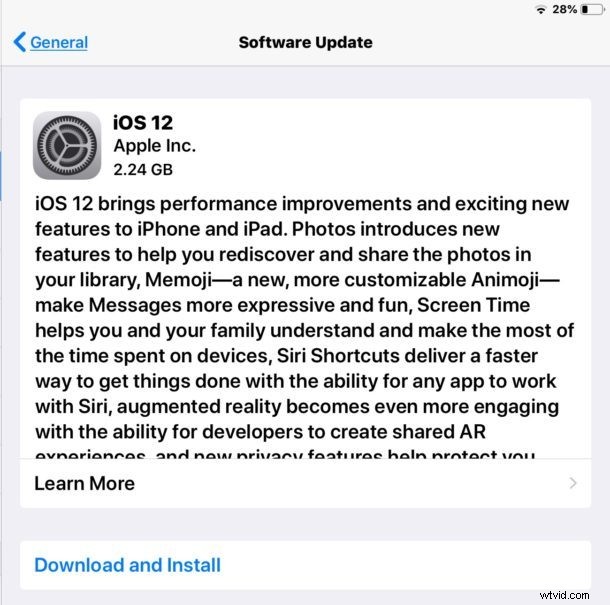
The software update will download and then install on the device, after a short while the iPhone or iPad will reboot and you’ll be updated to iOS 12.
If you’re on a current beta build track, it’s generally a good idea to update to the final build and then afterwards remove the iOS beta profile so that you receive regular stable software updates rather than new beta builds.
You can also update to iOS 12 using iTunes by connecting the iPhone, iPad, or iPod touch to a computer with the latest version of iTunes, and choosing to “Update”. Be sure you complete a backup to iTunes and/or iCloud before completing that update method as well.
iOS 12 IPSW Download Links
Another option to install iOS 12 is to use IPSW firmware files to update the device through a computer with iTunes. The following links point directly to Apple servers, all IPSW files should have a .ipsw file extension when saved in order to be recognized by iTunes:
- iPhone XS Max
- iPhone XS?
- iPhone XR?
- iPhone X
- iPhone 8
- iPhone 8 Plus
- iPhone 7
- iPhone 7 Plus
- iPhone 6S
- iPhone 6S Plus
- iPhone 6
- iPhone 6 Plus
- iPhone SE
- iPhone 5S
- iPad Pro 10.5″
- iPad Pro 12.9″ 1st generation
- iPad Pro 12.9″ 2nd generation
- iPad Pro 9.7″
- iPad 6 9.7″ 2018 model, not pro
- iPad 5 9.7″ 2017 model, not pro
- iPad Air 2
- iPad Air 1
- iPad mini 4
- iPad mini 3
- iPad mini 2
- iPod Touch 6th generation
Using IPSW is considered somewhat advanced, though it’s not particularly complicated.
If you downloaded the IPSW file and it’s not recognized by iTunes it is likely because of an improper file extension, typically as a .zip file which must be changed to .ipsw to work as intended.
iOS 12 Release Notes
The official release notes for iOS 12 are as follows:
It’s possible that you’ll be able to downgrade from iOS 12 to iOS 11.4.1 for a limited time, so if you update and then decide you do not like the new version for whatever reason, there is typically a short opportunity to reverse course, assuming you made a backup beforehand.
Separately, Apple has also released watchOS 5 and tvOS 12 for Apple Watch and Apple TV users respectively. In the coming weeks, macOS Mojave will launch for Mac users as well.