
You might be wondering where AirDrop went in iOS 13, iOS 12, and iOS 11 Control Center, and you’re probably not alone. AirDrop allows for rapid wireless transfer of pictures and files between iOS devices or Macs, and is one of the more convenient features available on the Apple platforms. Many users quickly enable and access AirDrop through Control Center on their iPhone or iPad, but with iOS 11 you may have noticed that AirDrop is no longer in Control Center… at least initially. While it may be hidden now, enabling AirDrop is still possible from Control Center for iOS 13, iOS 12, and iOS 11 on iPhone 11, iPhone 11 Pro, 11 Pro Max, iPhone XS, XR, XS Max, iPhone X, iPhone 8, iPhone 7, and all other iPhone models, as well as cellular iPad devices. Once you learn how to access it you’ll discover toggling AirDrop from Control Center is otherwise just as easy to enable or disable as before.
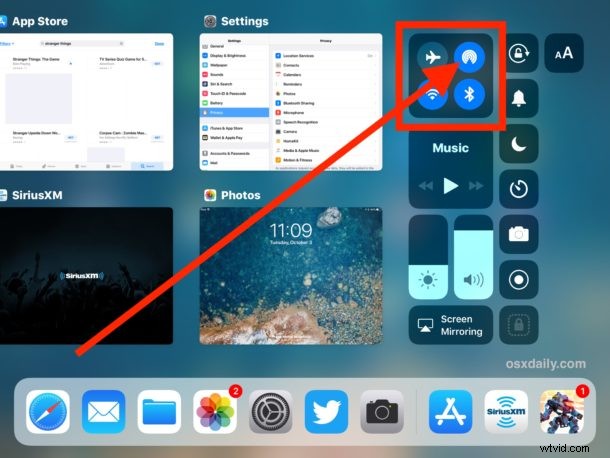
Note that while AirDrop is hidden in Control Center on iPhone and iPod touch with iOS 11 and later, AirDrop is always visible in the Control Center of non-cellular iPad with iOS 11. This has led some users to think AirDrop is no longer supported or possible on their iPhone models, but it it is, it’s just hidden behind another setting now. Why is AirDrop hidden? Most likely that is because of space constraints on the smaller iPhone screen. Thus, this tip applies mostly to iPhone, cellular iPad models, and iPod Touch users, since AirDrop is easier to find on iPad Control Center.
How to Access AirDrop in Control Center for iOS 13, iOS 12, and iOS 11
For iPhone, cellular iPad, and iPod Touch, here’s how you can access and enable or disable AirDrop from Control Center:
- Swipe to open Control Center on the iPhone as usual (swipe up from bottom of screen on most devices, swipe down from top right corner on iPhone X)
- Hard press (3D Touch)* on the networking square of Control Center, this is where you see the buttons for Airplane mode, Wi-Fi, Bluetooth, and Cellular
- An expanded networking control panel will appear on screen in Control Center, revealing AirDrop
- Now tap the AirDrop button
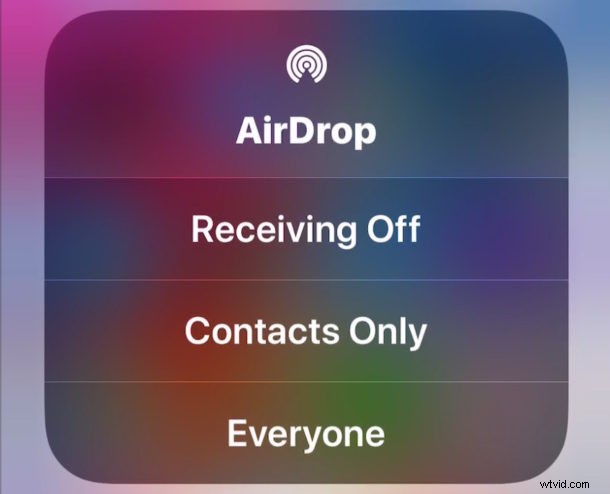
- Choose your AirDrop setting as usual:
- Receiving Off – turns off AirDrop receiving on the iPhone
- Contacts only – enables AirDrop only for people on your Contacts list
- Everyone – turns on AirDrop receiving from anyone within proximity of AirDrop
- Swipe out of Control Center as usual with your new AirDrop setting in place
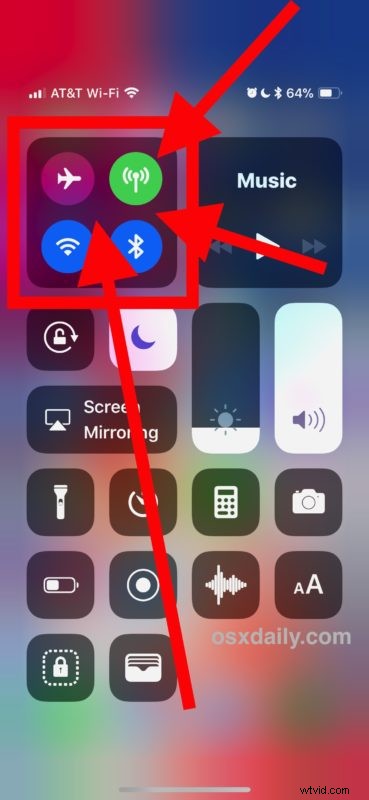
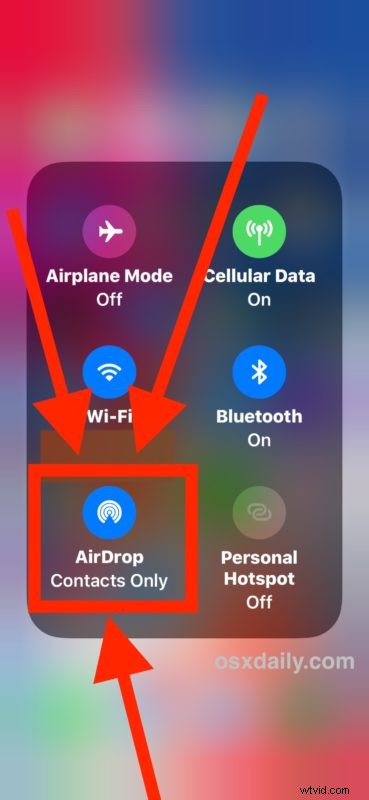
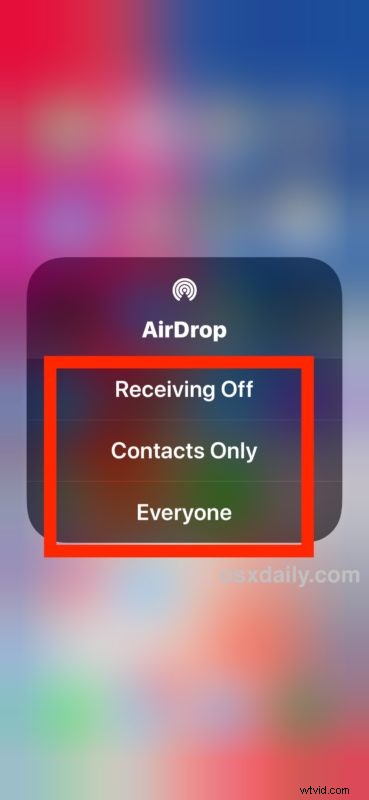
* The 3D Touch is necessary for iPhone models that support the pressure sensitive touching on screen, whereas models without 3D Touch will require a long press to access the networking Control Center options instead.
That’s it, now you can use AirDrop as you normally would.
There are many ways to use AirDrop to send and receive files, in between iOS devices, AirDrop from Mac to iOS, and iOS to Mac. It’s probably the easiest way to send and receive files between other users on an Apple device.
The above approach applies to iPad cellular models as well, but note that with non-cellular iPad devices the AirDrop setting is always visible because the cellular toggle isn’t there in Control Center.
The video below demonstrates accessing AirDrop through Control Center on iPhone X but it applies to all other iPhone models and cellular iPad devices as well:
Where is AirDrop in Control Center on iPhone or iPad with iOS 13, ipadOS 13, iOS 12, and iOS 11?
To quickly review, AirDrop is located in Control Center in iOS 13, iPadOS 13, iOS 11, and iOS 12 in one of two ways depending on the capability of the device:
- On iPhone, and cellular iPad models: 3D Touch on the networking sections (where wi-fi, Bluetooth, buttons are located), then choose the AirDrop button from the revealed pop-up menu
- On non-cellular iPad, and iPod touch: find AirDrop in Control Center as usual by looking for the concentric circles button
Because AirDrop is hidden behind other networking options on iPhone and LTE iPad models, some users think the feature has been removed. It has not, AirDrop is in Control Center, just tucked behind other settings.
How to Enable or Disable AirDrop in iOS 13 / iOS 12 / iOS 11 via Settings
If using 3D Touch or a long press on the networking section of Control Center is too cumbersome, then recall that you can always enable or disable AirDrop from the Settings app of iOS as well, and this applies to all devices, iPhone, iPad, or iPod touch.
- Open the “Settings” app on iOS
- Tap on “General” then go to “AirDrop”
- Choose your AirDrop setting:
- Receiving Off
- Contacts Only
- Everyone
- Exit Settings with the AirDrop preference set
Whether you toggle AirDrop from Settings or Control Center does not matter, the end result is the same and it’s either enabled or disabled.
That should help to answer some of the questions out there about using and accessing AirDrop in iOS 13, iOS 11, and iOS 12. Perhaps in future versions of iOS users will have a choice to have a dedicated AirDrop toggle immediately available in Control Center, like it used to be in prior versions of the system software. In the meantime, just remember to hard-press the networking square of Control Center to find AirDrop settings.
AirDrop is a great feature for iPhone, iPad, and Mac, you can find more AirDrop tips here if interested.