
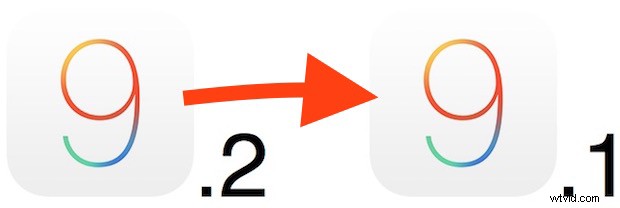
Though iOS 9.2 appears to run faster than prior iOS 9 releases and fixes many bugs while offering a wide range of improvements, some users who have updated to iOS 9.2 may wish to downgrade an iPhone, iPad, or iPod touch back to iOS 9.1 for whatever reason.
Downgrading iOS is possible for a limited time as long as Apple is still signing the prior iOS version. It’s unclear how long this will be possible for iOS 9.1, but it could be a few days or a week or two. Regardless, if you want to downgrade from iOS 9.2 to iOS 9.1, you should probably move fast so you don’t miss the signing window from Apple. This works the same with running iOS 9.2 final and iOS 9.2 beta releases. We don’t really recommend downgrading to iOS 9.1 from 9.2 as it offers no particular benefit, but nonetheless we’ll cover the process for users who wish to do so.
Downgrading to iOS 9.1 from iOS 9.2
This is the same from any Mac or PC, and any iPhone, iPad, or iPod touch:
- Back up the iOS device to iTunes and iCloud before getting started, don’t skip this or you will lose your data, apps, emails, messages, pictures, and everything else on the device in question
- Download iOS 9.1 IPSW for the device here, be sure to pick the proper version for your hardware
- Open iTunes and connect the device to downgrade with a USB cable if you haven’t done so yet
- Select the device in iTunes and OPTION click the “Restore” button on a Mac, SHIFT click the Restore button in Windows
- Select the iOS 9.1 IPSW file to restore the device, this will format the device and erase everything on it, but return it to iOS 9.1
- When the downgrade to iOS 9.1 is complete, you can either set the device up as new, or restore it from the previously made backup and get your data, apps, etc back onto the iPhone, iPad, or iPod touch


Should you downgrade from iOS 9.2 to iOS 9.1? Probably not, particularly given that iOS 9.2 has better performance with some devices, but some users may have a compelling reason or desire to do so, thus it’s worth covering. Maybe an app is crashing or something is incompatible, whatever the reason, it’s possible for a limited time.