
iOS allows users to disconnect a specific Bluetooth device that has been paired with an iPhone, iPad, or iPod touch. The bonus with this approach is that while it disconnects the targeted Bluetooth device, it does not forget the device, so you can quickly re-add the device later without having to go through the pairing process again on iOS.
The process is simple but you’ll obviously need at least one Bluetooth device connected to the iOS hardware so that you can disconnect it.
Disconnect a Bluetooth Device from iPhone, iPad, iPod touch
- Open the iOS Settings app and go to “Bluetooth”
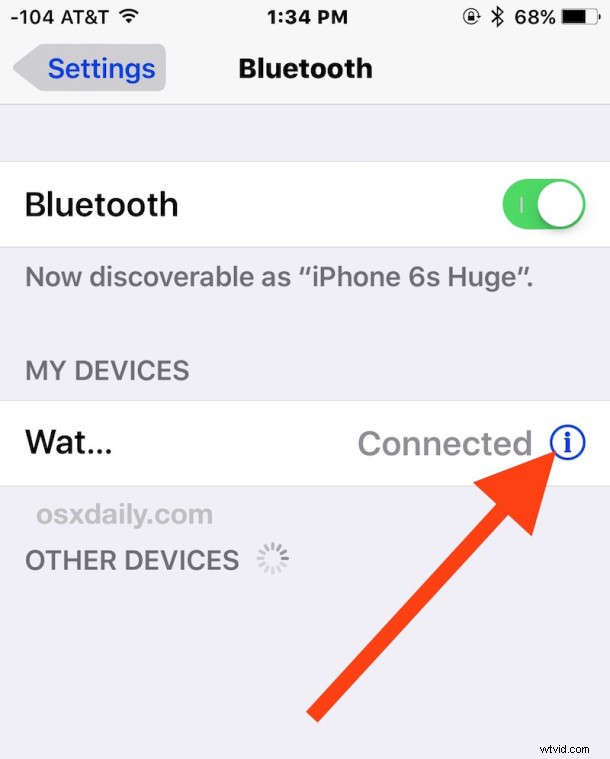
- Wait for the device list to populate, then tap on the (i) button next to the Bluetooth device you want to disconnect
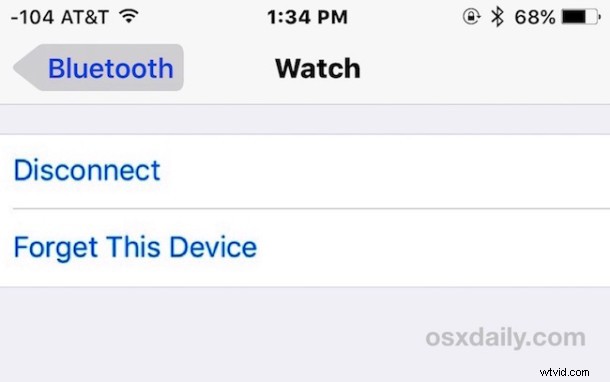
- Tap “Disconnect” to disconnect the iOS device from the targeted Bluetooth device, whatever it is
Disconnecting is particularly useful for Bluetooth peripherals with multiple devices that use them. For example, if you want to quickly disconnect an external Bluetooth keyboard or Bluetooth speaker for use elsewhere, maybe another iPhone or iPad or Mac, without having to forget the device entirely.
If you’re curious about some iOS history on this, once upon a time you had to turn off Bluetooth or forget a device and then set it up again to achieve this feat, but modern iOS versions allow you to just quickly disconnect a specific Bluetooth device, and rather easily – certainly a handy feature to have for all iPhone and iPad users.