
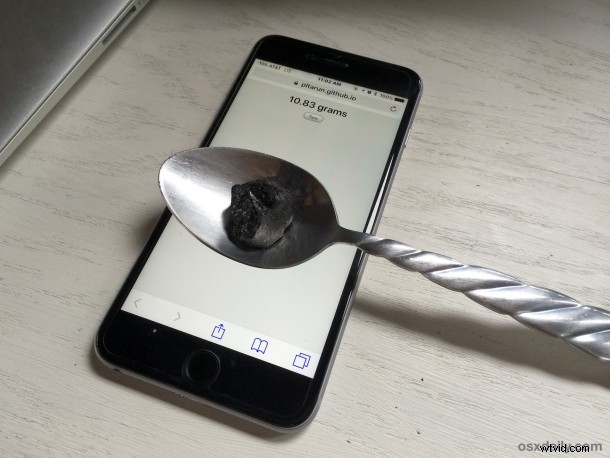
The 3D Touch display on iPhone 6s and iPhone 6s Plus is able to detect pressure applied to the screen in order to serve the 3D Touch pop and peek functions, but with the help of a little third party web app you can transform the iPhone and 3D Touch display into a fairly precise scale.
Turning the 3D Touch equipped iPhone into a scale measurable down to hundredths of a gram is simple and you don’t even need to download anything:
- Go to the scale webpage from the iPhone with 3D Touch display
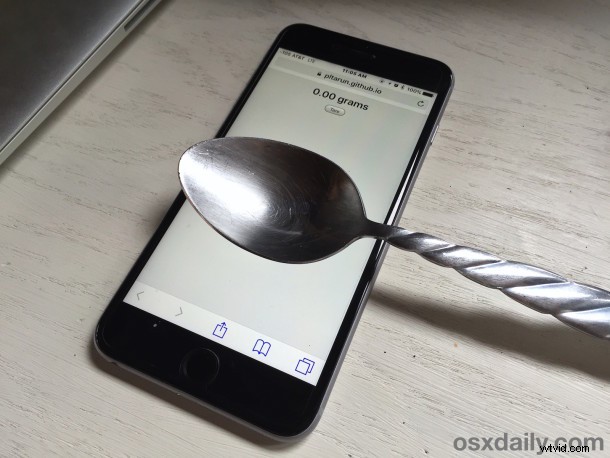
- Lay the iPhone down on a flat and steady surface, then place a metal spoon or something similar* onto the screen – the items rough weight should appear on screen but you’ll be using this to hold other items to weigh, thus hit the “Tare” button to zero out the scale to “0” with the spoon on the screen
- Now place your item(s) to weigh in the spoons cup to see that items weight
In this example, a USB thumb drive is being weighed:
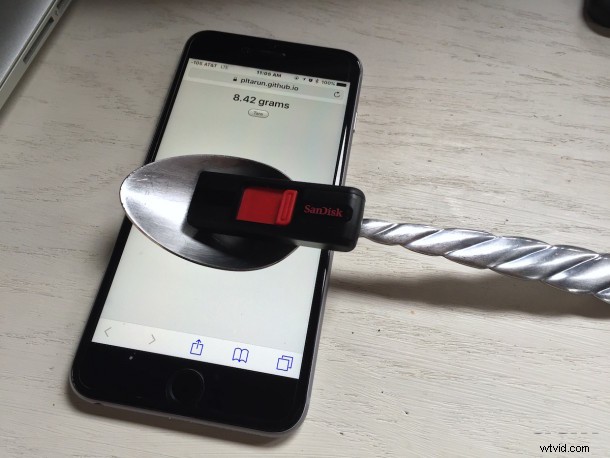
You’ll find the results are quite accurate as long as you’re delicate, and the weight measurement is offered down to hundredths of a gram all the way up to 385 grams, the maximum amount of weight it can detect.
In this example, a piece of black anthracite is being weighed:
* For best results, find a spoon that is somewhat flat on the bottom so that it doesn’t roll around or move much. Also, be as delicate as possible when placing items into the spoon to weigh, if the spoon moves at all or rolls around, you’ll quickly discover the weight of the spoon becomes included in the weight of the item and the measurement is way off. You need to use a metal item so that it is conductive, things like plastic, wood, cloth, and paper won’t register on the touch screen.
If you have adjusted your 3D Touch screen sensitivity settings you may find the screen is a little more or less sensitive to this app, so consider changing it to the middle setting if it’s all over the place.
This is a fun proof of concept but it can be a little finicky, so you probably shouldn’t plan on using this for anything serious, whether in the kitchen as it could likely botch a recipe (it said 2 grams of jalapeno powder, I swear!), and especially so if you’re trying to be a Walter White or Pablo Escobar.
Anyway, since there are no downloads required and it’s as easy as loading a web page onto the iPhone, it’s fun to play around with.