
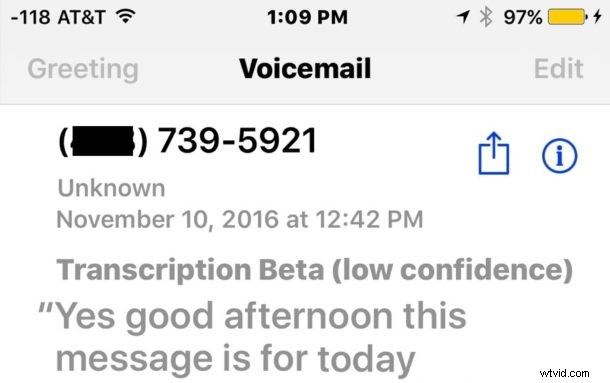
The iPhone now has an excellent ability to transcribe voicemails, offering users a transcription of whatever voicemail has been left on the device. The voicemail transcriptions feature happens automatically, listening to your voicemails and transcribing them into text automatically for you to read.
The voicemail transcripts feature is fantastic and makes for an fast and efficient way to check your iPhone voicemail without having to actually listen to a message, making it more useful to send a call to voicemail, and easier to scan through voicemails to see if something is important, actionable, worth listening to, marking as read, or even responding to or not.
Note that Voicemail Transcription for iPhone is currently in beta, and as a result it can be varying degrees of accurate or useful, but nonetheless it’s worth trying out. You’ll need an iPhone with a carrier that supports Visual Voicemail enabled, and you’ll need a modern version of iOS to have this feature. Anything beyond iOS 10.0 will support Voicemail Transcripts feature for iPhone assuming visual voicemail exists as well.
How to See & Read Voicemail Transcriptions on iPhone
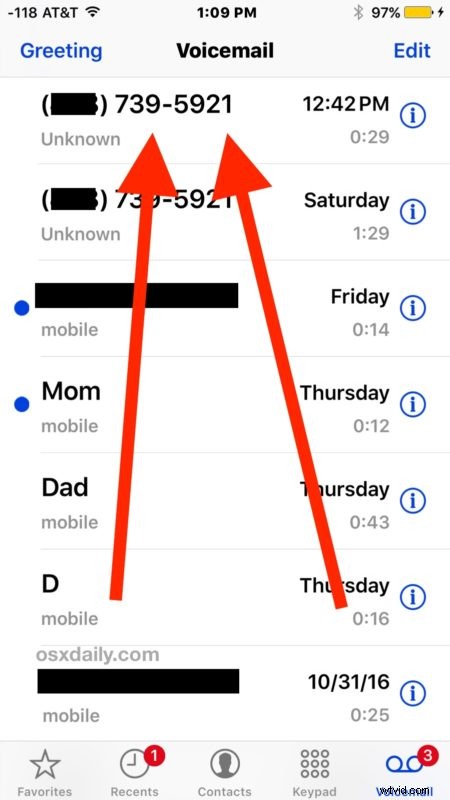
- Open the Phone app on the iPhone and then tap on the “Voicemail” button
- Tap directly onto a voicemail that has been left to the phone
- The voicemail transcription will appear on screen if applicable:
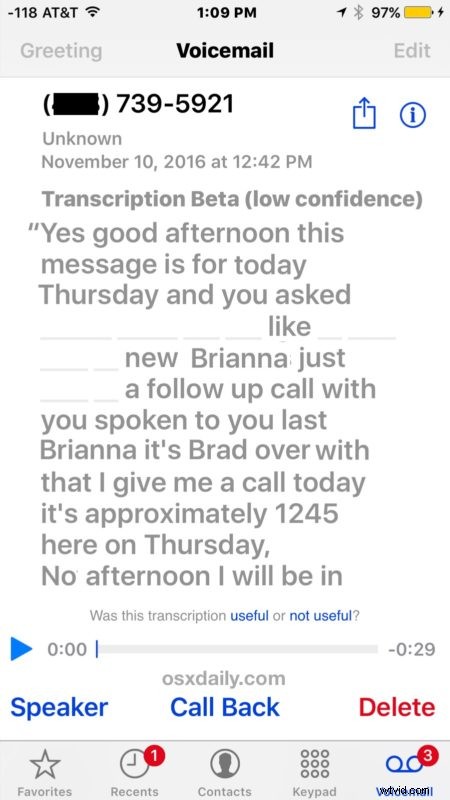
At the bottom of the voicemail transcript you’ll see a light grey tiny font question asking “Was this transcription useful or not useful?” – you can tap on the little tiny micro blue text links to offer feedback to Apple on the feature.
Voicemail Transcription Not Available?
If the voicemail does not have a transcription available, the text will show “Transcription not available” rather than a transcription of text from the voicemail itself.
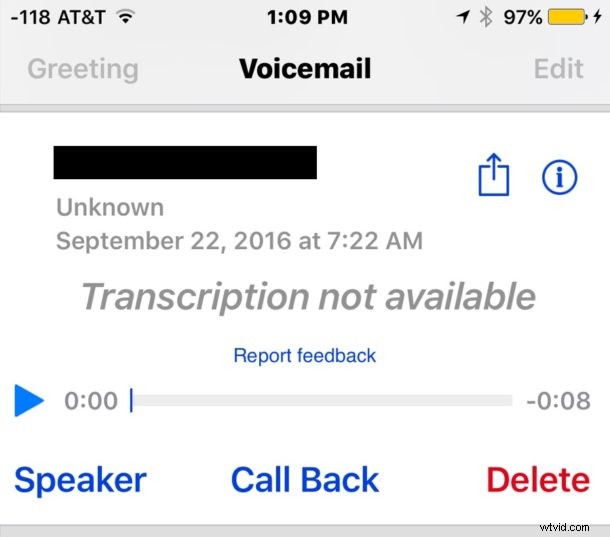
You might see the transcription not available message if the voicemail was just left and hasn’t had time to be transcribed, if the transcription service is down, or if the voicemail is totally unrecognizable and impossible to turn into transcription text, a situation which can occur with low cell phone reception or generally nonsensical voicemails.
There is currently no way to disable voicemail transcription, so if you don’t like the feature or you don’t use it, or find it to be inaccurate or unhelpful, or you don’t want the service listening and transcribing your voicemails, there is no way to opt out of the feature at the moment. If you delete a voicemail from the iPhone, the voicemail transcription will also be removed, however.
This is a great feature to pair with this trick to record iPhone calls by dialing voicemail, as it will transcribe your call recording (remember to get permission before recording any call, check your relevant laws, etc).
Any transcribed voicemail can be saved or shared as usual, the transcription has no impact on the voicemail audio itself. You can also share the actual transcription text itself by copying the text the same way you would any other text in iOS with a tap and hold.
How do you like the new voicemail transcriptions feature? Let us know in the comments.