
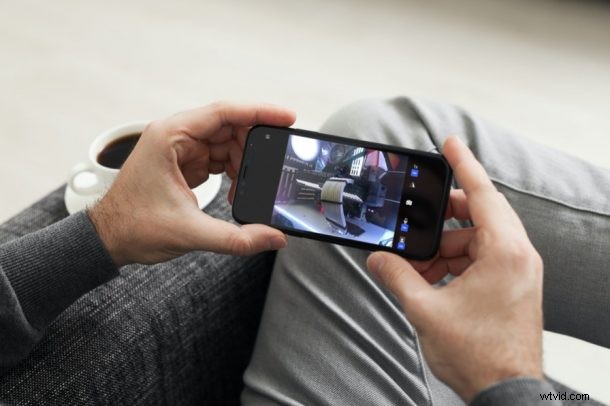
Did you know you can use an iPhone as a webcam for a Mac or Windows PC? If you don’t have a webcam to use for online meetings, classrooms, and gatherings, or find the quality is too low to be usable, that’s no big deal, you can use your iPhone (or iPad) for this purpose thanks to some third party apps. It’s pretty easy to set up and use too.
Video calling has become a norm in the past year or so since more people have been working from home. Of course, you could make video calls directly from your iPhone or iPad, but in a professional work environment, you’d ideally be using a computer. A lot of desktop users still don’t have a webcam, and the integrated camera on laptops are often mediocre at best.
By using your iPhone as a webcam, you don’t have to shell out cash on additional hardware or worry about its quality.
How to Use Your iPhone As a Webcam
We’ll be making use of a popular third-party app called EpocCam. You have wired and wireless options. If you’re going to take the wireless route, you need to make sure that both your iPhone and your computer are connected to the same Wi-Fi network. Let’s get started:
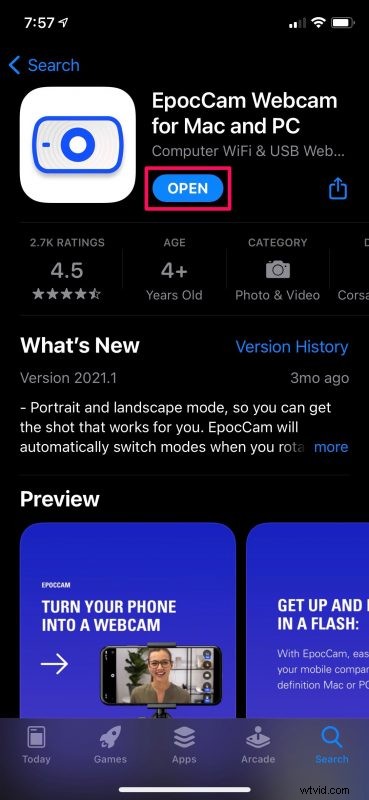
- First, download and install the EpocCam app from the App Store. You’ll see free and paid versions of the app if you look it up, but the free version is good enough for most people.
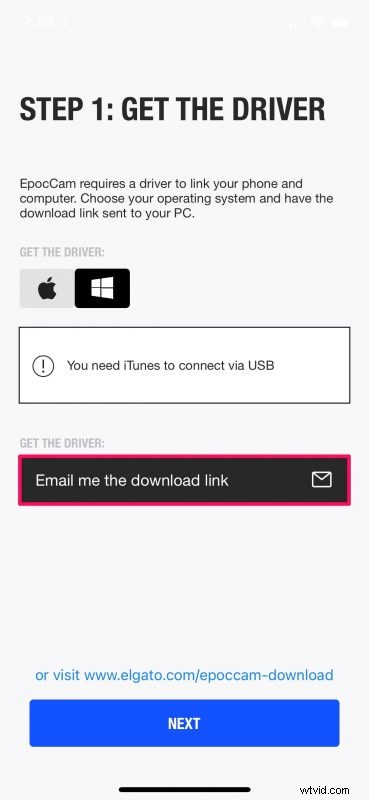
- Upon launching the app, you’ll be prompted to install the necessary driver for your computer. Select your operating system and then click on “Emal me the download link” to get the link for downloading the EpocCam driver. Tap on “Next” to proceed.
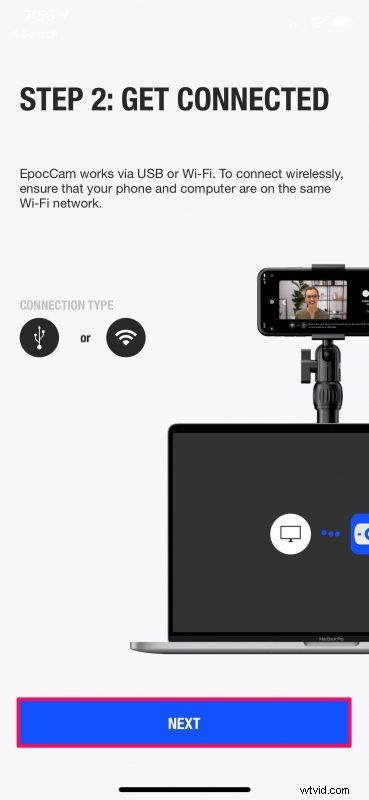
- Now, you’ll be informed about the wired and wireless connection methods. If you’re going to make use of a wired connection with a Windows PC, you’ll need to install iTunes first. Tap on “Next” to continue.
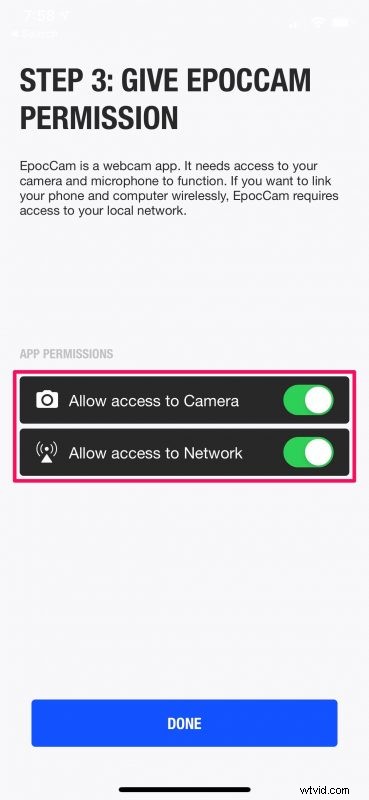
- EpocCam will now request access to your camera and network. Use the toggle to give the necessary permissions and tap on “Done”.
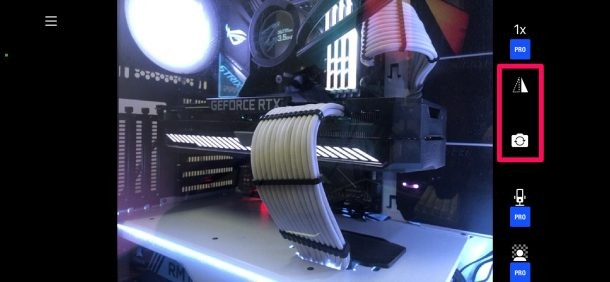
- Once the drivers are installed on your computer, simply open the EpocCam app and it should connect to your computer automatically if they’re on the same network. You’ll have the options to switch between primary/secondary cameras and mirror the camera feed if necessary.
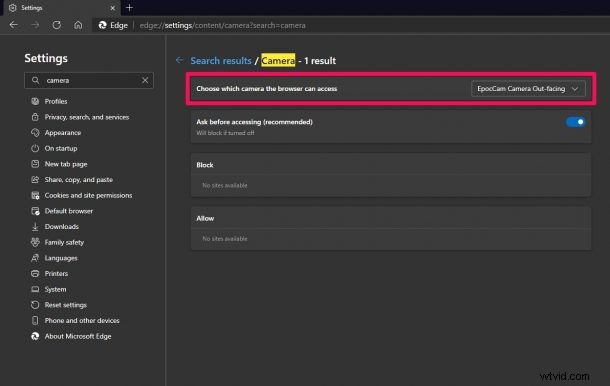
- Next, you need to make sure that EpocCam is selected as the default camera for the app you want to use. For instance, if you’re making video calls from your web browser, head over to browser settings and change the default camera.
There you go. Now, you know exactly how to use your iPhone as a webcam for video calls.
Likewise, you should be able to change the default camera for other video calling apps you use from their respective settings menus. Here’s an example for how you can change the default webcam on your Mac for apps like FaceTime and Skype.
Free users need to keep a couple of things in mind. Your webcam feed will have a small watermark on it and the resolution will be limited to 480p. Also, you won’t be able to use features such as virtual background, or use your iPhone as a wireless microphone. If you want those capabilities you’ll need the paid version.
If you’ve connected your iPhone or iPad wirelessly, you have the flexibility to position your camera exactly where you want. This is one of the areas where EpocCam shines in comparison to integrated and external webcams that some users tend to overlook.
Not impressed with EpocCam? Find the user interface sluggish? Well, there are other options on the App Store you can try. You can simply look up webcam on the App Store and you’ll find apps like iVCam, DroidCam, etc. that function in a fairly similar way.
So what do you think about using an app like EpocCam to replace a traditional webcam with your iPhone? What are your first impressions on this capability? Have you tried out any similar apps to use your iPhone as a webcam? Share your experiences and thoughts with us in the comments.