
Turn your phone into a webcam
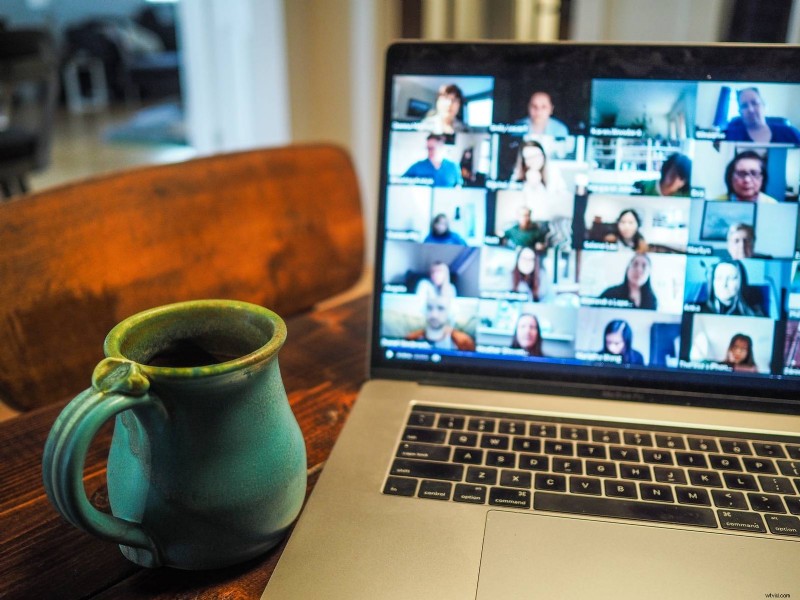
So let's start with some of the "whys". For example, if you have online meetings with colleagues via ZOOM, Skype, or Teams, and you are unhappy with the quality of your laptop’s cam.
Another reason — you need to install video monitoring, for example, to be sure that your pets and children behave properly while you are not at home, but the professional CCTV system is way too expensive.
So, if the question is "Can I use my iPhone as a webcam?", the answer is definitely "Yes". And here are several ways how.
Webcam applications
If you want to use your smartphone as a cam during video calls, just install the app you need (ZOOM, Teams, etc.), start a call, and join it from your phone and laptop. Install the device somewhere near the monitor, and voila! No additional efforts are needed.
It’s a totally different story if you already have some cams and want to connect to them to monitor what is going on while you’re absent. Then you’ll need to install special software. For example, one of the most popular iPhone webcam apps is EpocCam, but there are others. Being cross-platform, it also allows using an Android phone as a webcam, but you can also check DroidCam and whatever the market offers.
Some of these apps are free, others require some fee. When you have made up your mind on what to use, read a manual first, as quite often, you’ll have to download drivers and install the app not only on your phone but on your Windows PC as well.
Useful tips
But for the technical details, which you’ll get to know from the manuals, follow some practical tips to get the best video quality you can.
- Use the frontal cam, not the one for selfies. Of course, it heavily depends on the model, but usually, frontal cameras are way better.
- Invest in additional hardware, such as an external mike and a powerbank, as while video transmitting, the battery goes low very fast.
- Set up proper lighting and bring an additional lamp or two.
- Place a phone on a tripod or just a stable and flat surface to avoid shaking.
- Take care of your Teams profile avatar. Set a nice picture, if needed, previously edited. Then, even if the video quality still leaves much to be desired.