
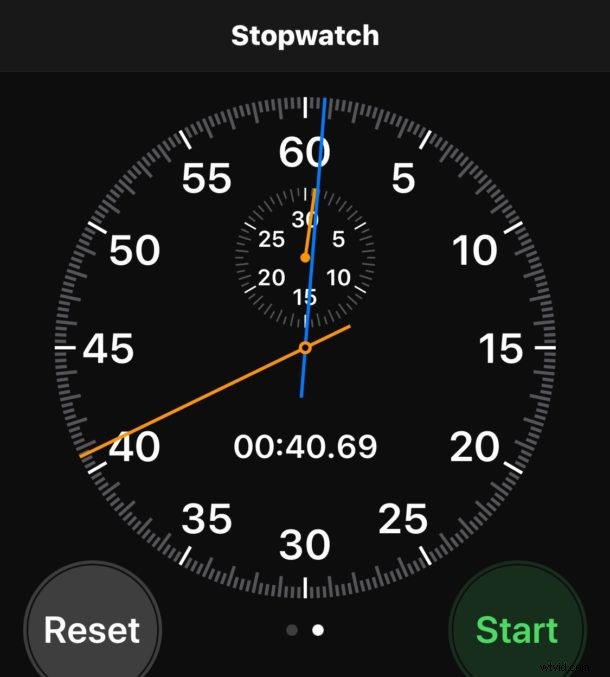
The iPhone has a handy Stopwatch feature, with two different visual modes and the capability of notating laps. The all-purpose stopwatch is fantastic for anything where you want to time something, whether it’s tracking an athletic endeavor, performance, or simply some other event or occurrence where a stopwatch measurement is appropriate.
How to Access & Use Stopwatch on iPhone
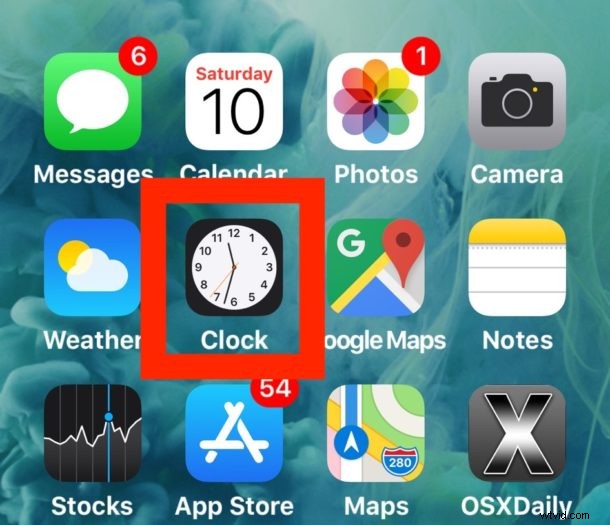
The iOS Stopwatch is included in the Clock app, here’s how you can use it:
- Open the “Clock” app on iPhone
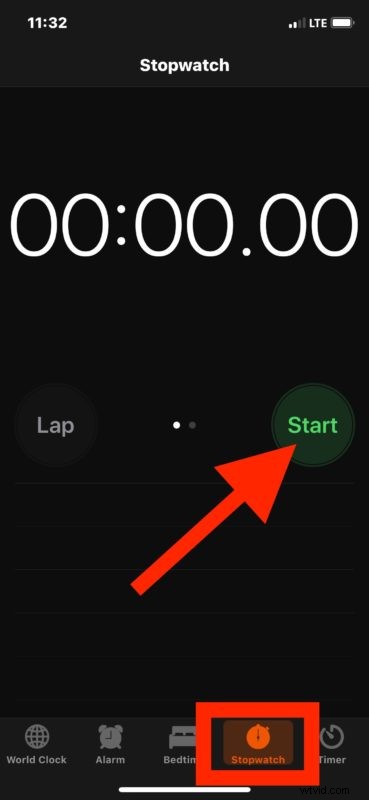
- Tap on the ‘Stopwatch’ tab
- Tap on “Start” to start the Stopwatch
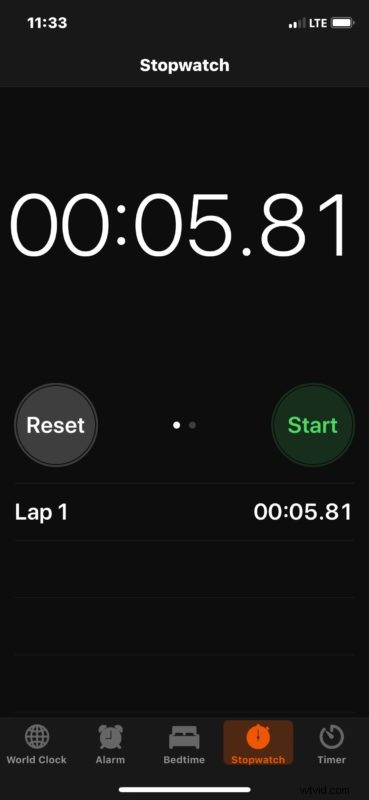
- While the stopwatch is running, you can tap on “Lap” to count a lap and track it below the stopwatch
- Tap on “Stop” when finished using the iPhone stopwatch
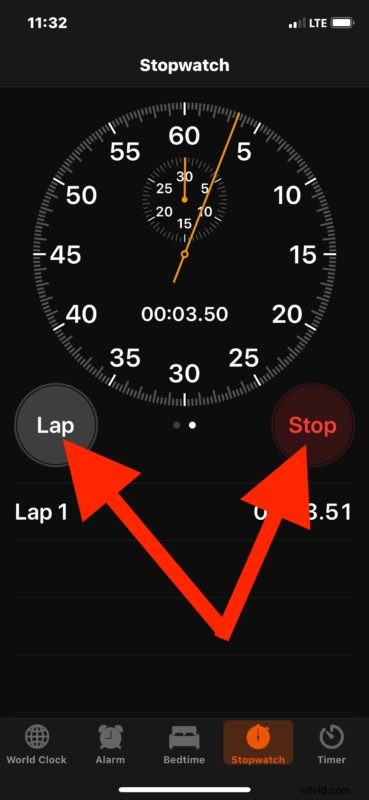
You can reset the stopwatch as well if need be at anytime, or when finished, and you can tally as many laps as you want.
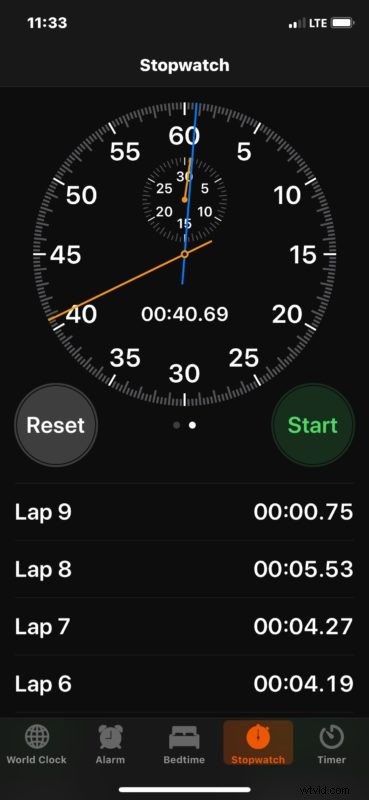
Simple, and perfect for counting laps of any sequence, whether it’s for athletic purposes, racing, swimming, running, horseback riding, robotics, or just about anything else you might want to time and keep track of through a stopwatch.
How to Change Stopwatch Appearance in iOS
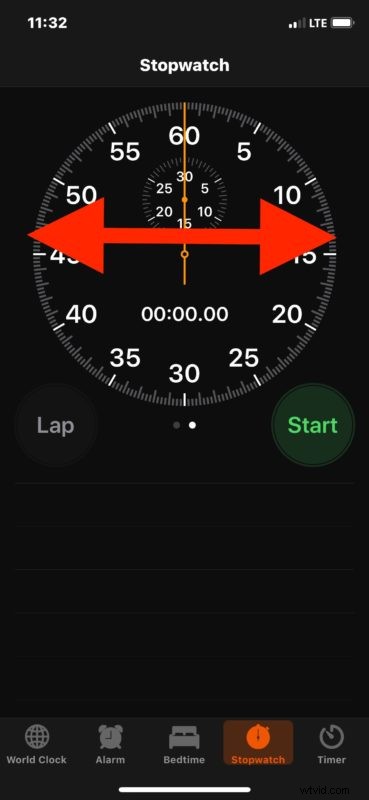
By default the iPhone Stopwatch is a little digital clock. But, another neat trick that is largely visual in nature allows a more traditional looking stopwatch to be accessed.
To get to the traditional stopwatch, complete with hands circling a 60 second clock, with second markers, a lap hand, and other clock features, simply swipe over on the analog stopwatch. You can also swipe back to return to the original default stopwatch appearance of the Clock app on iOS.
You can also open Stopwatch with Siri by informing Siri to open the clock app, and iOS also offers starting and stopping of a timer with Siri on iPhone or iPad, though the timer is probably better for things like waiting on something, whether it’s cooking or a simple pomodoro measurement.
If you use Stopwatch on iPhone often, then you can add the Stopwatch feature as a quick-launch capability in Control Center for iOS through the customization of Control Center in iOS Settings as discussed here. Just add the Stopwatch button to allow for ultra-fast access from the iPhone or iPad lock screen, or just a quick swipe gesture to access Control Center as usual.
Mac users aren’t left out either. You can use Siri for simple timers, get a nice and simple stopwatch at the command line, or you can have a simple timer and stopwatch in the Mac menu bar with Thyme which is a little third party utility.