
Wondering how to use the new ultra-wide angle lens camera on iPhone 11 and iPhone 11 Pro? It’s quite easy, and it can look fantastic for many photographic situations.
The iPhone 11, iPhone 11 Pro, and iPhone 11 Pro Max all include an ultra-wide camera lens, this article will detail how to use the camera feature to snap ultra wide angle pictures.
How to Use Ultra Wide Angle Camera on iPhone 11 & iPhone 11 Pro
- Open the Camera app as usual, either from the application itself or the lock screen
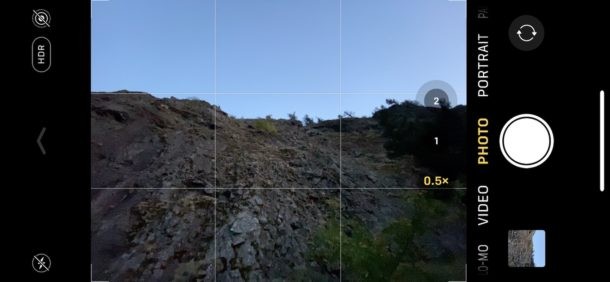
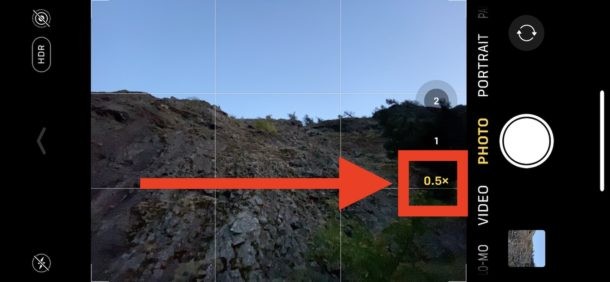
- Tap on the “1x” or “0.5” button near the shutter button, this will immediately switch to the ultra wide angle lens camera
- Frame your picture and take the photo as usual by tapping the shutter button
All ultra wide angle photos are stored in the Photos app along with all other pictures you take on iPhone.
You can also select variations between the 1x and 0.5x camera by tapping and holding on the “1” or “0.5” button and then using the swipe dial to adjust focal length manually somewhere between the two lenses, for example to “0.75” or “0.6”.
If you’re already familiar with using the 2x optical zoom camera on iPhone Plus and iPhone Pro then using the ultra-wide angle camera lens should be familiar to you, as the process is basically the same of selecting the different focal length.
With iPhone 11, you can switch between 0.5x and 1x, whereas on iPhone 11 Pro and iPhone 11 Pro Max, you can switch between 0.5x, 1x, and 2x.
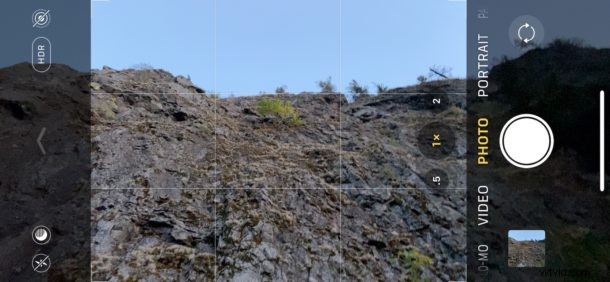
The 2x option is the zoom lens that is only available on iPhone Pro, iPhone Max, and iPhone Plus models.
Ultra-wide camera is available whether the iPhone is in any orientation whether vertical or horizontal, and you can use the iPhone ultra-wide angle lens with video too.
The outcome of an ultra-wide camera photo is, as you’d expect, significantly wider viewing angle than the standard camera photos shot on iPhone with the regular lens. The animated image below shows an example of this, comparing the same scene taken with the ultra-wide angle lens and the normal lens:

As you can see, the ultra-wide angle shot makes things look smaller, but includes a lot more of the scene in the photo. This gives the effect of zooming out, rather than zooming in (which some iPhone models have the zoom camera too).
Are you using the Ultra Wide Angle camera feature often on your iPhone? What do you think of it? Let us know your thoughts and experiences in the comments below.