
You can choose to have manual macro camera controls, or use the automatic macro mode setting, on the latest top-end model iPhones including iPhone 13 Pro and iPhone 13 Pro Max. This can help you to take macro photos easier, and more suitable to how you use your iPhone camera.
With manual macro camera controls enabled, when the macro camera is available you can tap a flower macro mode option to enable the iPhone macro camera.
With automatic macro camera mode enabled, the macro camera will activate itself when it is available by moving the iPhone camera lens close to an object or subject.
How to Toggle Macro Camera Control On or Off on iPhone Pro
Here’s how to customize the macro camera controls on iPhone:
- Open the “Settings” app then go to “Camera”
- Scroll down and locate “Macro Control” and toggle the switch ON to enable manual macro camera controls, or toggle the switch OFF to enable automatic macro mode on iPhone camera
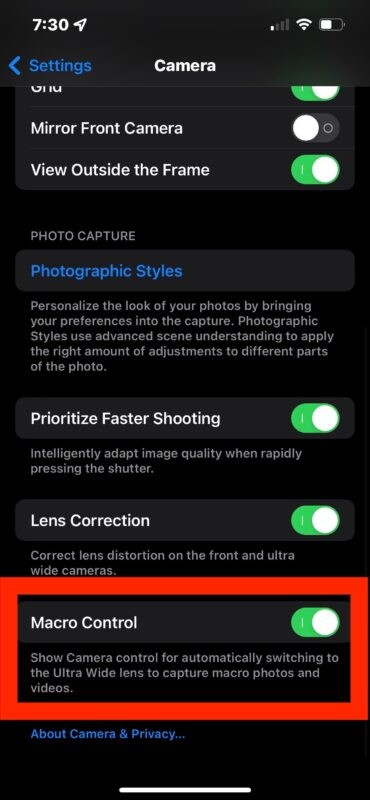
How you prefer this setting to be is up to you and how you use iPhone camera macro mode.
If you prefer more manual controls, you’ll likely want to enable the Macro Control option, since you can choose when to use Macro Mode on the iPhone camera or not.
If you’d rather have the iPhone take care of things on its own, disabling Macro Control allows the iPhone to enter or exit macro mode on its own whenever using the iPhone camera.
This setting is only available on the latest high end iPhone models, including iPhone 13 Pro, iPhone 13 Pro Max, or better.