
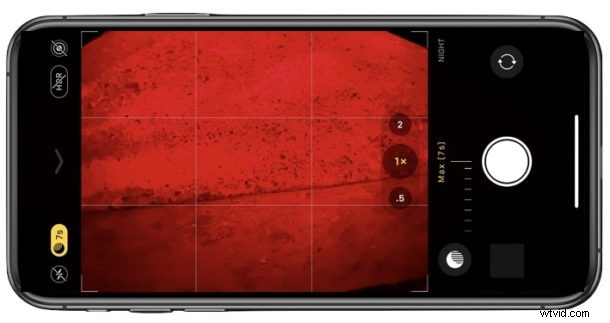
The Night Mode camera on iPhone 11 Pro, iPhone 11, and iPhone 11 Pro Max is one of the more interesting new features of the new iPhone models, and ones that iPhone photographers will surely enjoy and appreciate.
Using Night Mode camera on iPhone 11 and iPhone 11 Pro is somewhat unique, so read on to learn how to use Night Mode camera mode on the new iPhone cameras.
How to Turn On Night Mode on iPhone 11 Pro & iPhone 11 Camera
Night Mode actually turns itself on automatically when the lighting conditions are dark enough.
- Bring the iPhone into a dark setting and open the Camera app as usual
- Night Mode turns on automatically in a dark environment, as signified by the yellow moon icon in the camera app
- Take a photo with iPhone camera as usual, holding as still as possible
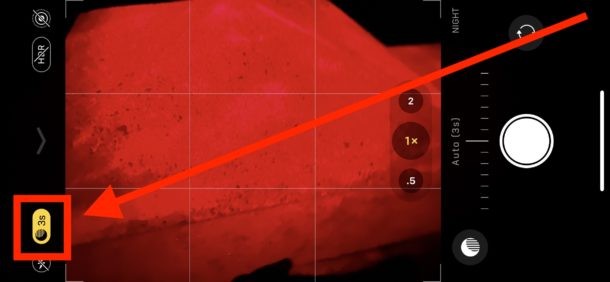
Just taking a photo in a dark setting will automatically enable Night Mode on the iPhone camera when you snap a photo.
In other words, you can’t directly enable Night Mode on the iPhone camera except by taking the iPhone into a dim setting or to dark location. The iPhone actually senses the change in surrounding light, and then enables Night Mode in camera when the appropriate lighting is detected.
An easy way to try this out yourself is to simply step outside at night and open the iPhone camera. Night Mode will automatically activate and turn itself on. Then snap a picture, and you’ll see how the feature works.
You can use Night Mode camera in either horizontal or vertical orientation, similar to portrait mode or any of the other cool iPhone photography features available to the devices camera.
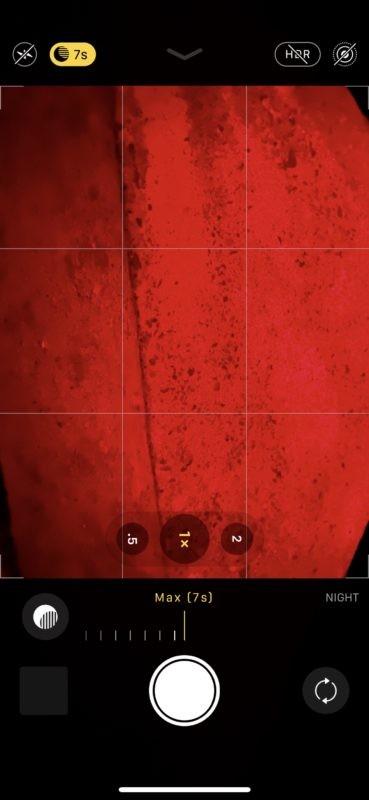
As already suggested, try to keep the iPhone as still as possible when using night mode camera. You can even use third party accessories like an iPhone tripod or iPhone stand to keep the iPhone completely sturdy when using Night Mode camera, which will produce a better resulting photo (and allow for longer exposure time lengths for very dark situations too).
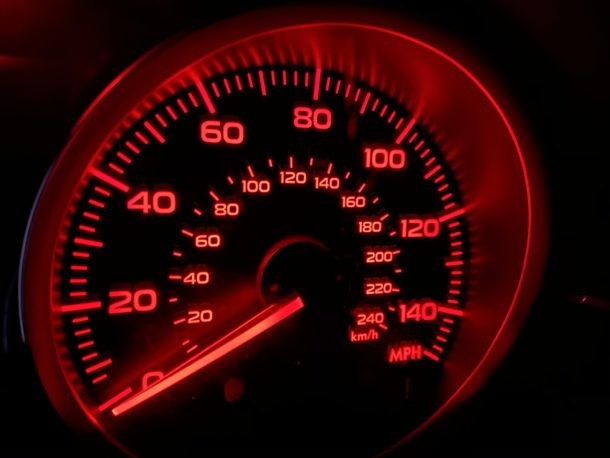
Here are a few example Night Mode photos taken with iPhone 11 Pro Max, here’s one of a car dashboard at night:
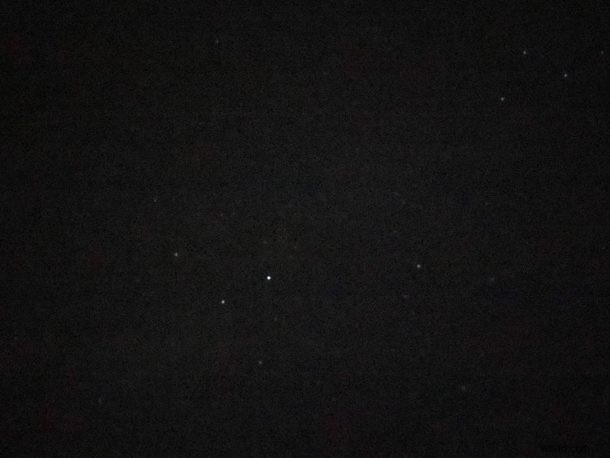
And here’s another example Night Mode photo from iPhone Pro showing a picture of a clear night sky and stars. These type of photos are probably better with a tripod for maximum clarity, but nonetheless it’s still pretty impressive you can shoot night star photography with an iPhone at all.
Are you using the Night Mode camera on iPhone 11, iPhone 11 Pro, or iPhone 11 Pro Max? What do you think of the camera feature? Let us know in the comments below. And if you’re into iPhone photography and using the device as a camera, don’t miss browsing through the Camera articles to learn all sorts of cool tricks.