
The Night Mode camera is a great feature of iPhone 11, iPhone 11 Pro, and iPhone 11 Pro Max, and as you may know already the feature turns itself on automatically when dim lighting is detected. But did you know you can manually adjust the time length of the exposure for Night Mode camera on iPhone?
Being able to directly adjust the exposure time of Night Mode camera shots on the iPhone camera is a great feature, and depending on the conditions of the lighting and how stable the iPhone is, you can get anywhere from 1 second to up to 30 seconds of exposure length, and anywhere in between. This article will show you how to manually adjust the Night Mode camera exposure time on iPhone 11, iPhone 11 Pro, and iPhone 11 Pro Max.
How to Manually Adjust Night Mode Exposure Time on iPhone 11 Camera
Once Night Mode is active, you can adjust Night Mode exposure time, which is how long the iPhone will get light from the scene being photographed for. Here’s how that feature works:
- Bring the iPhone into a dark area or dim environment to activate Night Mode camera as usual
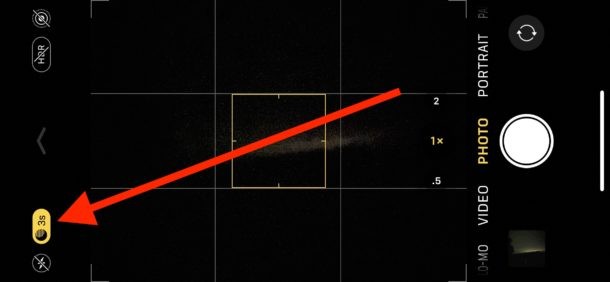
- Be sure Night Mode is active (as signified by the yellow moon icon in Camera app), then tap on the moon icon
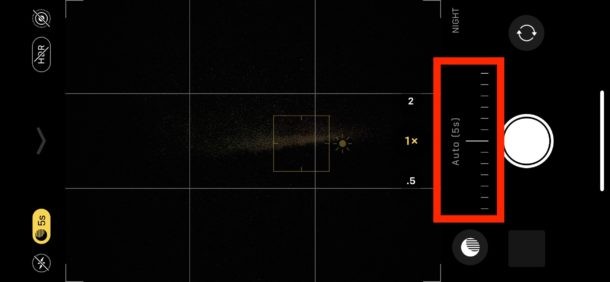
- Swipe to adjust on the time length slider that appears along the shutter button in camera
- Depending on lighting conditions and the stability of the iPhone 11, you may have options ranging from 1 second to 30 seconds
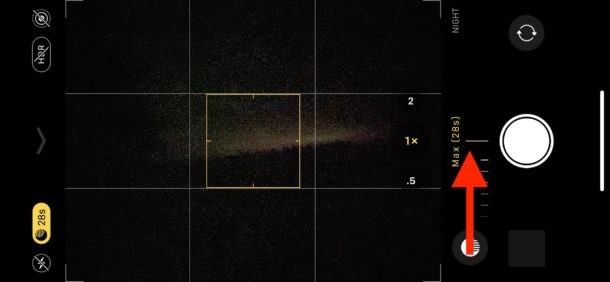
If you want the maximum exposure time length available as a setting, you need to be in a dark location, and the iPhone needs to be extremely still, such as when placed on a tripod or on some other support.
If you’re simply holding the iPhone 11 Pro, iPhone 11, or iPhone 11 Pro Max in hand, you will not get access to the longest exposure length times because the phone will detect the slight motion and movement of the body. Instead, prop it directly on something, or use a camera tripod.
In the example photo, a 28 second exposure was enabled and used by placing the iPhone 11 Pro Max on the roof of a car, pointing it at a subject (a rural tree-line) and letting the iPhone sit as still as possible while the long exposure night mode photo was snapped.
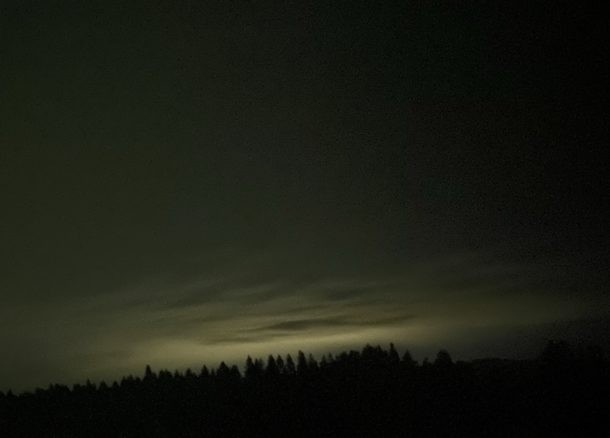
This example night mode photo may not seem particularly crazy, but keep in mind this was in a very dark location at around 10pm with a cloudy sky, and the only light available to the iPhone was light pollution from town reflecting on the sky which wasn’t even visible to the naked eye – so, not too bad when you consider all of that, right?
There are many different iPhone tripods available, so if you plan on using Night Mode iPhone camera often and want the best quality pictures with the feature, consider investing in a tripod to keep the iPhone completely still for shooting Night Mode photos.
Do you have any tips or tricks for mastering iPhone night mode photography or adjusting the exposure length for better pictures? Share your experiences, thoughts, and photography knowledge in the comments!