
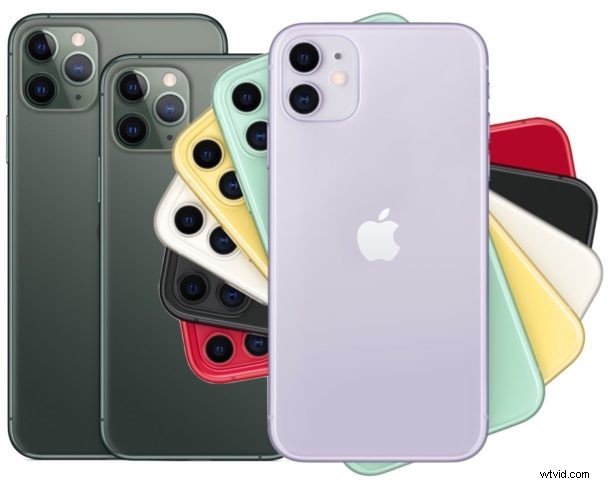
Wondering how to turn off iPhone 11 or iPhone 11 Pro? You might expect that by holding down the Power button it would allow you to turn off iPhone 11 Pro, iPhone 11, and iPhone 11 Pro Max and then power down the device, but that actually just activates Siri.
Instead, if you wish to turn off and power down the iPhone 11 and iPhone 11 Pro, you will use a button combination as described here.
How to Turn Off & Shut Down iPhone 11 & iPhone 11 Pro
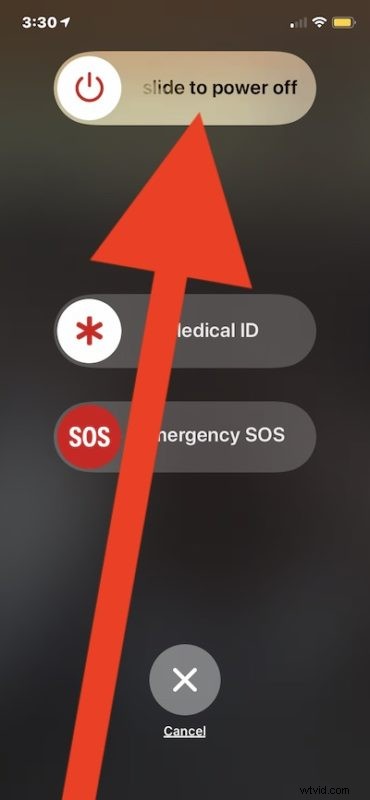
- Press and hold Volume Up and Power button concurrently until you see “slide to power off”
- Swipe on “Slide to Power Off” to turn off iPhone 11, iPhone 11 Pro Max, and iPhone 11 Pro
Another option is to shut down iPhone through Settings as discussed here, that method works without having to use any physical buttons on the device.
To turn iPhone 11, iPhone 11 Pro Max, and iPhone 11 Pro back on again and restore power, you can hold down the Power button.
You can also plug the iPhone 11 into a USB charger to turn it back on again.
Some previous iPhone models could simply hold down the Power button to access the Slide to Power Off screen and then power down the device, but newer iPhone models must use two buttons to turn off iPhone instead.
The same power-down approach applies to turning off iPad Pro and turning off iPhone XS, XR, and X, which changed when those devices lost the Home button as well.
Of course you could also just let the battery run down completely to 0% which will then automatically turn off the iPhone 11, iPhone 11 Pro, or iPhone 11 Pro Max, but that’s not exactly turning it off intentionally, and that’s the same with any other battery powered electronic device certainly not unique to the iPhone 11 series. By doing that, you’d obviously need to charge and power it up again before it’ll boot up and be usable as expected.
If you just recently got an iPhone 11, iPhone 11 Pro, or iPhone 11 Pro Max, then you might be wondering how some things work that are often different from a prior device you upgraded from. For example, you might also be interested in learning how to force restart iPhone 11 and iPhone 11 Pro, take screenshots on iPhone 11 and iPhone 11 Pro, use recovery mode on iPhone 11 and iPhone 11 Pro, and perform other tasks unique to the iPhone 11 series of devices.
If you know of any other helpful methods to turn off iPhone 11 or iPhone 11 Pro, or have any questions or thoughts about the process, post in the comments.