
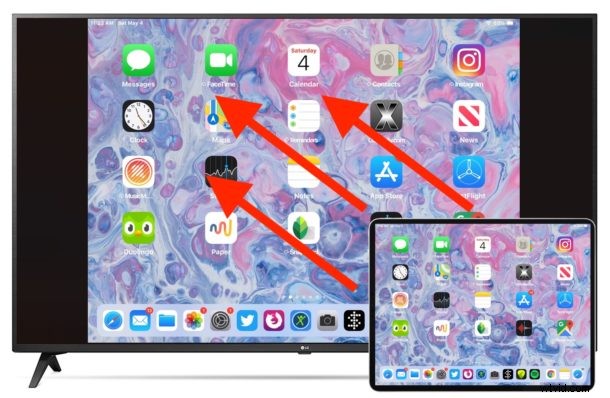
If you have an Apple TV and iPhone or iPad, you can easily mirror the iPhone or iPad display to the TV screen that is connected to Apple TV. This offers by far the simplest way to wirelessly connect an iPhone or iPad to a TV, and it allows you to show off whatever is on an iPhone or iPad screen on a much bigger TV display. This capability is commonly used in presentations, meetings, schools, homes, and for much more, as the uses cases are myriad.
To get started using wireless display mirroring, you will need an Apple TV connected to a TV, an iPhone or iPad, and all of the devices must be on the same wi-fi network, and running modern iOS or ipadOS system software. The rest is quite simple, as you’ll quickly see in this tutorial that demonstrates connecting an iPhone to an Apple TV and mirroring the display.
How to Connect iPhone / iPad to Apple TV Wirelessly with AirPlay Screen Mirroring
Make sure that all devices are connected to the same wi-fi network before beginning.
- Turn on the TV and Apple TV if you have not done so already
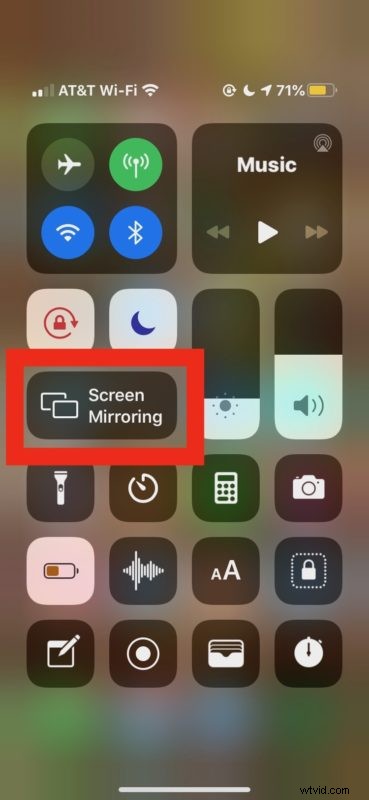
- On the iPhone or iPad, open Control Center (on newer iPhone X and later and iPad with iOS 12 or later, swipe down from the top right corner to access Control Center. For iPhone 8 or iOS 11 or earlier, swipe up from the bottom of the screen to access Control Center)
- Tap on “Screen Mirroring”
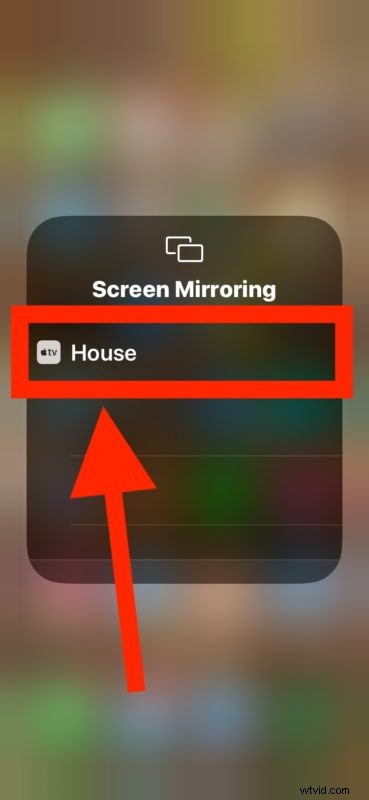
- Select the Apple TV from the list of available devices and tap on it
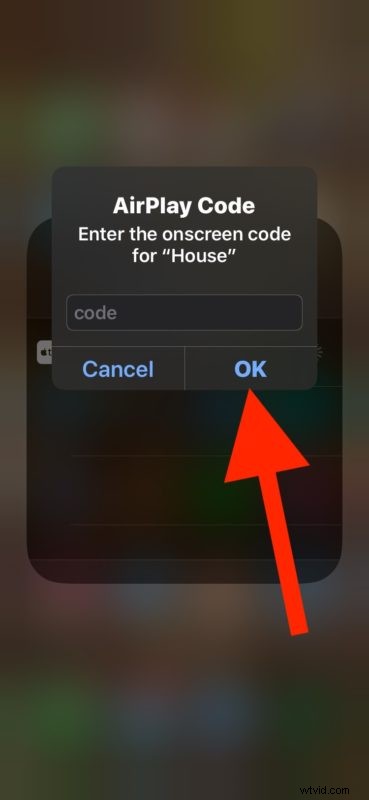
- If you haven’t connected the devices before, an AirPlay passcode will appear on the Apple TV display and you must enter that on the device to connect
- The iPhone or iPad screen will now be mirrored on TV display via Apple TV AirPlay, exit from Control Center and open whatever you want displayed on the TV
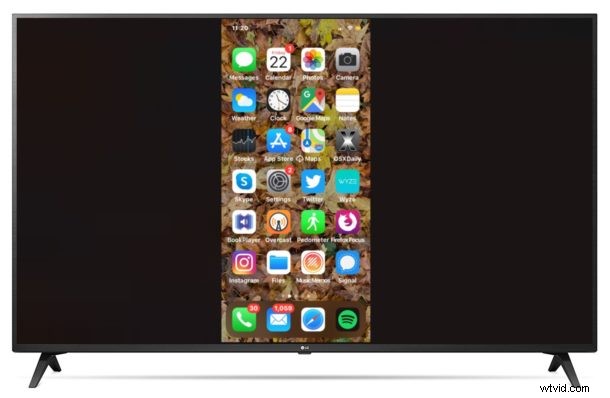
Now anything you do, use, or show on the iPhone or iPad display will show mirrored on the TV screen live in a wireless screencast.
This is so useful for many obvious reasons, and it’s an excellent feature that is impressively easy to use.
The mirrored display will reflect the aspect ratio of what you’re viewing on the iPhone or iPad. So for example if you use the iPhone and have the Home Screen in vertical orientation, the sides of the iPhone mirrored display on screen will show black bars.
The same thing happens on iPad but to a much lesser extent particularly if it’s viewed in the horizontal orientation.
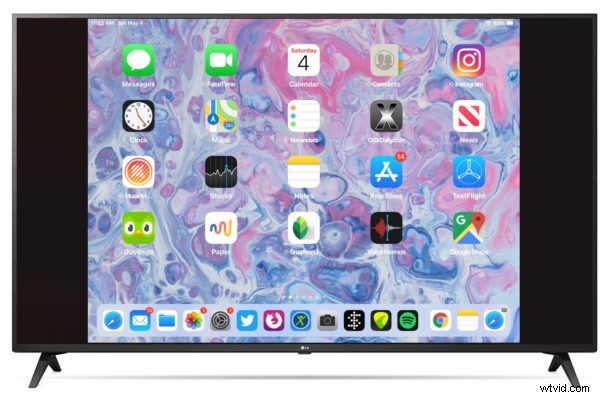
You can rotate the screen orientation with many apps, watch a video, zoom into the display, and each of those actions will fill more of the TV screen as the aspect ratio of the mirrored device will be more likely to fit to the TV display.
This method of mirroring the display obviously uses wi-fi and Apple TV, but if you don’t have AirPlay compatible TV or an Apple TV and still want to connect an iPhone or iPad to a TV you can do that with HDMI cables as shown here, though you will still need a special adapter for your device to do so.
Gamers should also enjoy this feature, since you can easily use a PS4 controller with iPhone or iPad or use an Xbox One controller too, allowing you to play games on the iPhone or iPad with a game controller on a bigger screen. Of course some games also have native Apple TV versions which also allow for controller use, but that’s a different matter.
How to Disconnect iPhone / iPad from Apple TV Screen Mirroring
Stopping screen mirroring is just as easy as starting it:
- Turn on the TV and Apple TV if you have not done so already
- On the iPhone or iPad, open Control Center (on newer iPhone X and later and iPad with iOS 12 or later, swipe down from the top right corner to access Control Center. For iPhone 8 or iOS 11 or earlier, swipe up from the bottom of the screen to access Control Center)
- Tap on “Screen Mirroring”
- Tap on “Stop Mirroring” to stop the iPhone or iPad display from showing on the TV / Apple TV
- Exit from Control Center as usual
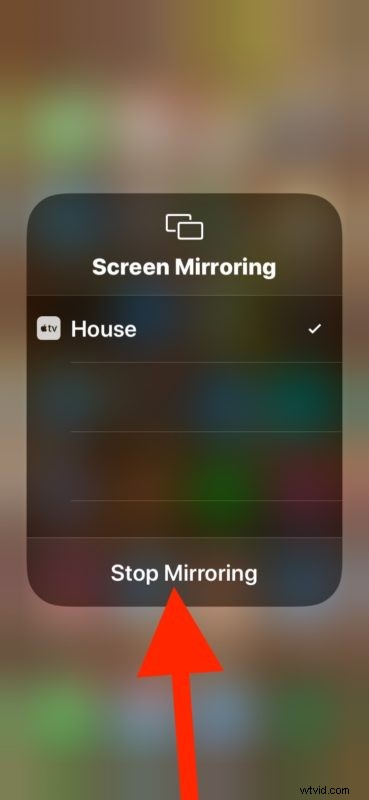
Screen mirroring ends the moment you tap to confirm “Stop Mirroring” and whatever is on the iPhone or iPad display will no longer show up on the TV screen.
The instructions shown here are for modern iOS and iPadOS versions and anything from iOS 12, iOS 13, iPadOS 13, or later should be have exactly as shown. Additionally, this article assumes you’re using those devices along with a modern Apple TV (or AirPlay compatible TV models). Earlier versions of hardware do support the same mirroring capability, but access is different as is usability. If you have a much older set of devices running older system software you can learn about how it all works on older iOS versions here. How it all works and how Mirroring is accessed has evolved a bit over time, but nonetheless it’s arguably becoming more useful now than ever before.
Do you use screen mirroring to show an iPhone or iPad display on a TV? Do you use something else to accomplish a similar effect? Let us know in the comments below what you think of this feature and how it works for you, or if you have a different approach entirely.