
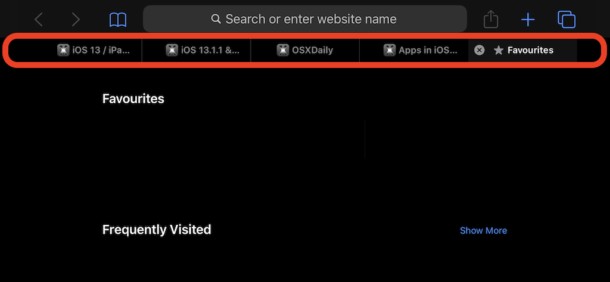
The more you browse the web, the more you’re likely to find that you’re drowning in a sea of open tabs. We all do it, and it can be a real nuisance on iPhones and iPads where we’re tapping links left and right and scrolling through endless open Safari browser tabs. But with the latest versions of iOS and ipadOS (iOS 13 and iPadOS 13.1 and later), you can have Safari browser tabs automatically close.
That might sound like a nothing feature, or a feature that won’t make a big difference to your life, but if you’re the type of person who taps a lot of links in Twitter or fall into a web-shaped rabbit hole, or indulges in regular Wikipedia reading binges, then having all of those Safari tabs go away on their own is a thing of beauty. And it can all happen without you having to lift a finger.
How to Enable Automatic Tab Closing in Safari for iPhone & iPad
You’ll need to turn this feature on yourself, but once it’s on you will find that Safari will automatically do the rest:
- Open the Settings app on your iPhone or iPad.
- Swipe down and tap “Safari”.
- Swipe down again, this time tapping “Close Tabs.”
- Select how often you want those tabs to be closed; after a day, a week, or a month.
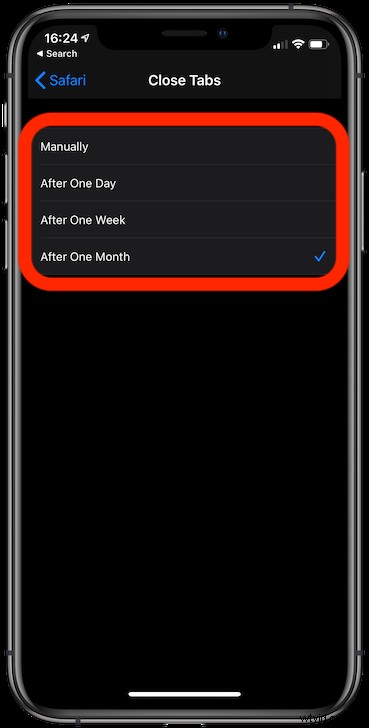
Now, each and every tab will be closed once its lifespan exceeds the timescale you just chose.
Don’t worry, you can re-open closed Safari tabs in iOS easily enough too, should you find that necessary.
You can disable this feature too at any time by returning to the Settings > Safari > Close Tabs > and choosing “Manually” from those settings on the iPhone or iPad. So if you have your tabs automatically closing but change your mind on that behavior, adjusting to suit those preferences is just a matter of returning to the Settings app.
As mentioned before, this feature requires iOS 13 or iPadOS 13 or later, as earlier versions of iOS did not support automatic tab closing in Safari. Instead, earlier versions of Safari for iOS had to close either all tabs, or manually close tabs in iOS Safari that are no longer wanted to be open (and by the way, that still works on the latest iOS and iPadOS releases too).
There are plenty of more tricks and features to enjoy in iOS 13 and iPadOS 13 too, if you’ve just recently updated now would be a great time to follow along iOS 13 coverage to learn about everything the new software has to offer.
Do you find that you’re constantly wading through tens or hundreds of open tabs, and if so did this new option help you restore some form of sanity to Safari? Which option works best for you? Let us know how you manage your open tabs in the comments below.