
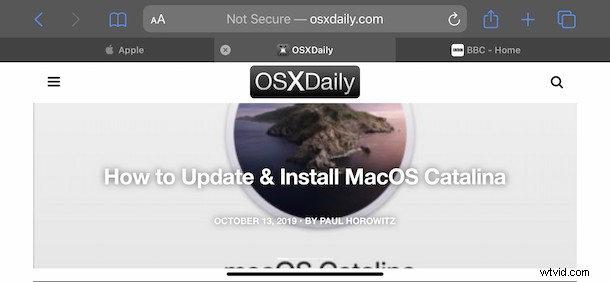
Ever have tons of Safari tabs opened on iPhone or iPad and wished you could bookmark them all at once so you can easily refer to them all later? Now you can do exactly that on iOS and iPadOS, bookmarking all of your open browser tabs in one fell swoop.
With so many great websites on the internet it’s very easy to find yourself with many, many open browser tabs. But you probably don’t want to lose them all, so just closing them out isn’t always an option. That’s what bookmarks are for and Safari handles them better than ever with a new ability to bookmark all tabs at once, rather than bookmarking each tab individually.
How to Save All Tabs as Bookmarks in Safari on iPhone & iPad
You’ll obviously need to be in Safari to start, but you knew that already. The rest is super easy on either iPhone or iPad:
- Open Safari if you’re not already using the browser on the iPhone or iPad
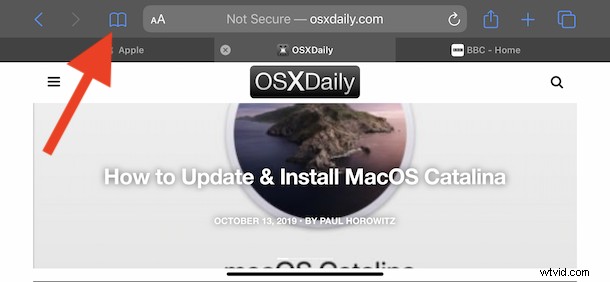
- Tap and hold a press on the bookmark icon in Safari.
- Tap the “Add Bookmarks for X Tabs” button.
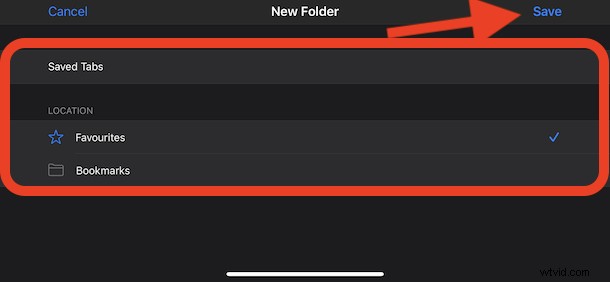
- Choose a location to save all of your new bookmarks. You can create a new folder destination for the tabs if needed, too.
- Tap “Save” and you’re done.
Now that you’ve saved all of those tabs you can close them all without having to worry about missing anything important, because you’ll be able to easily and quickly browse through them in your bookmarks folder.
This feature is limited to newer versions of Safari on iOS 13 and iPadOS 13 or later, earlier versions do not include the capability. Apple made a variety of changes to Safari in iOS 13 and iPadOS 13 and this is one of those particularly handy features.
Being able to automatically close open tabs is another extra useful feature, and being able to bookmark all of your open tabs with just a few taps is just as good, giving you plenty of options to manage Safari browser tab clutter.
And don’t forget you can also increase font size for any web page in Safari on iPhone and iPad too, so if you find page text too small to easily read, it’s now simple to adjust that.
Do you have tons of open web browser tabs at any given time, or does that stress you out? Do you like to keep a small number of tabs, or are you swimming in dozens or hundreds of open browser tabs? Either way, try out the new “Bookmark All Tabs” feature, it’s very useful!
We’d love to hear your experiences with bookmarking open tabs and how you manage Safari browser tabs on your devices, so let us know in the comments below.